Administrators
When you sign up for Acium UBS, you automatically become the first administrator of your Acium organization.
Find this section at Operate > Administration > Administrators.
Guidance for managing administrators
- Add at least one other administrator so your Acium organization can always be accessed by a trusted user in your company.
- Administrators can be assigned one of three roles — Admin, Editor, or Viewer — each granting a different level of access to the management console. Assign roles according to each user's responsibilities.
- Use a strong password for your account, and change it regularly in accordance with your company's security policy.
- Acium UBS ends administrator sessions after a period of inactivity — configurable under Organization Settings.
Invite an administrator
-
Select Invite admin.
-
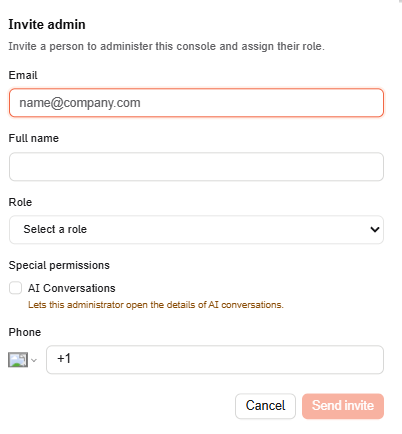
Enter the person's Email, select their Role, and enter their Full name and Phone number (with country code).
-
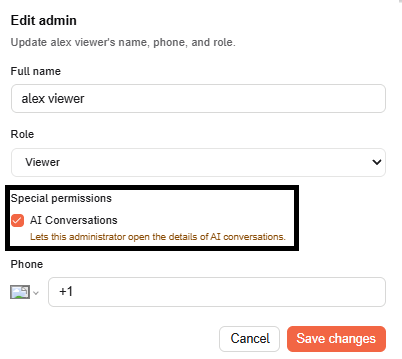
Under Special permissions, optionally check AI Conversations to let this person open the full thread of a captured AI conversation, not just the list. This is independent of their role — you can grant it to a Viewer or Editor just as much as an Admin; it's your call for each person you invite, not something a role grants automatically. See AI Conversations for what the permission covers.
-
Select Send invite.
If the email address you enter belongs to a user already discovered in your user inventory, Acium UBS shows a warning asking you to confirm you still want to assign them the administrator role. Select Yes, Assign Admin Role to confirm — the same invite flow described above proceeds from there.
New administrator confirmation
After you invite a new administrator, Acium UBS emails them a message titled "Welcome to Acium," sent from support@acium.io. The email names your Acium organization and their username, and includes a Get Started button linking to a password reset page.
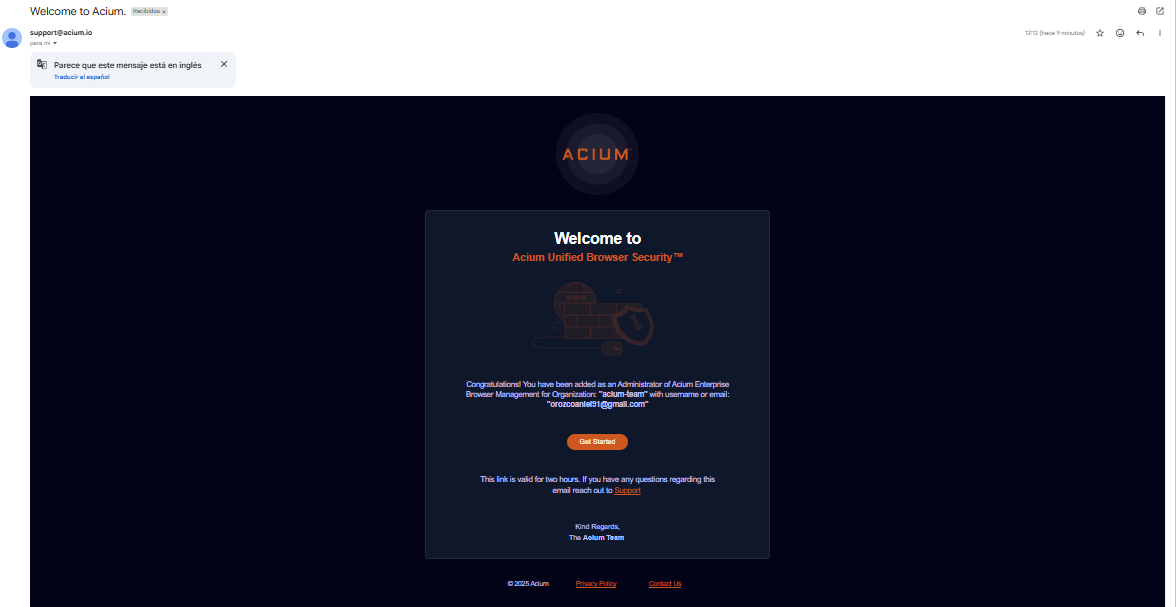
This link is valid for two hours. If it expires, the new administrator can still set a password by visiting the Acium sign-in page and selecting Forgot Password?.
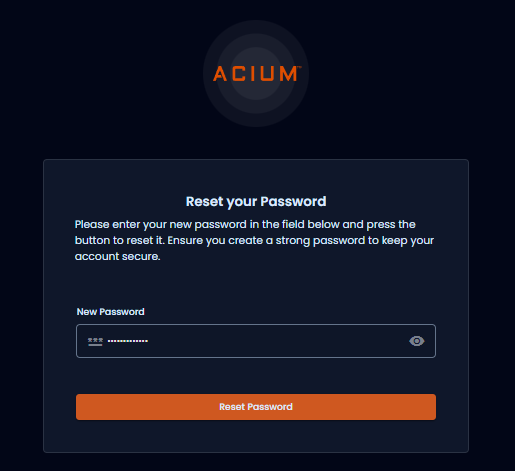
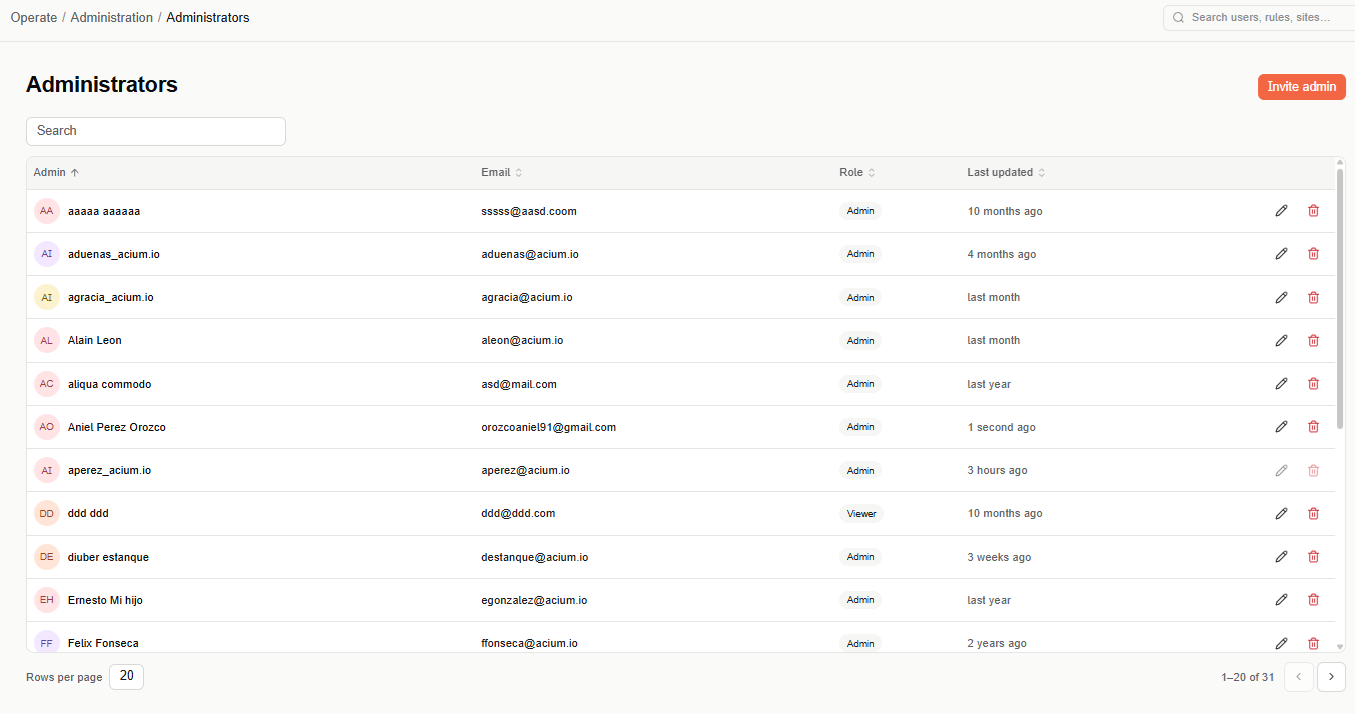
When the new administrator selects Get Started, sets a password, and selects Reset Password, Acium UBS signs them in automatically. Once they've done this, their row in the Administrators table shows the sign-in date and time under Last updated — until then, that column stays blank.
Modify or remove an administrator
On the Administrators page, select the pencil icon next to an administrator to edit their information, or the trash icon to remove them. Editing opens the same dialog as inviting one, including the Special permissions checkbox — so you can grant or revoke the AI Conversations permission for someone after they've already been added, not just at invite time. You can modify or remove other administrators, but not your own account — those actions are disabled on your own row.
Administrators table
The main page lists every administrator with the following columns: Admin, Email, Role, and Last updated. Use the search box to find a specific administrator.