Integrations
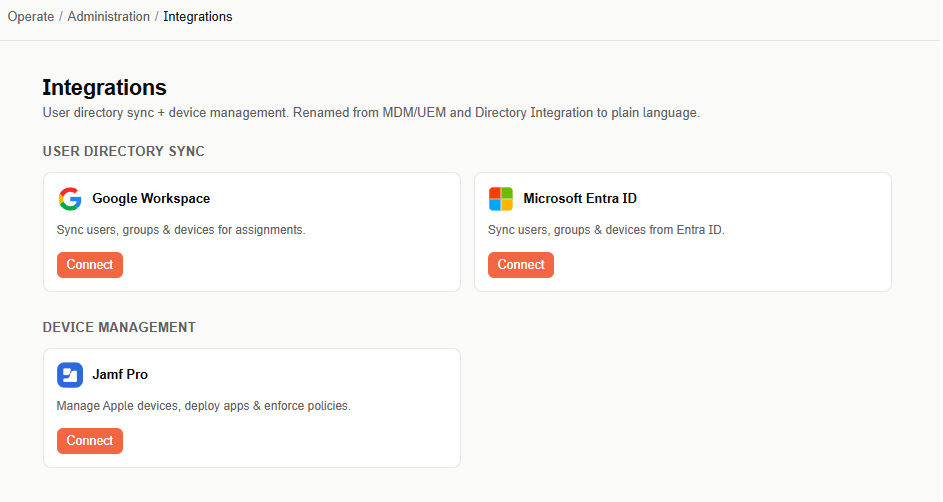
Integrations connect Acium UBS to your directory service and device management platform, for user directory sync and device management.
Find this section at Operate > Administration > Integrations.
Only administrators with the Admin role in your organization can access the Integrations page and configure integrations.
When you connect Google Workspace, Microsoft Entra ID, or Jamf Pro, you can target directory groups directly from a profile's audience, instead of adding users one at a time. If you don't connect a directory, you can still target specific users individually when configuring a profile's audience.
Acium UBS supports three integrations, in two groups: User Directory Sync (Google Workspace, Microsoft Entra ID) and Device Management (Jamf Pro).
Google Workspace
Syncs users, groups, and devices for use in profile audiences.
Requirements:
- A Google Workspace domain.
- An administrator account with the following Admin API privileges: Domain settings (add or remove domains and domain aliases), Organizational Units (create, read, update, and delete), and Users (create, read, update, and delete). Acium UBS uses this account to impersonate the administrator and create the connection.
- A Chrome device enrolled in the domain.
- At least one child OU in the directory.
Connect Google Workspace:
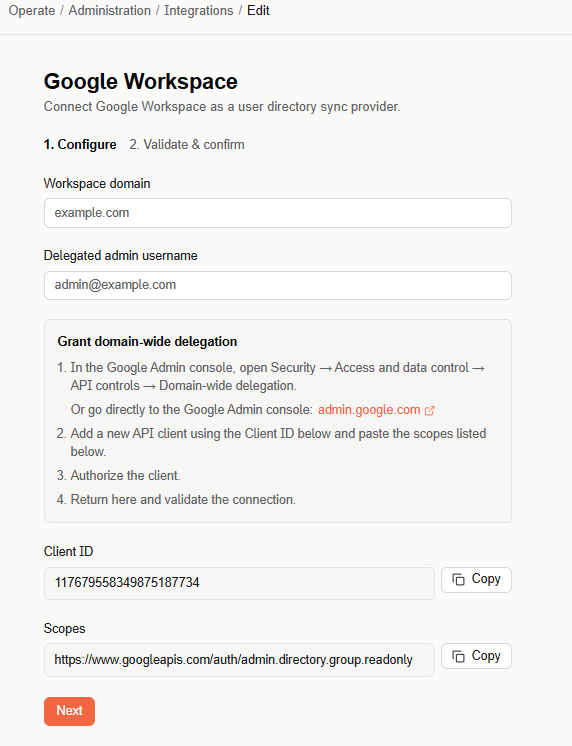
- Select Connect under Google Workspace.
- Enter your Workspace domain and the Delegated admin username — the email of an administrator account with the privileges listed above.
- Grant domain-wide delegation to the Acium client application:
- In the Google Admin console, go to Security > Access and data control > API controls > Domain-wide delegation (
admin.google.com). - Select Add New, then add an API client using the Client ID shown in Acium UBS, and paste in the Scopes listed.
- Authorize the client.
- Return to Acium UBS and select Next to validate the connection.
- In the Google Admin console, go to Security > Access and data control > API controls > Domain-wide delegation (
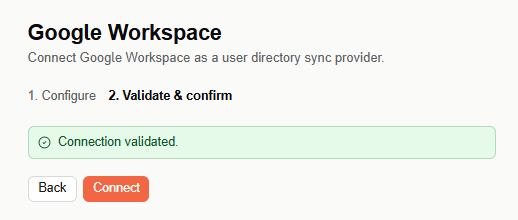
- Once the connection shows as validated, select Connect (or Save changes, if you're editing an existing connection) to finish.
Microsoft Entra ID
Syncs users, groups, and devices from Entra ID.
Requirements: the administrator who connects Entra ID must be a Global Administrator in the Azure subscription. Acium UBS requests the following Microsoft Graph permissions:
- Application permissions:
User.ReadBasic.All,Group.Read.All,GroupMember.Read.All - Delegated permissions:
email,openid,profile,User.Read,Directory.Read.All,GroupMember.Read.All,offline_access
Connect Microsoft Entra ID:
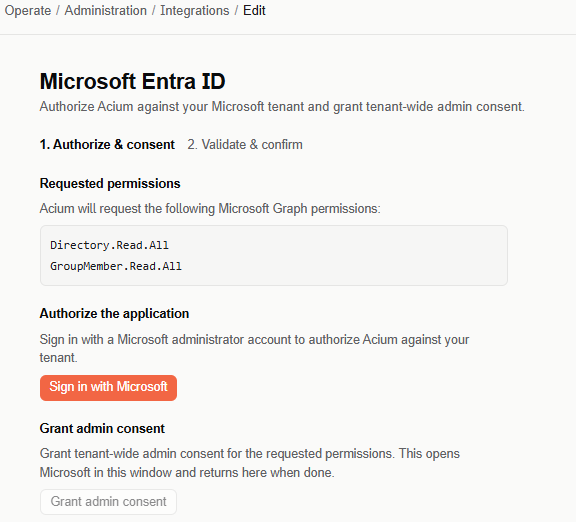
- Select Connect under Microsoft Entra ID.
- Review the requested permissions, then select Sign in with Microsoft and authorize using a Microsoft administrator account.
- Select Grant admin consent to grant tenant-wide consent for the requested permissions — this opens Microsoft in the same window and returns you here when done.
- Select Next to validate the connection, then Connect to finish.
If authorization fails — for example, if it times out — an inline error message appears with a link to more detail.
Jamf Pro
Manages Apple devices, deploys apps, and enforces policies.
Jamf group selection is currently the only supported method for applying browser policies to Safari on macOS devices.
Requirements:
- A Jamf Pro instance with a valid server URL.
- A macOS device enrolled in Jamf.
- A Jamf API client with a Client ID and Client Secret, granted the following permissions in Jamf: Create, Update, and Delete macOS Configuration Profiles; Read Smart Computer Groups; Read Static Computer Groups; Read API Roles.
Connect Jamf Pro:
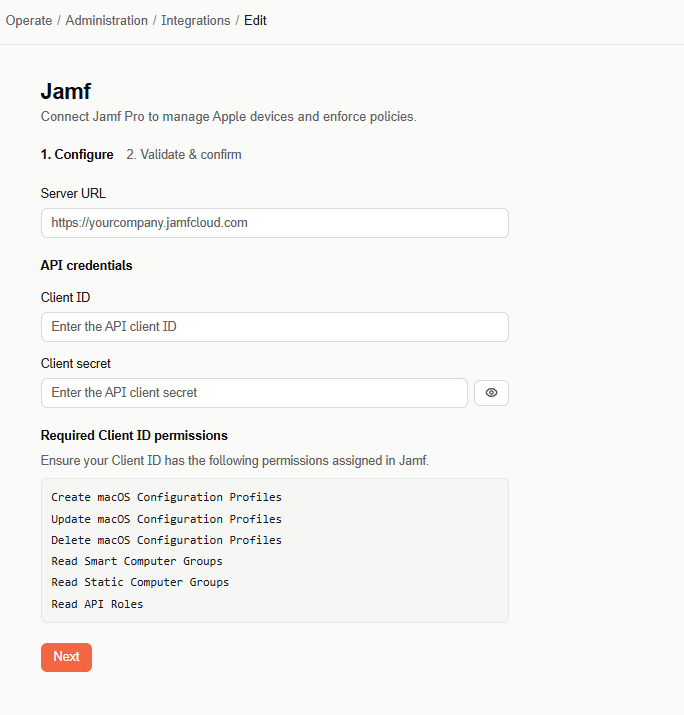
- Select Connect under Jamf Pro.
- Enter your Jamf Server URL (for example,
https://yourcompany.jamfcloud.com). - Under API credentials, enter your Jamf API client's Client ID and Client secret — select the eye icon to reveal it.
- Select Next to validate the connection, then Connect to finish.
Manage or disconnect an integration
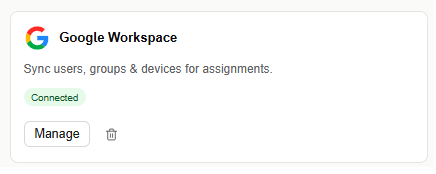
Once an integration is connected, its card shows a Connected badge with two actions:
- Manage — reopens the same configuration form so you can edit the connection.
- The delete (trash) icon — disconnects the integration.
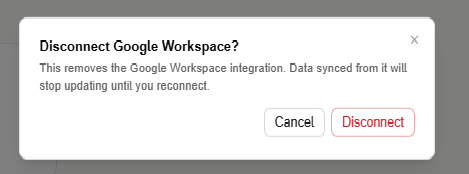
Disconnecting shows a confirmation dialog: removing the integration stops synced data from updating until you reconnect. After disconnecting in Acium UBS, also revoke the Acium application's access directly in the connected service — remove the client and scope in Google Workspace, delete the enterprise application in Microsoft Entra ID, or disable the API client in Jamf.