Organization Settings
Org-wide security, enforcement, and telemetry settings for your Acium organization.
Find this section at Operate > Administration > Organization Settings.
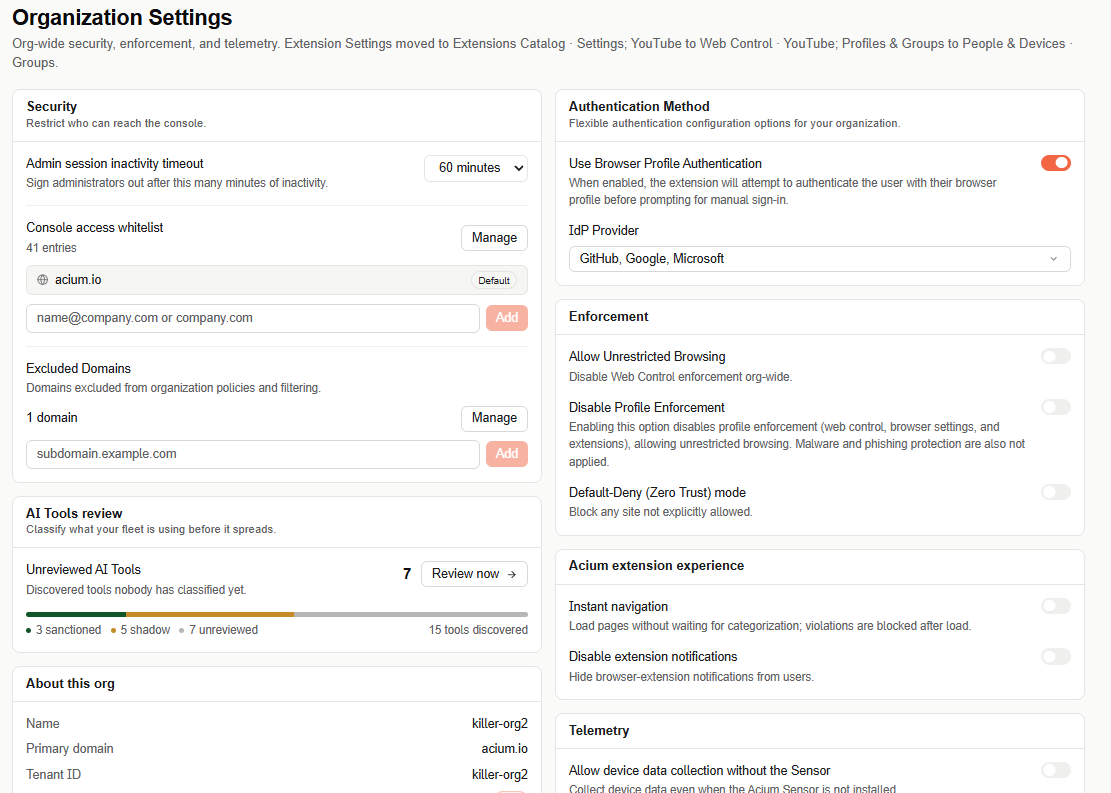
Some settings that used to live here moved elsewhere: Extension Settings moved to Extensions Catalog > Settings, YouTube settings moved to Web Control > YouTube, and Profiles & Groups moved to People & Devices > Groups.
Security
Restrict who can reach the console.
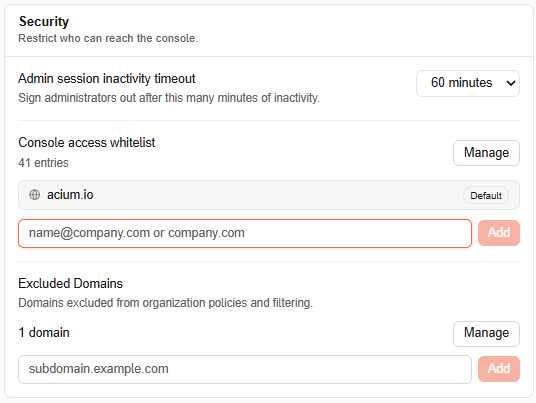
Admin session inactivity timeout
Signs administrators out after this many minutes of inactivity.
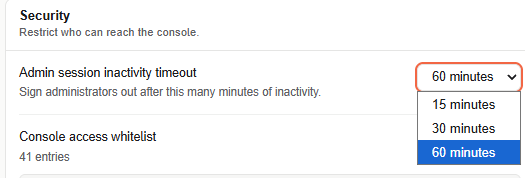
Choose 15 minutes, 30 minutes, or 60 minutes.
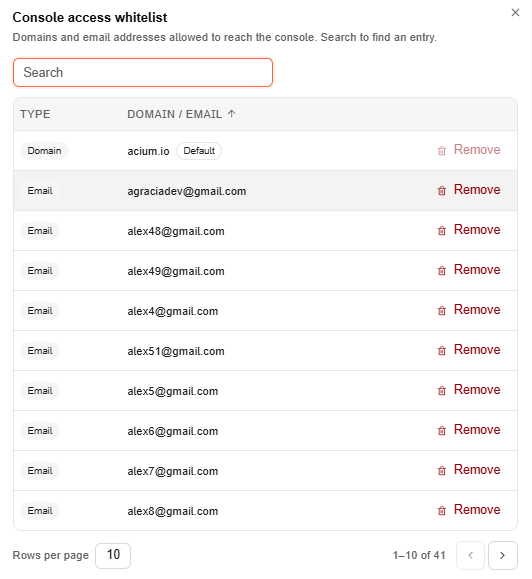
Console access whitelist
The domains and email addresses allowed to sign in to the console.
Type into the name@company.com or company.com field and select Add to allow a new domain or email address directly from the card.
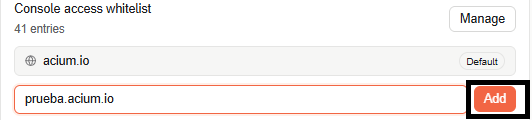
Select Manage to open the full list in a dialog — searchable, and paginated (10 rows per page). Each entry shows its Type (Domain or Email) and can be removed, except your organization's default domain.
Excluded Domains
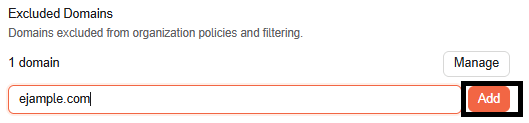
Domains excluded from organization policies and filtering entirely — works the same way as the whitelist above: add one directly with the subdomain.example.com field and Add, or select Manage to review and remove existing entries.
Authentication Method
Flexible authentication configuration options for your organization.
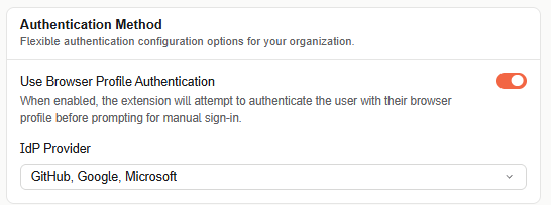
Two settings, in order:
- Use Browser Profile Authentication — the toggle that turns this method on or off. When enabled, the extension tries to authenticate the user with their browser profile before prompting for manual sign-in.
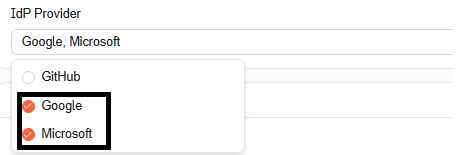
- IdP Provider — once enabled, a multi-select list of which identity providers the extension will accept for that browser-profile sign-in. Open the dropdown to check or uncheck GitHub, Google, and Microsoft individually.
Enforcement
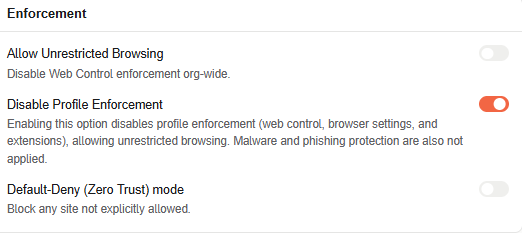
- Allow Unrestricted Browsing — disables Web Control enforcement organization-wide. Keep this off unless you need to temporarily troubleshoot an issue.
- Disable Profile Enforcement — disables Web Control, Browser Settings, and Extensions profile enforcement entirely, allowing unrestricted browsing. Malware and phishing protection are also not applied while this is on.
- Default-Deny (Zero Trust) mode — blocks any site not explicitly allowed.
AI Tools review
Classify what your fleet is using before it spreads.
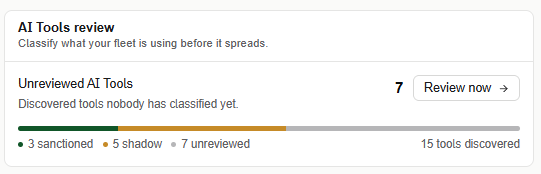
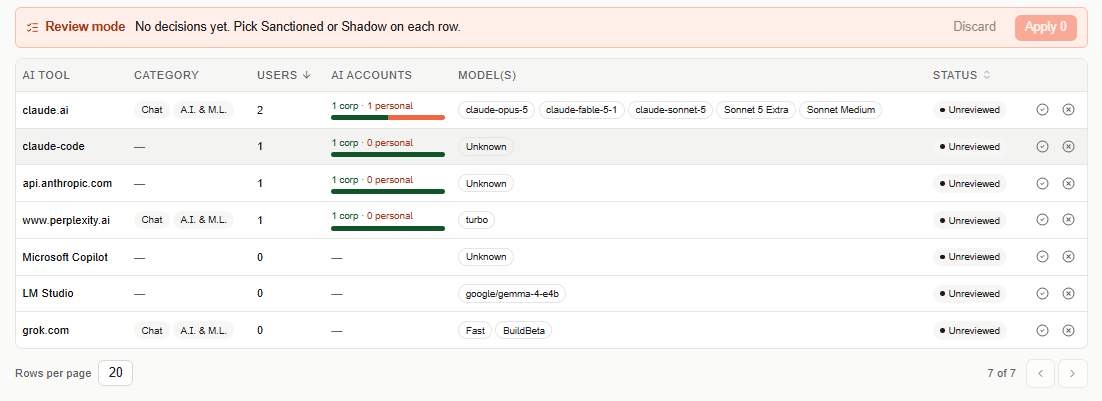
Shows how many installed AI tools are still Unreviewed, out of the total discovered, with a breakdown bar of Sanctioned/Shadow/Unreviewed counts. Select Review now to open AI Tools & Agents with Review mode already active and filtered to Unreviewed tools — ready to classify, with no extra clicks to get there.
Telemetry
Data collected from endpoints.
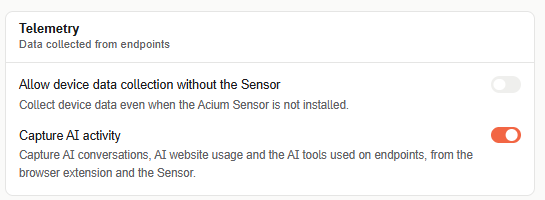
- Allow device data collection without the Sensor — collects device data for the listed domains even when the Acium Sensor isn't installed.
- Capture AI activity — the org-wide switch for AI Conversations, AI in Browsers, and AI Tools & Agents: captures AI conversations, AI website usage, and the AI tools used on endpoints, from the browser extension and the Sensor. Turning this off stops all three views from receiving new data.
Acium extension experience
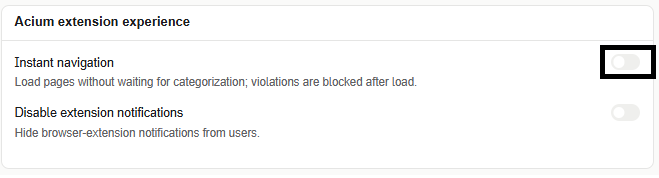
- Instant navigation — loads pages without waiting for categorization; violations are blocked after the page loads.
- Disable extension notifications — hides browser-extension notifications from users.
About this org
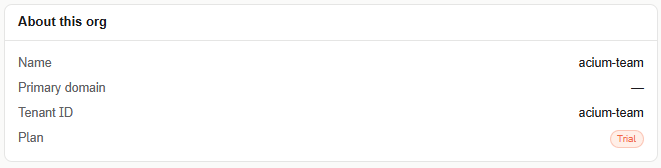
Read-only details: organization name, primary domain, tenant ID, and plan.