Users
Users lists everyone Acium UBS has discovered on your fleet — anyone who has installed and signed in to the extension. It's one of three tabs under People & Devices, alongside Devices and Groups.
Find this section at Fleet > People & Devices > Users.
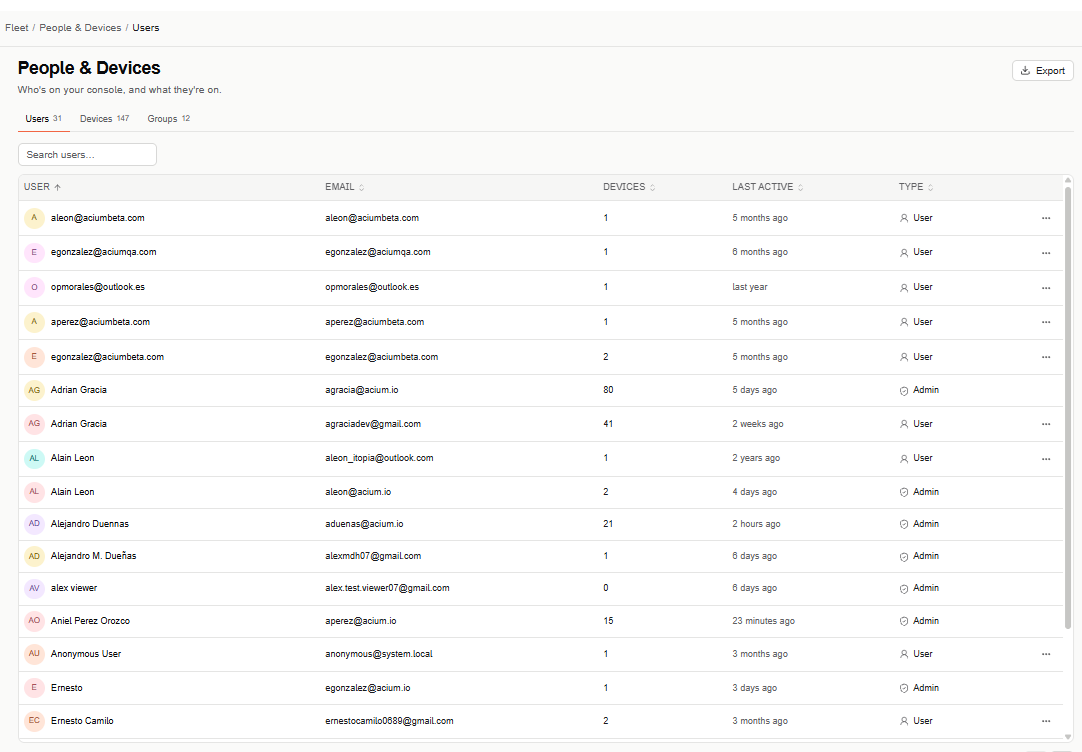
Users table
Search for a user by name or email, or scroll the paginated table (20 rows per page by default). Columns: User, Email, Devices, Last active, and Type (User or Admin) — User, Devices, Last active, and Type are all sortable.
Select a user's name to open their details page.
Actions
Each row's ⋯ menu has a single action: Delete user.
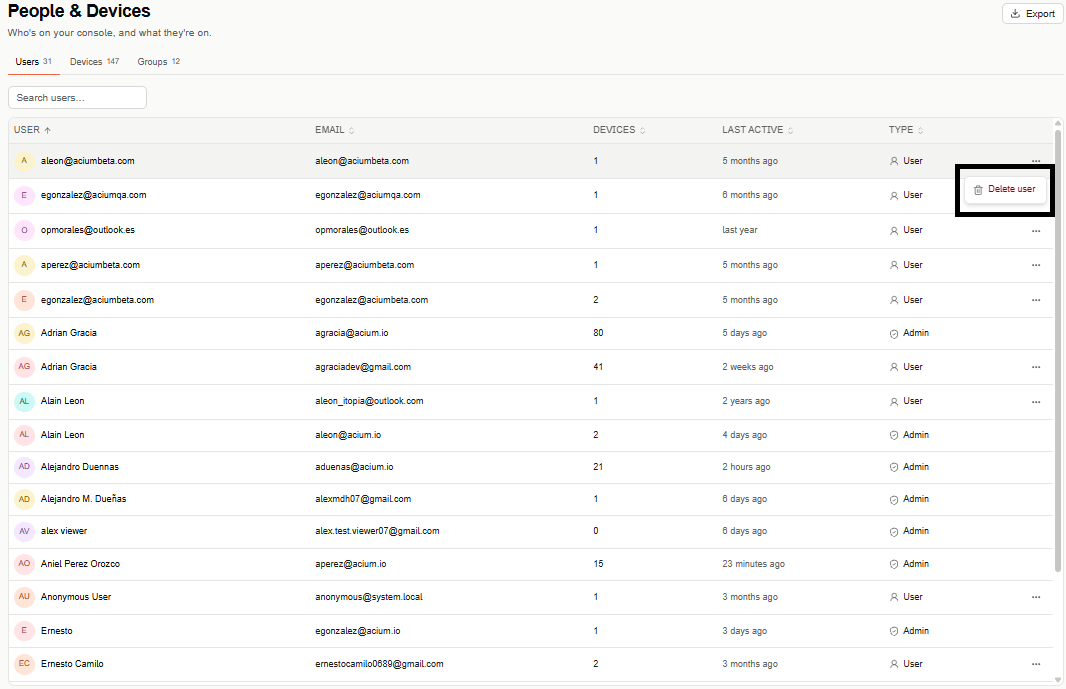
This removes a non-admin user outright. An admin account can't be deleted from here — manage admin accounts from Administrators instead.
Export
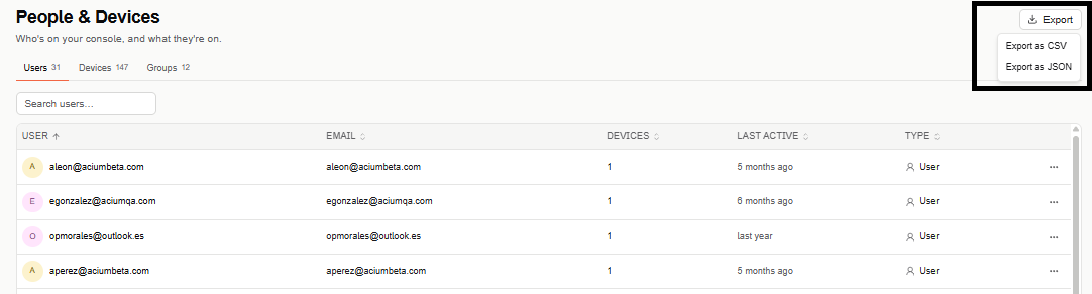
Select Export (top right) to download the users list as CSV or JSON.
User details
Selecting a user's name opens their details page: who they are, what they're on, what applies to them, and what they've been doing.
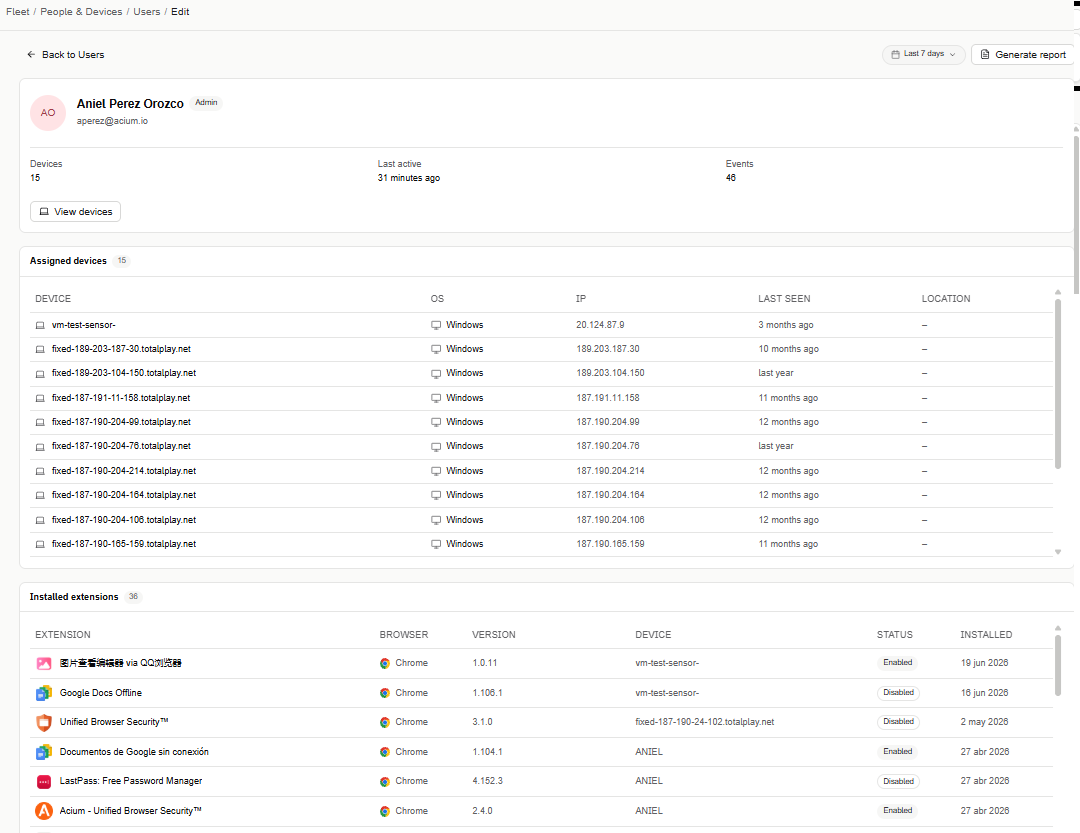
At the top: Devices (how many devices have the extension installed — select View devices to jump to the list below), Last active (when the user last signed in), and Events (total events recorded for the user in the selected date range). Top right: Delete user, the date range selector, and Generate report.
Assigned devices
The devices where this user has the extension installed: Device, OS, IP, Last seen, and Location.
Installed extensions
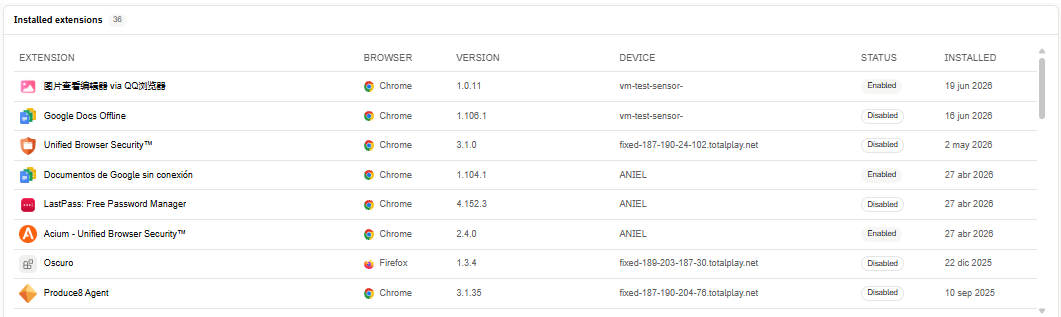
The browser extensions installed across this user's devices: Extension, Browser, Version, Device, Status (Enabled or Disabled), and Installed date.
Policies in effect
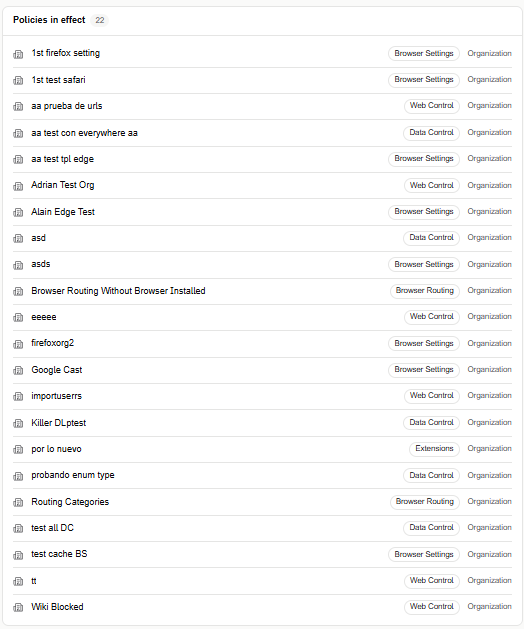
Every profile that currently covers this user, across every profile type (Web Control, Data Control, Browser Settings, Browser Routing, Extensions), with its scope (for example, Organization). Select a policy to open it for editing. This is the same underlying data Reach's Effective policy for... tab shows for a user, surfaced here for convenience.
Last known location
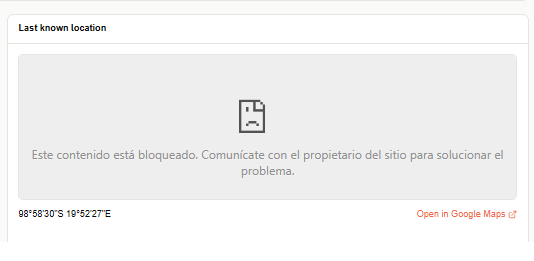
The user's last known geolocation, as coordinates with an Open in Google Maps link. The map preview itself doesn't render yet — that's a known issue, not the intended behavior.
Activity insights
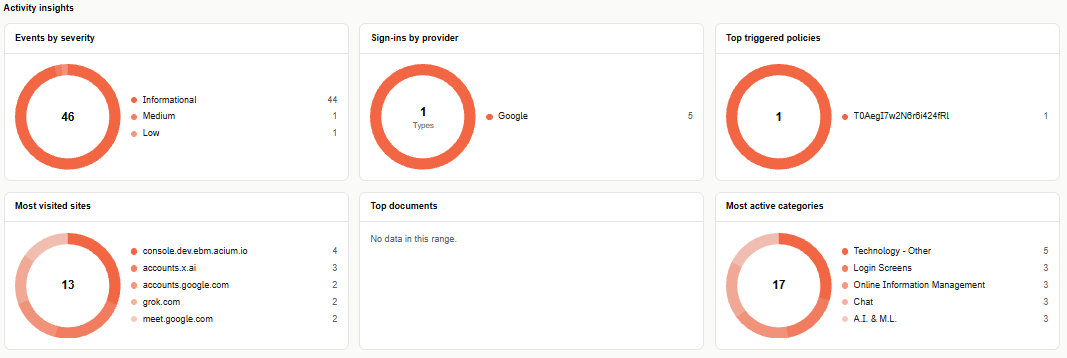
Six cards summarizing this user's activity for the selected date range, each a donut chart with a legend:
- Events by severity — recorded events, broken down by severity level.
- Sign-ins by provider — which identity providers the user signed in with, and how many times each.
- Top triggered policies — which of the user's assigned policies fired, and how often.
- Most visited sites — the domains the user visited most.
- Top documents — the documents the user accessed most. Shows "No data in this range" when there aren't any.
- Most active categories — the site categories the user visited most.
Security Events and Web Activity
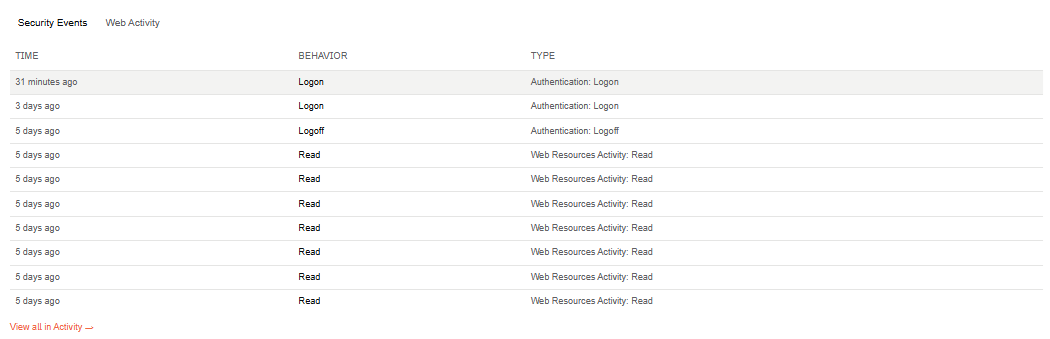
Two tabs — Security Events and Web Activity — each showing a preview scoped to this user for the selected date range. Select View all in Activity to open the full Security Events or Web Activity view, filtered to this user.
Date range
Top right on the details page, the date range selector defaults to Last 7 days, and can be widened to Last 30 days or Last 90 days. It controls Events, Activity insights, and the Security Events/Web Activity preview.

Generate report
Share a read-only snapshot of this user's activity for the selected date range. Set the date range (top right) to the period you want the report to cover before generating it.
-
Select Generate report on the user's page.

-
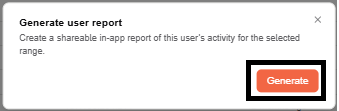
In the dialog, select Generate.
-
Select the copy icon next to the generated URL, then share it with anyone in your organization.
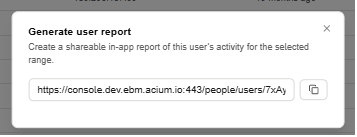
The report link is valid for 7 days from creation.