Google Workspace force-install
Deploy the extension to managed Chrome browsers directly from the Google Admin console, without installing the sensor. Once configured, the extension installs automatically the next time a user launches Chrome, and users can't remove it.
By default, the extension asks users for the Acium organization name before they can sign in. Supplying your organization ID in the installation policy skips that prompt — users only enter their Google or Microsoft account credentials the first time they sign in.
-
Go to the Google Workspace Admin console at admin.google.com and sign in.
-
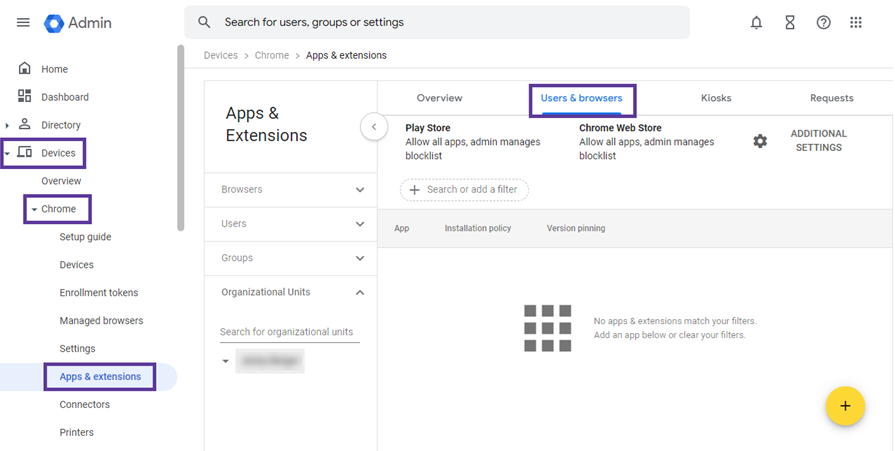
Select Devices > Chrome > Apps & extensions > Users & browsers.
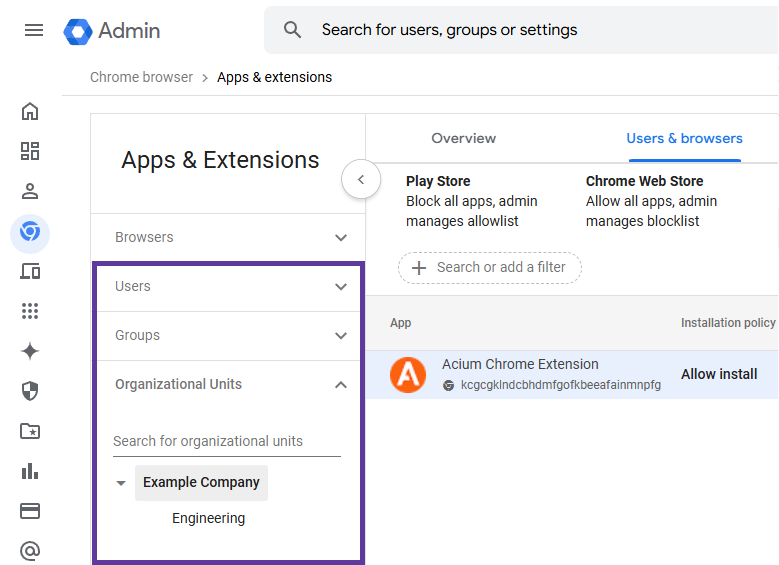
- On the left, select the users, groups, or organizational units to install the extension for. Leave the top organizational unit selected to install it for every enrolled browser in your organization.
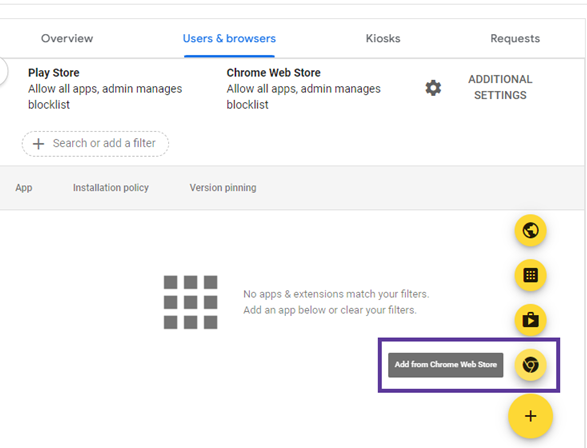
- Hover over the + icon at the bottom right of the console and select Add from Chrome Web Store.
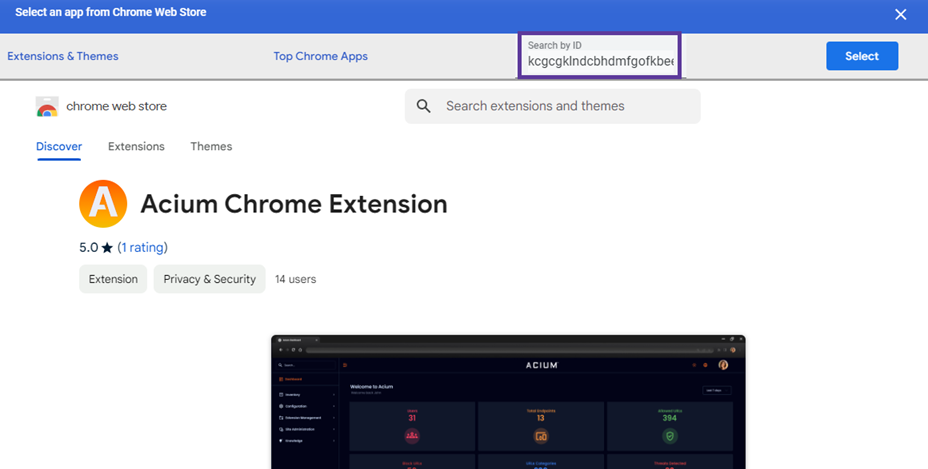
- Under Search by ID, enter the Acium extension ID
kcgcgklndcbhdmfgofkbeeafainmnpfg, then select Select.
- From the Users & browsers tab, select the Acium Chrome Extension app.
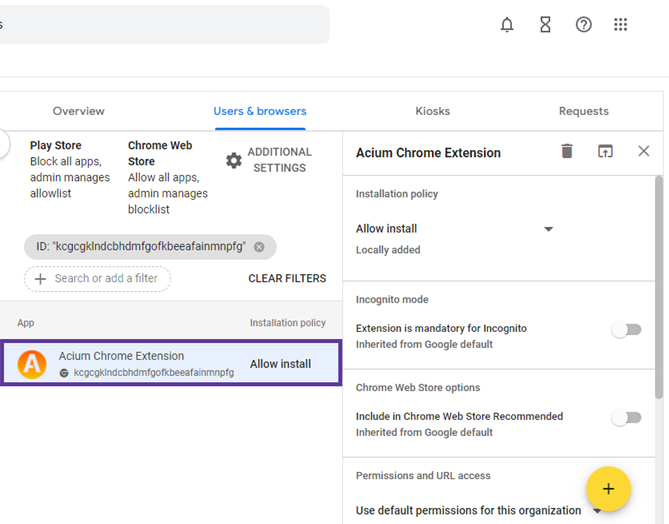
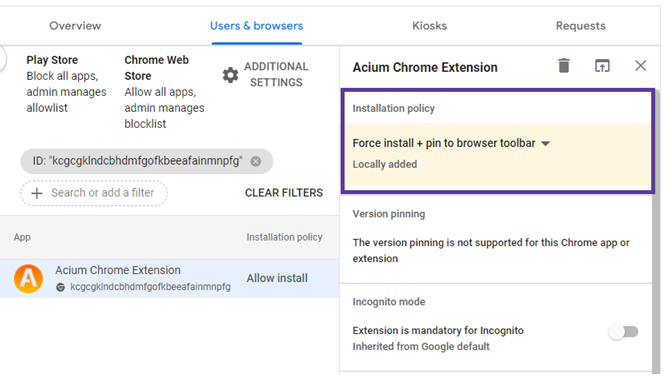
- In the Acium Chrome Extension panel, under Installation policy, select Force install + pin to browser toolbar.
-
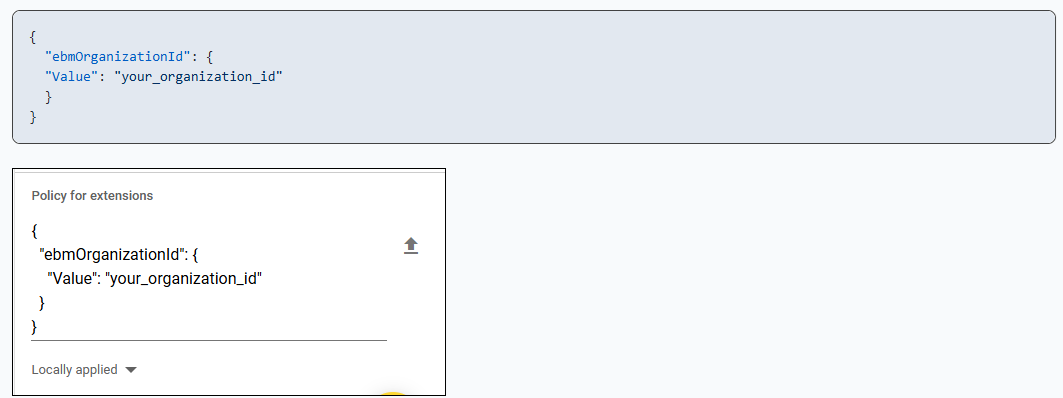
(Optional) Add your Acium organization ID so users skip the organization-name prompt at sign-in. In Policy for extensions, enter:
{"ebmOrganizationId": {"Value": "your_organization_id"}}Replace
your_organization_idwith your Acium organization name.
- Select Save.
For general background on this deployment method, see Google's guide to automatically installing apps and extensions in the Chrome Enterprise Help center.