Install via sensor
Install the sensor once per device and the extension deploys to Chrome, Edge, and Firefox automatically.
Step 1: Download the sensor
In the Admin Console, go to Administration > Sensor & Principal and download the sensor installer for your operating system.

You can also download directly:
- Windows: Download sensor —
.zipfile containing the setup executable. - macOS: Download sensor —
.pkginstaller file.
Step 2: Install on Windows
- Extract the downloaded
.zipfile. - Open the acium-sensor-setup folder and double-click AciumSensorSetup.exe.
- Select I agree to the license terms and conditions and then select Install.
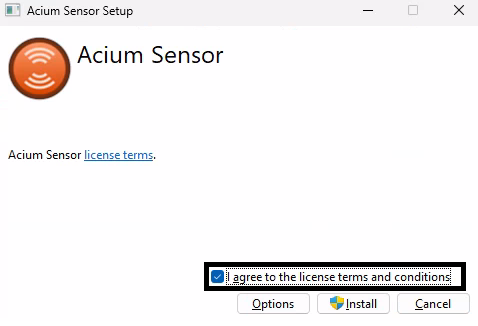
- After the installation finishes, select Close.
Step 3: Install on macOS
- Double-click the downloaded
.pkgfile. - Follow the on-screen instructions.
- Enter your administrator password if prompted.
- After the installation finishes, select Close.
Step 4: Verify the extension was deployed
After the sensor installs, open Chrome, Edge, or Firefox on the same device. The extension appears automatically in the browser toolbar — the sensor detected the installed browsers and pushed the extension to each one.

Authentication
The extension tries two silent authentication methods, in order, before falling back to a manual sign-in prompt:
- Sensor-based authentication — succeeds when all of the following are true:
- The device has completed the attestation process.
- The signed-in user is a domain user (not a local account).
- The organization has silent authentication enabled.
- Browser profile authentication — succeeds when the active browser profile is already signed in with the user's corporate account.
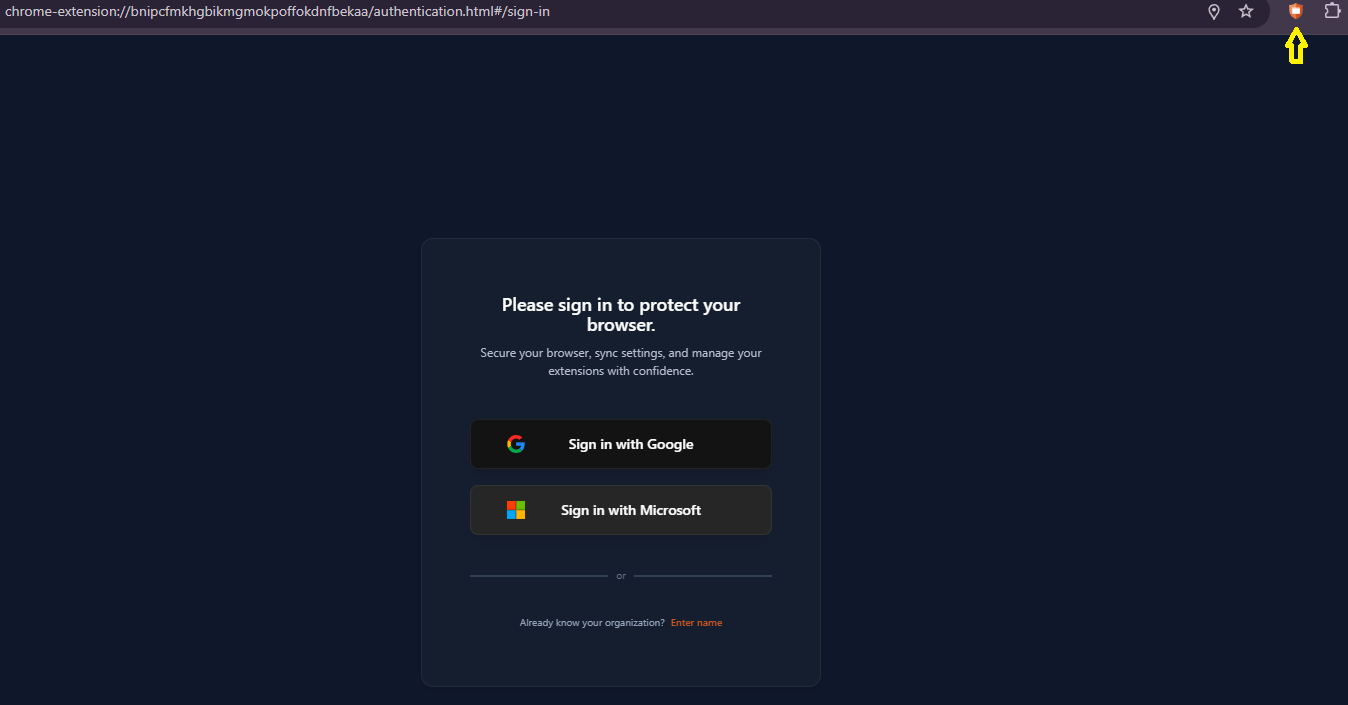
If both methods fail, the extension prompts the user to sign in manually:
The sensor requires administrator privileges on the target device. For large-scale deployments across multiple devices, see Deployment with an RMM or contact the support team for MDM/GPO deployment guidance.