Datto RMM
Deploy the sensor to Windows endpoints using dattormm-acium.ps1, a ready-made script maintained in the rmm-scripts repository. It's designed to run as a recurring Datto RMM Component — safe to run on a schedule, since it checks whether anything's changed before doing real work.
What the script does
On each run, in order:
- Takes a machine-wide lock so an overlapping run can't run twice at once.
- Checks whether anything's changed — compares the sensor package's ETag against the last successful run, and checks whether the
AciumSensorWindows service is present. If both say "nothing to do," it exits. - Downloads the sensor
.zipand hashes it (SHA256) as a second, server-independent change check. - Checks for the ASP.NET Core 8.0 Runtime and silently installs it if missing. If that install needs a reboot, the script defers the sensor install to the next scheduled run.
- Extracts the
.zip, locatesAciumSensorInstall.msi, and checks its Authenticode signature. - Installs the MSI silently via
msiexec, correctly distinguishing a first-time install from a reinstall, and verifies afterward that the sensor is actually present. - Cleans up downloaded files and records the new ETag/SHA256 — only after a verified successful install.
A machine that's already current does almost nothing on a re-run — just a quick network check, then exit.
Prerequisites
- Datto RMM agent installed and checking in on target endpoints.
- Windows endpoints with PowerShell 5.1 (Windows PowerShell — the default for Datto RMM Components).
- Outbound HTTPS access to your sensor package's download URL and to
aka.ms(for the ASP.NET Core Runtime installer, only needed on machines that don't already have it).
Setup in Datto RMM
1. Create a new Component
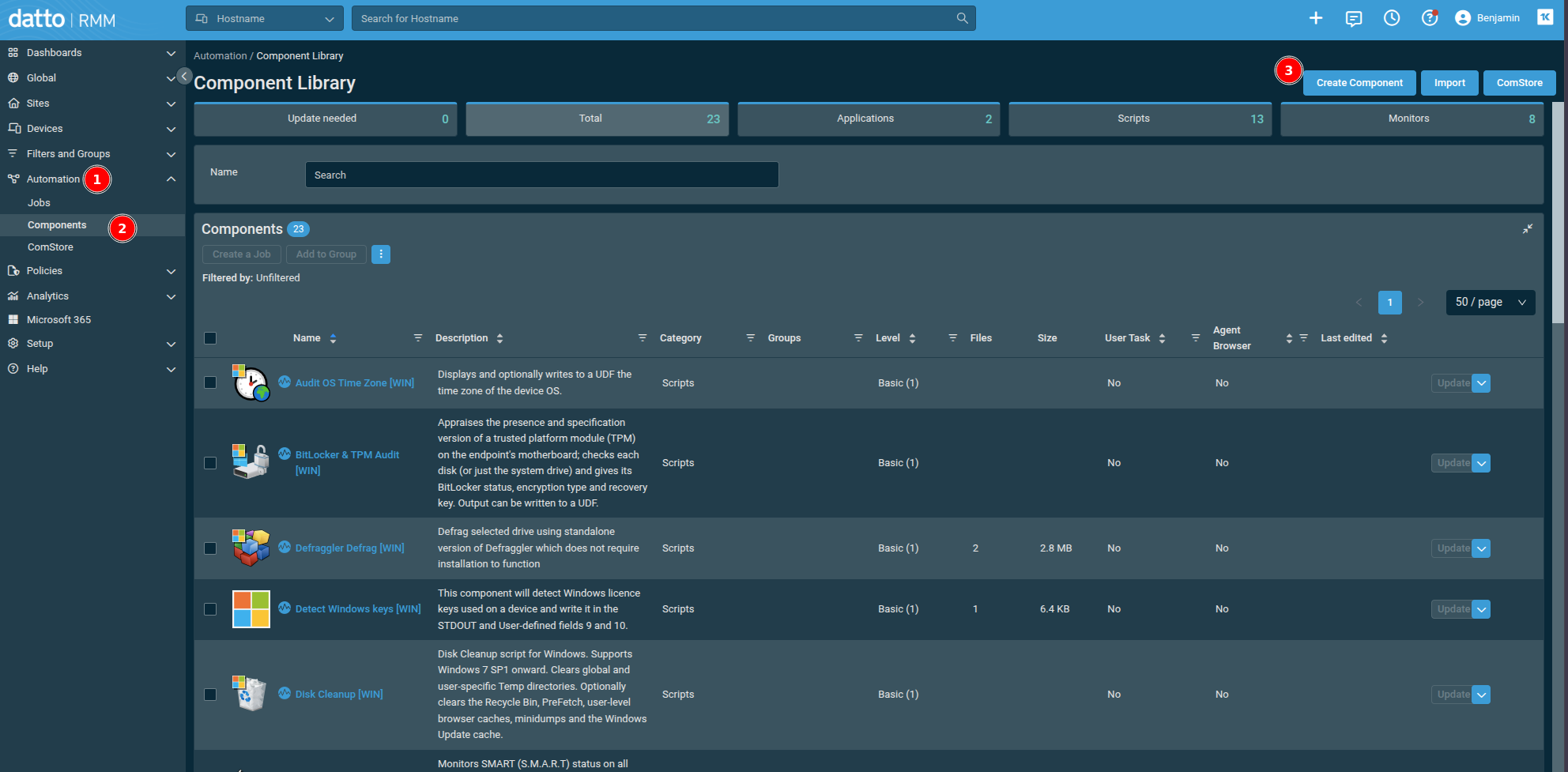
Go to Automation > Component Library, and click Create Component in the top right.
2. Fill in the Component details
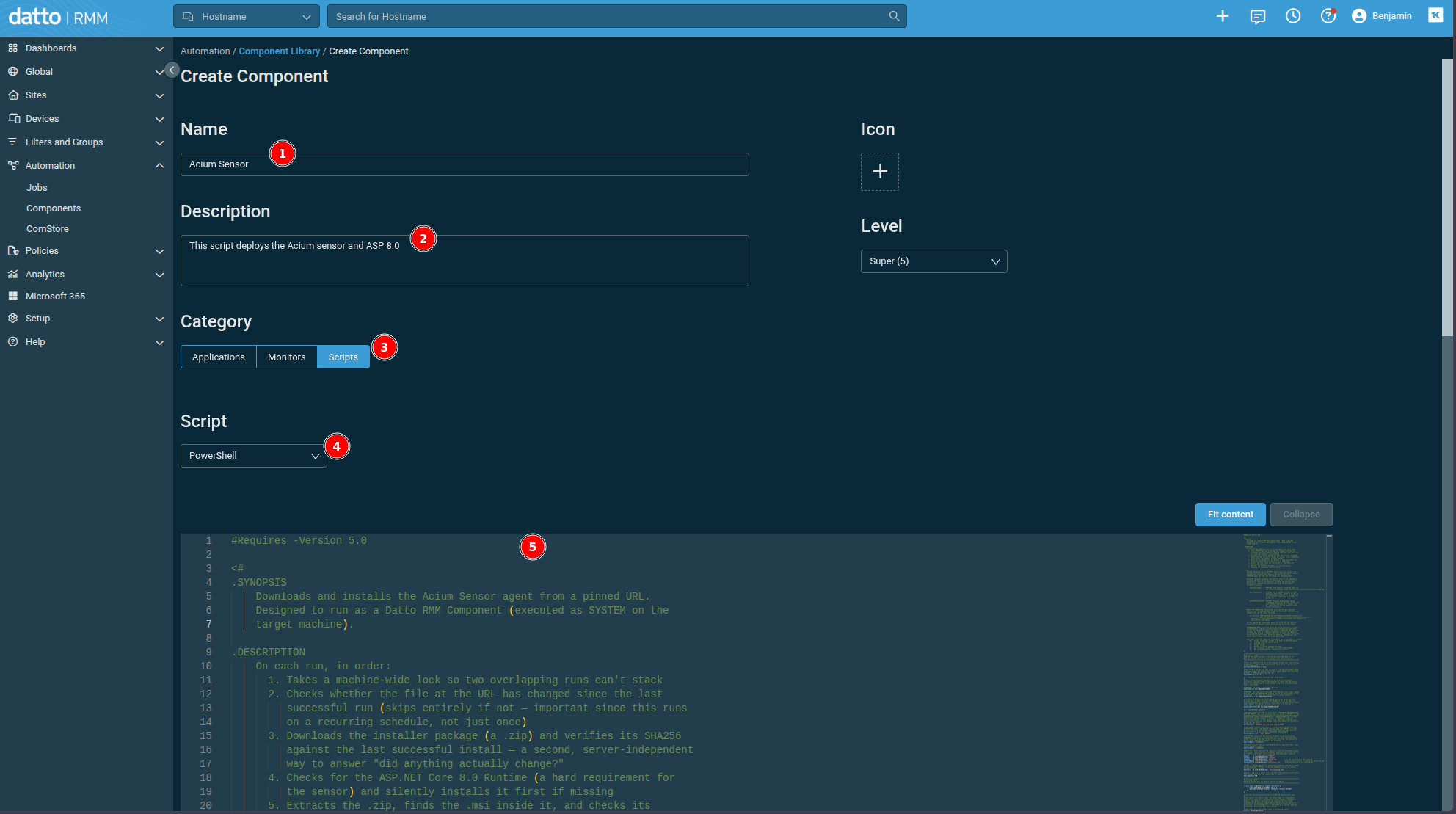
Give it a Name and, optionally, a Description. Set Category to Scripts, and change the Script dropdown to PowerShell. Paste the contents of dattormm-acium.ps1 into the script body below.
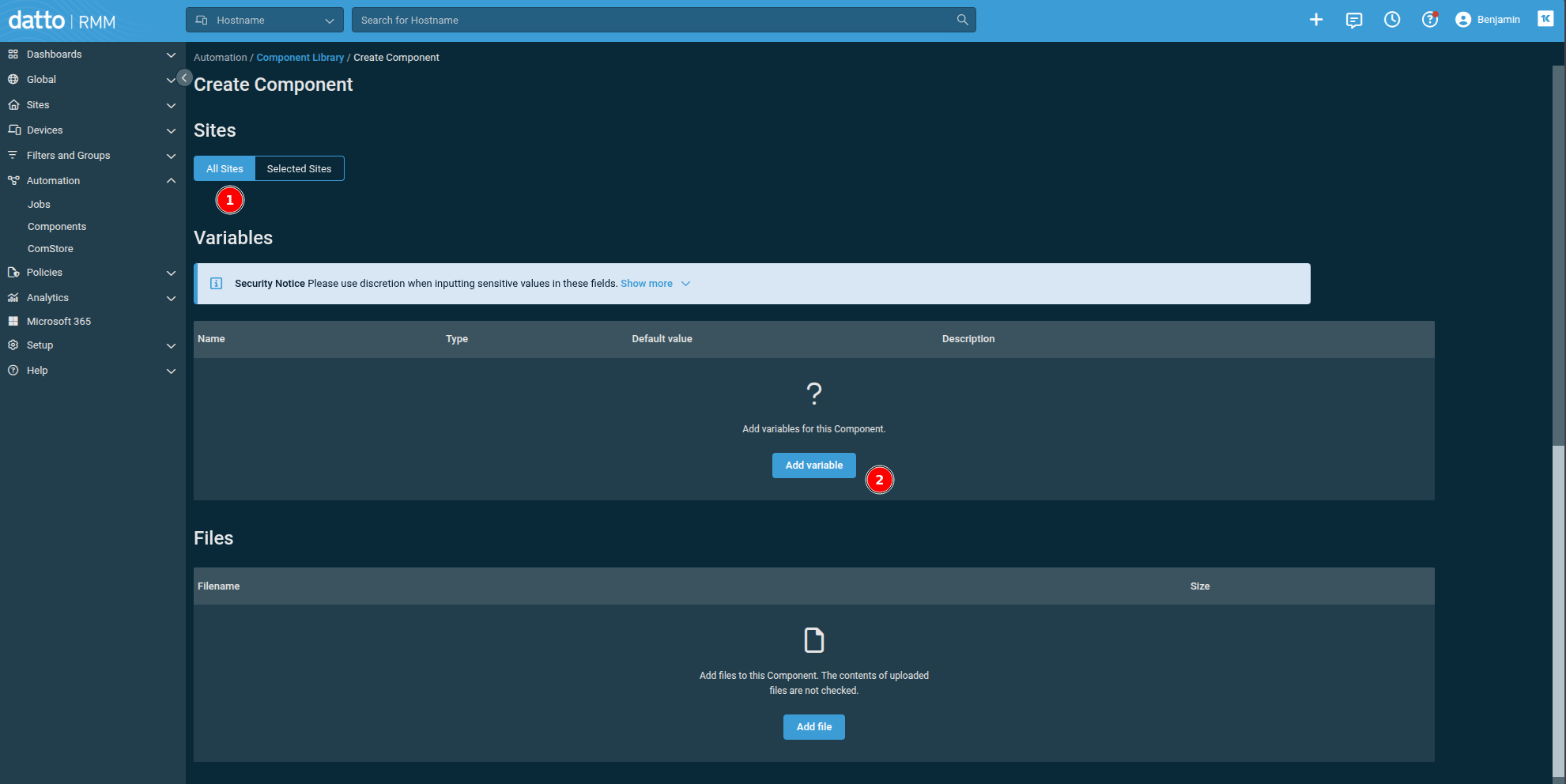
Scrolling down, set Sites to All Sites (unless you specifically want this Component scoped to only certain sites), then click Add variable.
3. Add the Component Variables
This script reads its configuration from Component Variables:
| Variable name | Type | Required | Example value |
|---|---|---|---|
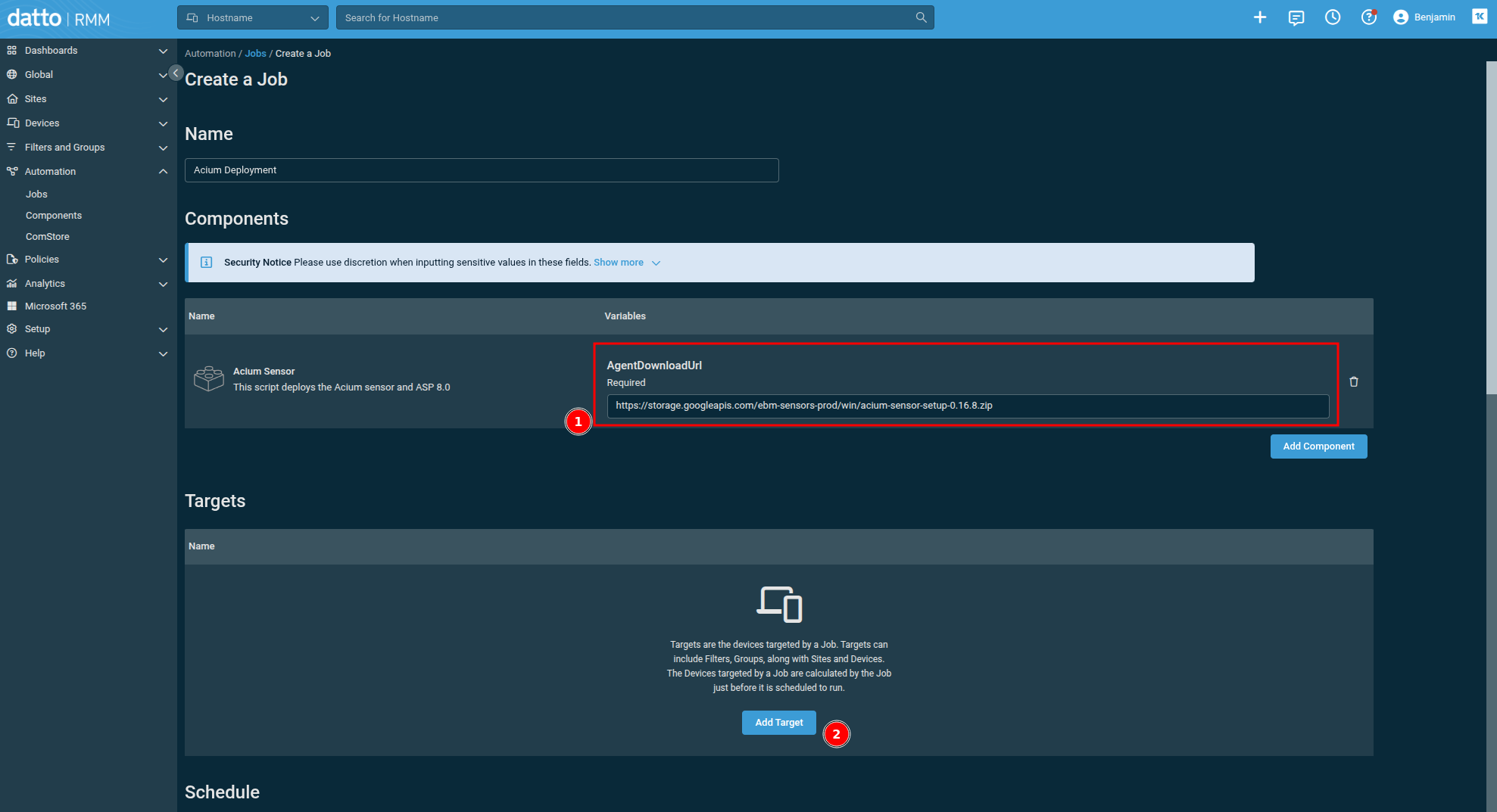
AgentDownloadUrl | String | Yes | https://storage.googleapis.com/ebm-sensors-prod/win/acium-sensor-setup-0.16.8.zip |
AgentOrganization | String | No | Your org/tenant ID, passed to the MSI as the ORGANIZATION property |
ExpectedPublisherCN | String | No | Expected Authenticode signer subject CN, e.g. Acium, Inc. — when set, an MSI not validly signed by it is refused |
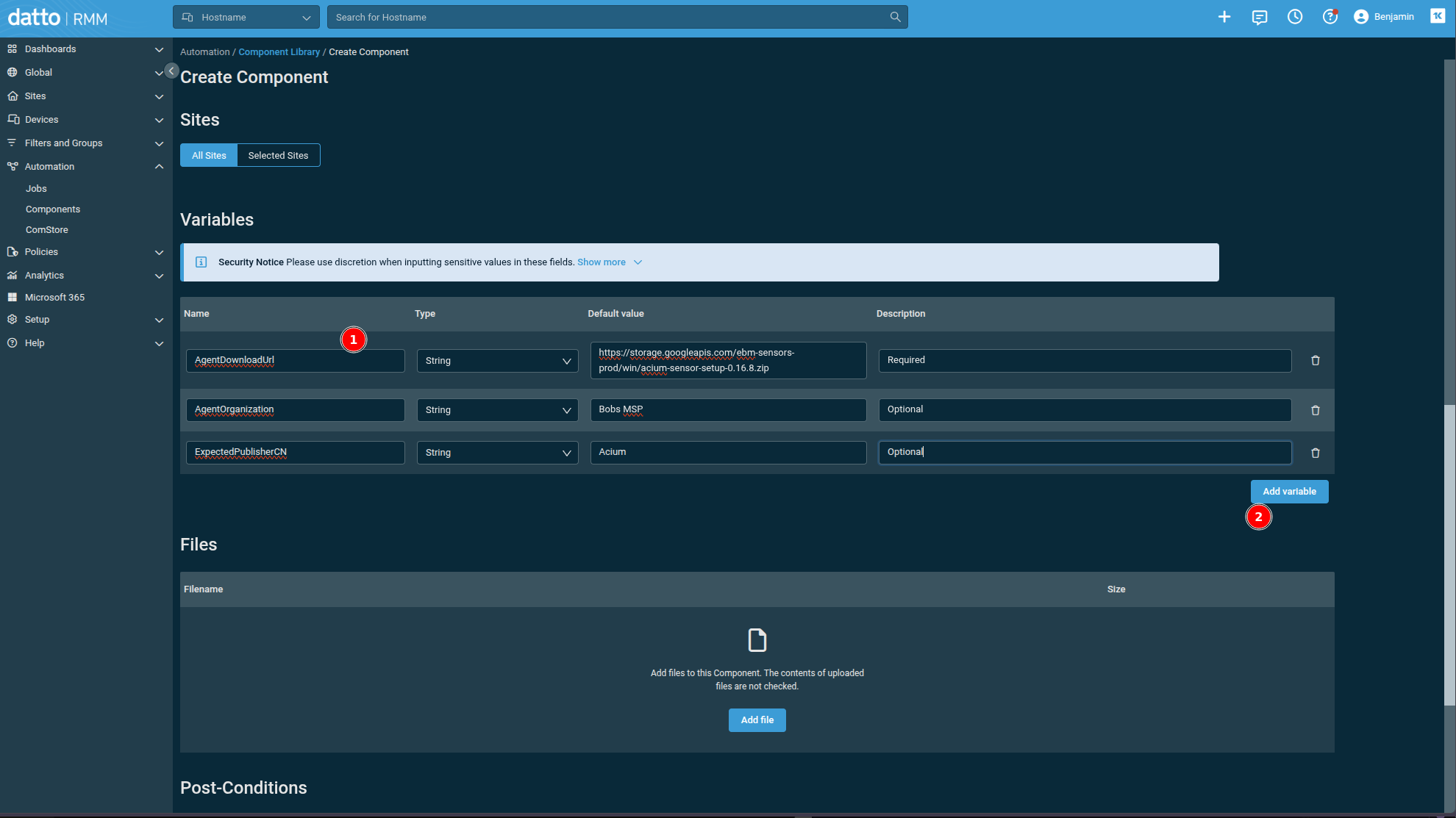
Bumping to a new sensor version later is just updating AgentDownloadUrl — you don't need to edit the script itself. Save the Component once these are in place.
4. Create a recurring Job
Execution context (System vs. logged-on user) isn't set on the Component itself — it's set per-Job, in the last step below.
a. Go to Automation > Jobs, and click Create Job.
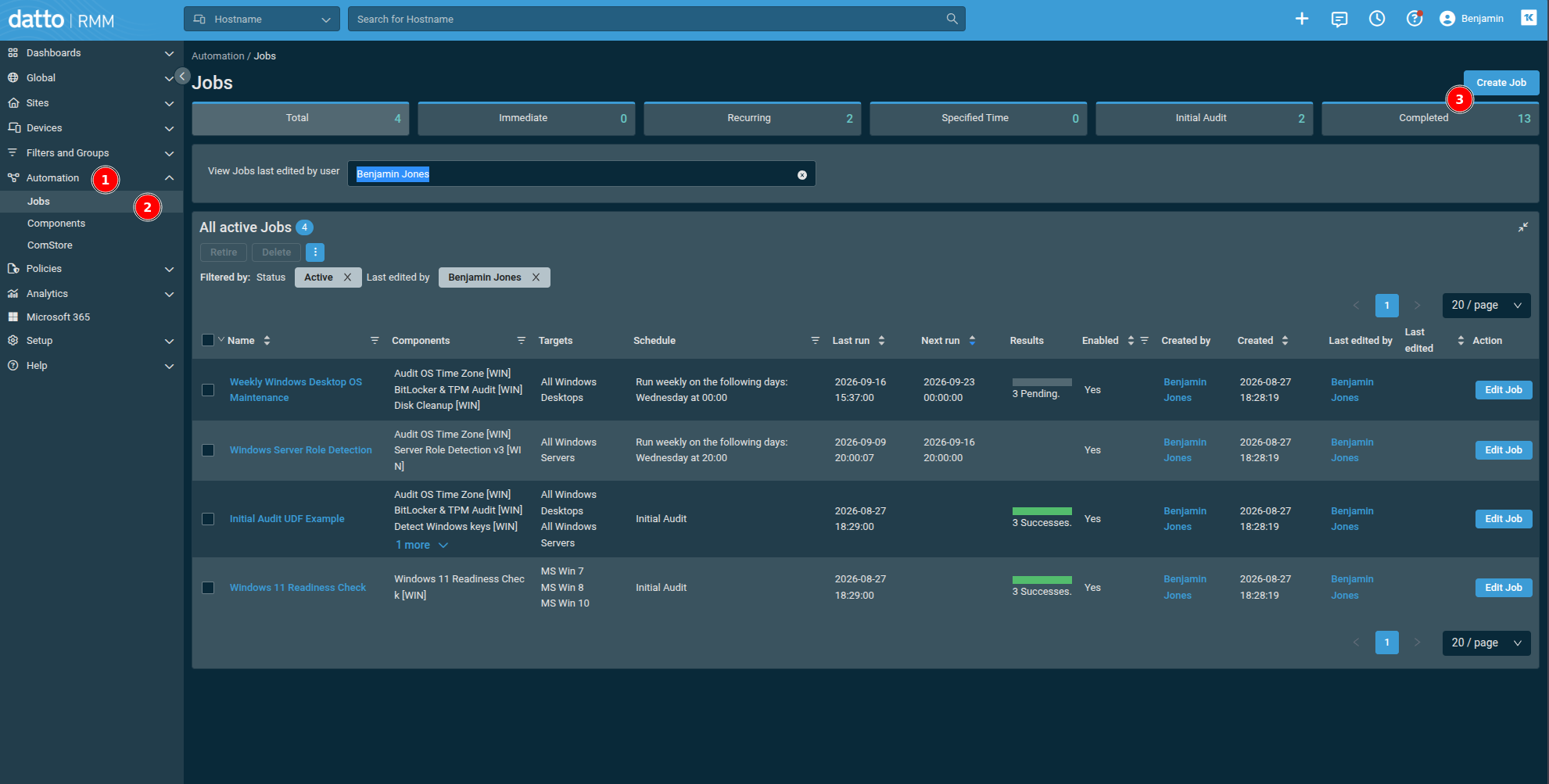
b. Give the Job a Name, then click Add Component.
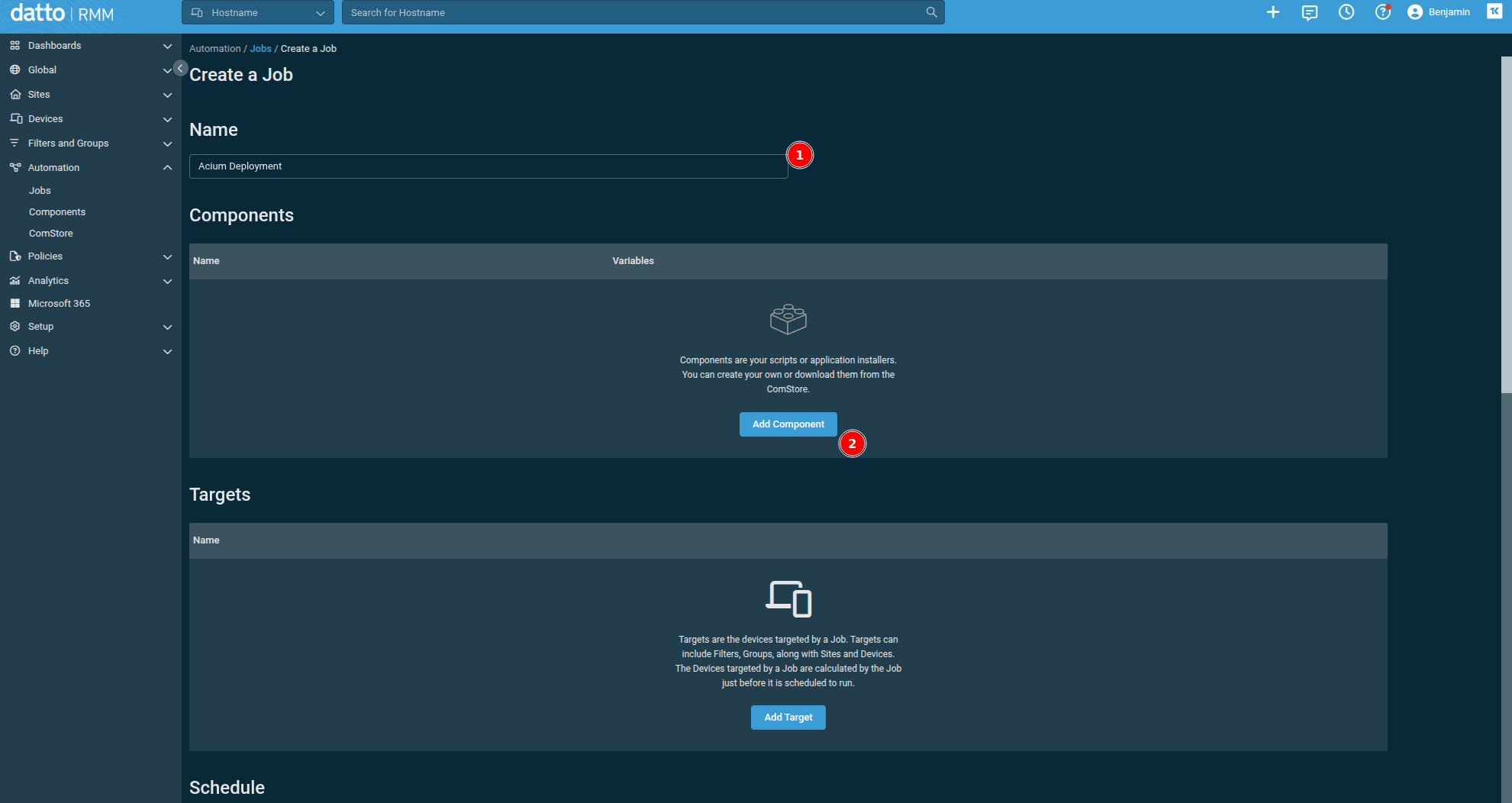
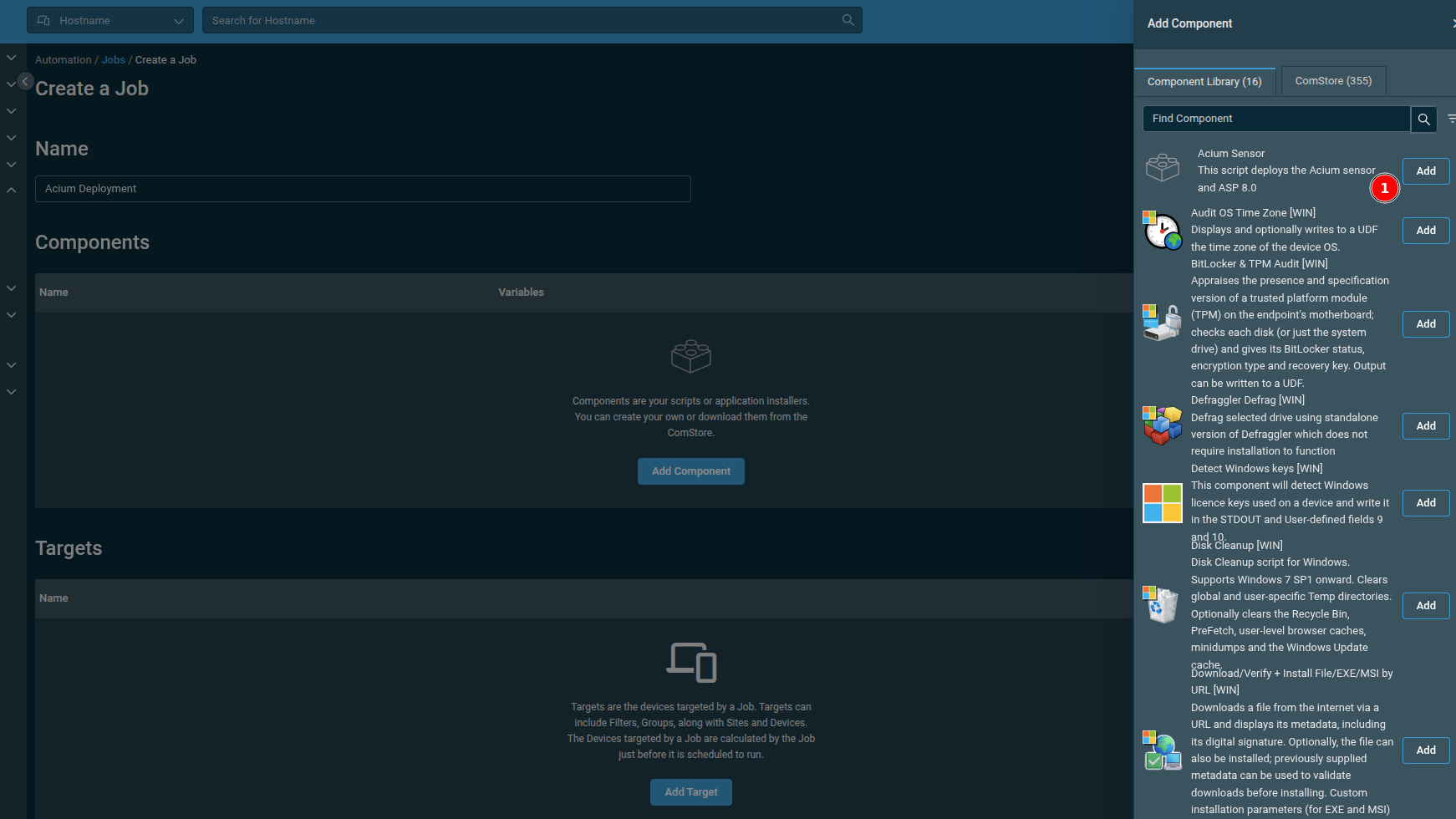
c. In the panel that opens, find the Component you created (e.g. "Acium Sensor") and click Add.
d. Confirm/override the Component's variable value(s) for this Job — at minimum, AgentDownloadUrl — then add your Targets (devices, sites, filters, or groups).
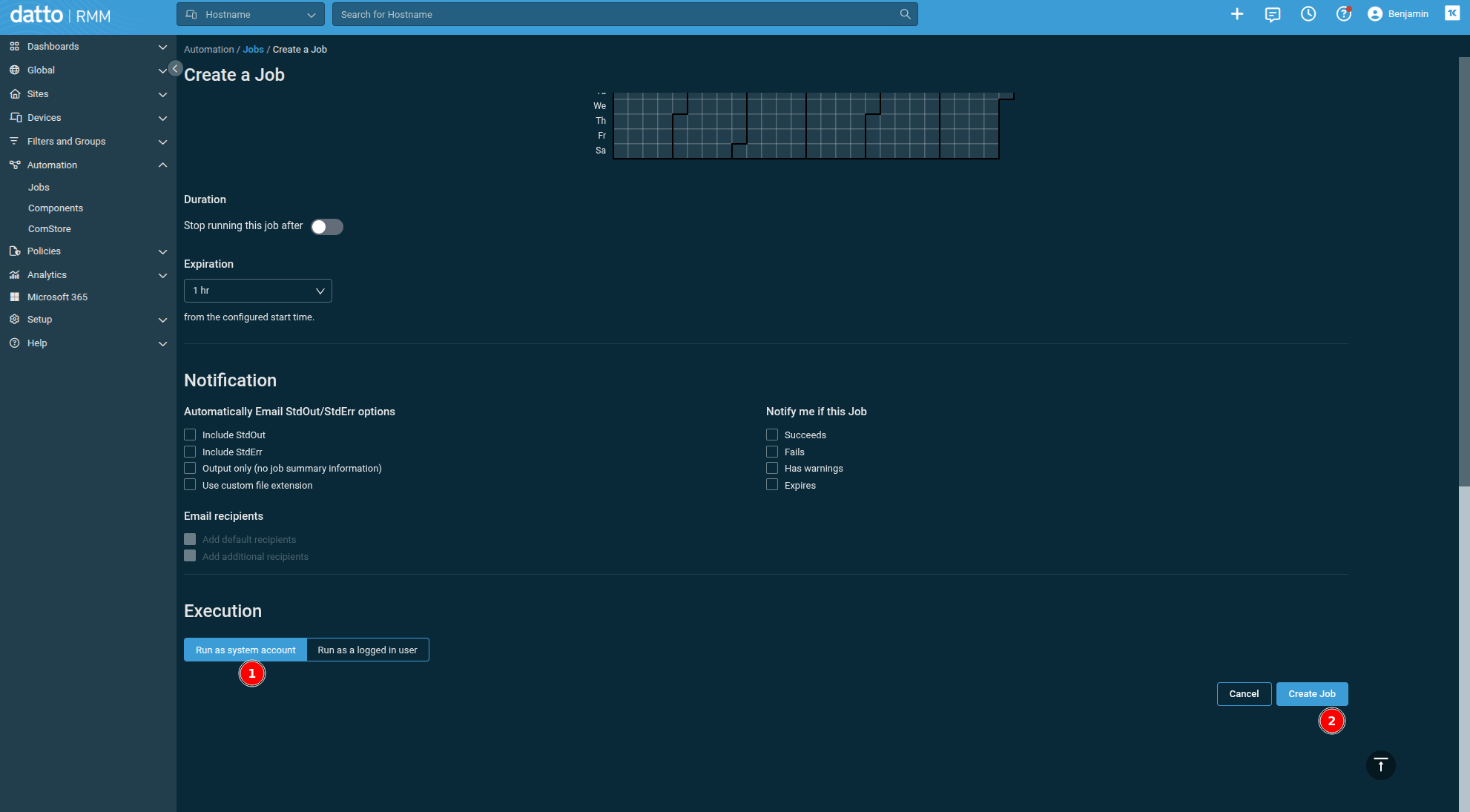
e. Scroll down to Schedule and set it to run on a recurring basis (e.g. daily). Under Execution, choose Run as system account (not "Run as a logged in user"), then click Create Job.
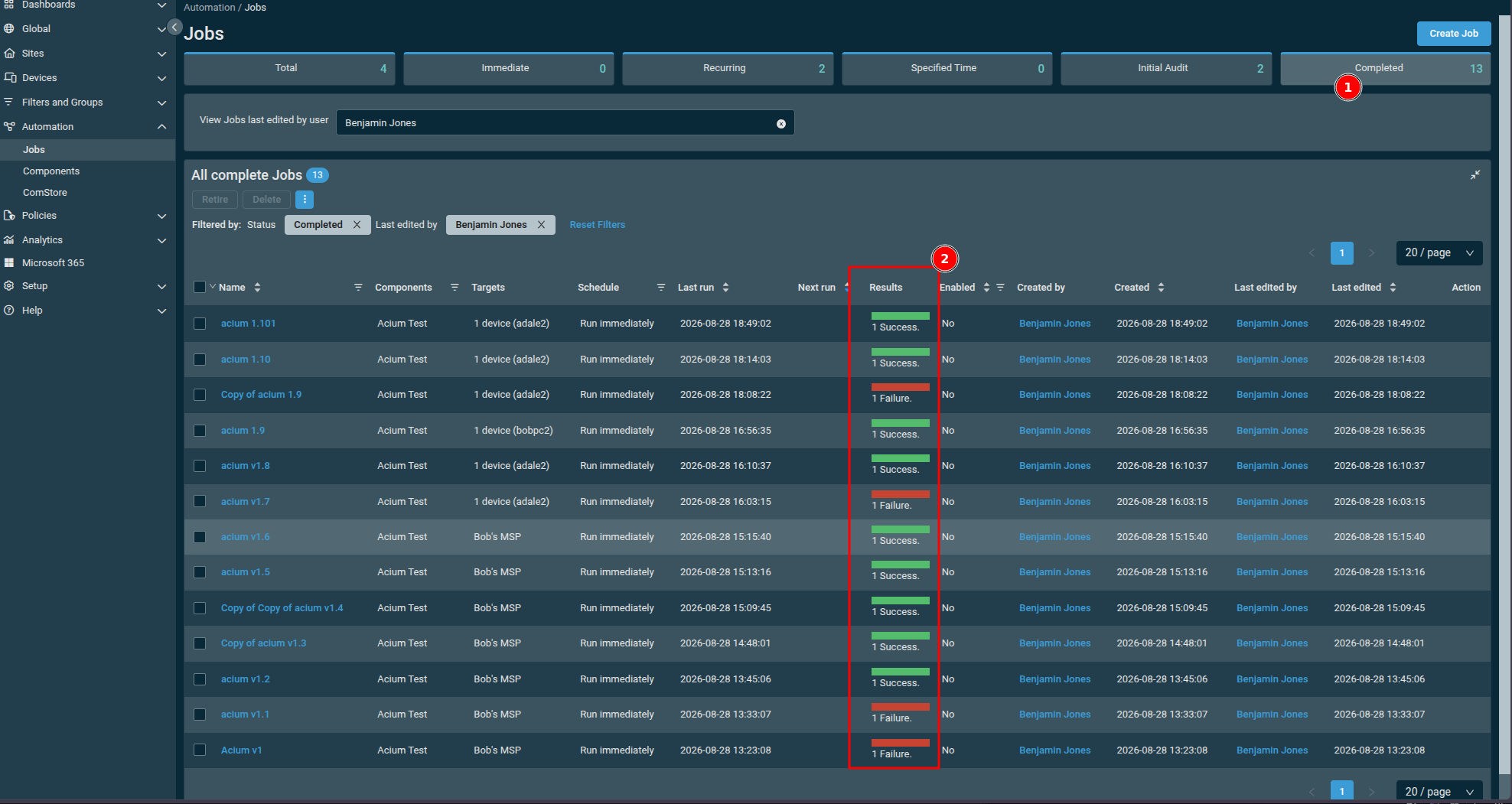
Because the script checks for changes before doing any real work, recurring execution is cheap — most runs will be a quick no-op. A completed Job's Results column shows a quick green/red rollup per run; drill into an individual run for full stdout if something failed.
Logs
| File | What's in it |
|---|---|
C:\ProgramData\AciumSensor\Logs\deploy.log | The script's step-by-step log — what it checked, downloaded, and decided. |
C:\ProgramData\AciumSensor\Logs\msi-install.log | Windows Installer's verbose log for the MSI install. |
C:\ProgramData\AciumSensor\Install\last-installed.json | State file recording the ETag and SHA256 of the last successfully installed package. |
If a deployment isn't behaving as expected, deploy.log is the first place to look.
Exit codes
| Code | Meaning |
|---|---|
0 | Success — installed, already up to date (no-op), or deferred pending a reboot (see the log for which) |
1 | Download failed (sensor package or ASP.NET Core Runtime installer) |
2 | Could not secure the working/log directory (ACL hardening failed) — refused to proceed with a privileged install |
3 | Install failed (sensor MSI or ASP.NET Core Runtime installer) |
4 | Missing or invalid Component Variable (AgentDownloadUrl empty, or AgentOrganization contains a double quote) |
5 | Zip extracted, but AciumSensorInstall.msi wasn't found inside it |
6 | MSI failed Authenticode signature verification against ExpectedPublisherCN |
Verify
Datto RMM surfaces the exit code in the job/dashboard results. Confirm on the device itself — see Step 4: Verify the extension was deployed.
For full troubleshooting guidance (including known msiexec error 1638 and ACL-hardening failure cases) see the dattormm/ readme in the rmm-scripts repo — that's the source of truth for this script.