Microsoft Intune
Deploy the sensor to Windows endpoints using a pair of scripts maintained in the intune/ folder of the rmm-scripts repository, run via Intune Remediations (Devices > Scripts and remediations > Remediations):
intune-acium-detection.ps1— read-only. Reports whether the sensor is installed and up to date.intune-acium-remediation.ps1— does the actual work (download, prerequisite check, install).
Status: untested. This detection/remediation pair hasn't yet been run against a live Intune Remediation. Validate it end-to-end in a lab/pilot environment before rolling it out to production endpoints.
Why Remediations, not a plain platform script
Intune has three ways to run a PowerShell script on managed Windows devices, and they're not interchangeable for this use case:
| Mechanism | Recurs? | Fits this deployment? |
|---|---|---|
| Platform script (Devices > Scripts) | Runs once per device, then never again unless the script content or assignment changes | No — this deployment needs a recurring, idempotent check-and-install |
Win32 app (.intunewin) | Install/uninstall/detection-rule model, supersedence for version bumps | Possible, but a heavier packaging process for what is otherwise a simple script |
| Remediation (detect + remediate script pair) | Runs on a schedule you define (hourly to daily), plus once immediately on assignment | Yes — Intune's actual "recurring, idempotent, skip if compliant" primitive, matching what the other platforms' single scripts do |
So this folder splits the same install logic the other platforms use into Intune's detect/remediate shape: the detection script answers "does this device need anything done," and the remediation script only runs when the answer is no.
What each script does
intune-acium-detection.ps1 (read-only, makes no changes):
- Checks whether the
AciumSensorservice (or process, as a fallback) is present. Not installed → non-compliant. - If installed, compares the source file's current ETag (from a HEAD request) against the ETag recorded at the last successful install. Unchanged → compliant. Changed, or no prior state recorded → non-compliant.
- If the server can't be reached for the ETag check, reports compliant for that cycle rather than triggering a remediation run that would just fail the same download.
intune-acium-remediation.ps1 (does the work, only runs when detection reports non-compliant):
- Takes a machine-wide lock so an overlapping run can't stack — this script is written to be safe to run standalone too (e.g. "Run remediation script" from the console).
- Re-checks the ETag/install-state signals, plus a post-download SHA256 hash comparison.
- Downloads the sensor package, checks for the ASP.NET Core 8.0 Runtime (installing it first if missing — deferring to the next run if that needs a reboot), extracts the
.zip, checks the MSI's Authenticode signature, and installs it silently viamsiexec. - Verifies the sensor is actually present afterward, then saves state and cleans up.
Configuration
Intune Remediation scripts have no equivalent of a Component Variable / Script Variable system, so — like the Generic script — all configuration is hardcoded in each script between the EDIT THESE VALUES markers:
$DownloadUrl = 'https://storage.googleapis.com/ebm-sensors-prod/win/acium-sensor-setup-0.16.8.zip'
$Organization = ''
$ExpectedPublisherCN = ''
$DownloadUrl must be identical in both scripts. Detection uses its own copy purely to compare ETags; if the two files disagree, detection can report "compliant" for a version the remediation script would actually install differently. $Organization and $ExpectedPublisherCN only exist in intune-acium-remediation.ps1.
Bumping to a new agent version means editing $DownloadUrl in both files and re-saving the Remediation in Intune — editing a script's content is what makes Intune re-push it to devices.
Prerequisites
- Devices enrolled in Intune with the Intune Management Extension installed (happens automatically the first time any Intune script/remediation/Win32 app is assigned).
- Windows with PowerShell 5.1 (Windows PowerShell) or later.
- Outbound HTTPS access to your sensor package's download URL and to
aka.ms(for the ASP.NET Core Runtime installer, only needed on machines that don't already have it). - A Microsoft Intune Plan 1/Intune Suite license (or equivalent) that includes Remediations — check your tenant's licensing if the "Remediations" node isn't visible under Devices > Scripts and remediations.
Setup in Intune
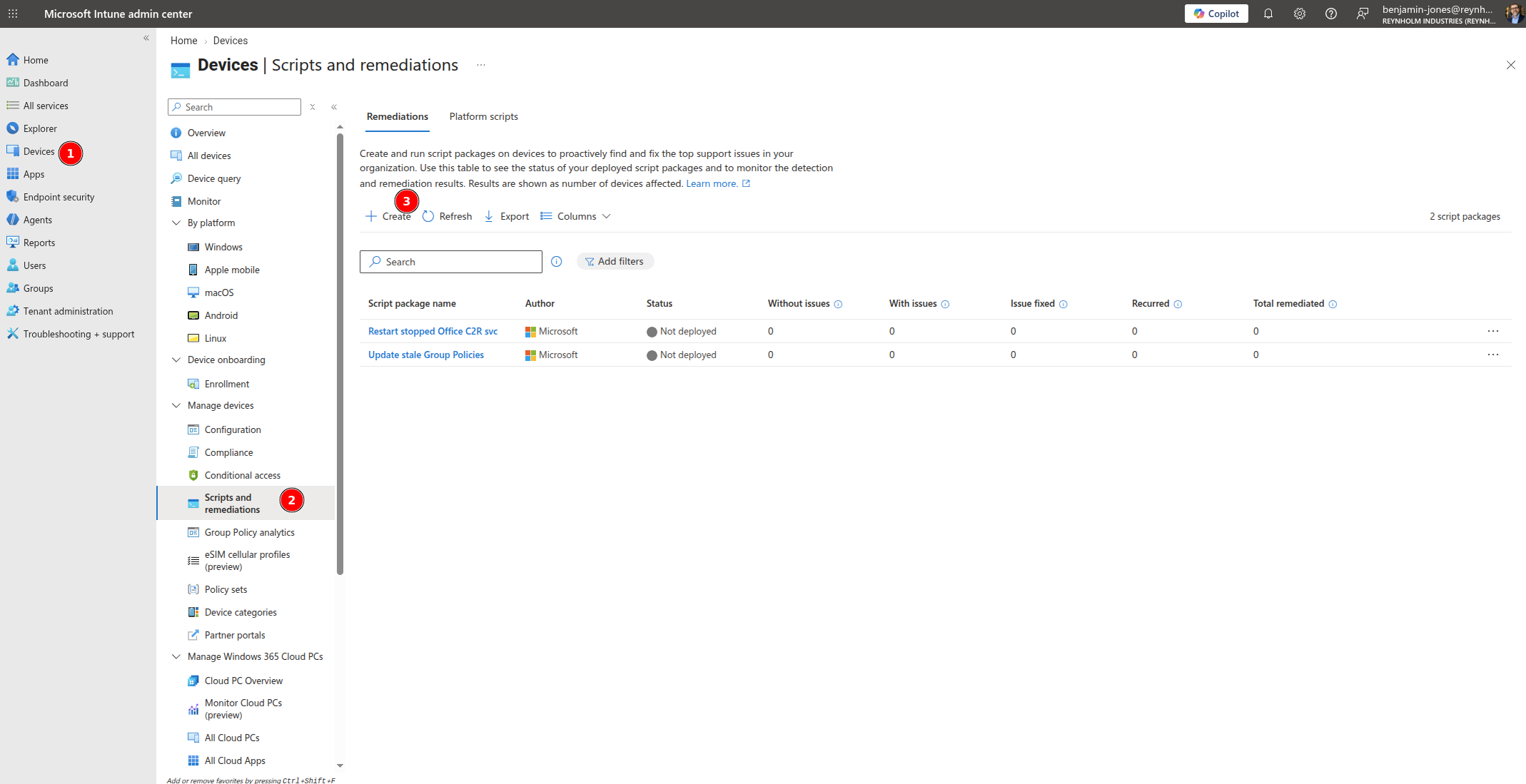
1. Start a new Remediation
Go to Devices > Scripts and remediations > Remediations, and click Create.
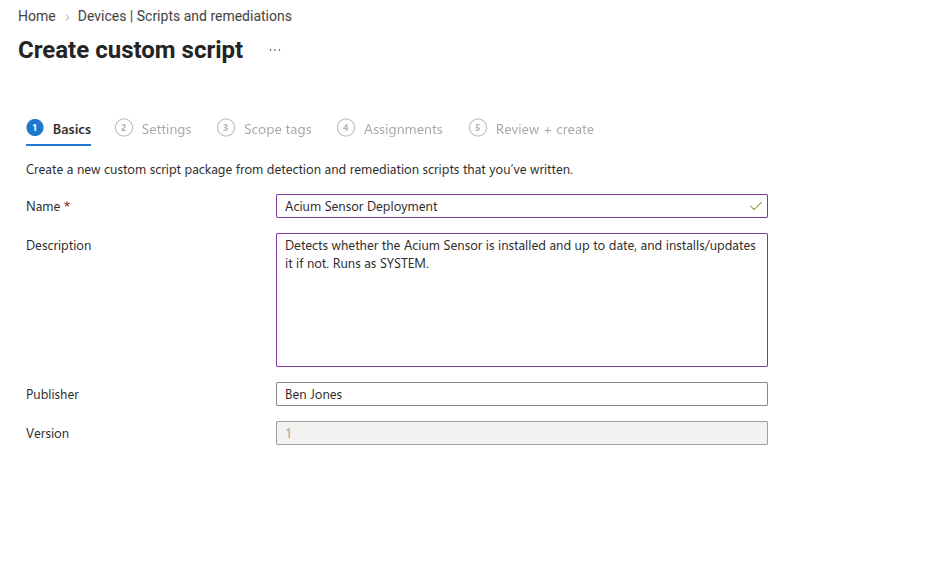
2. Fill in the Basics
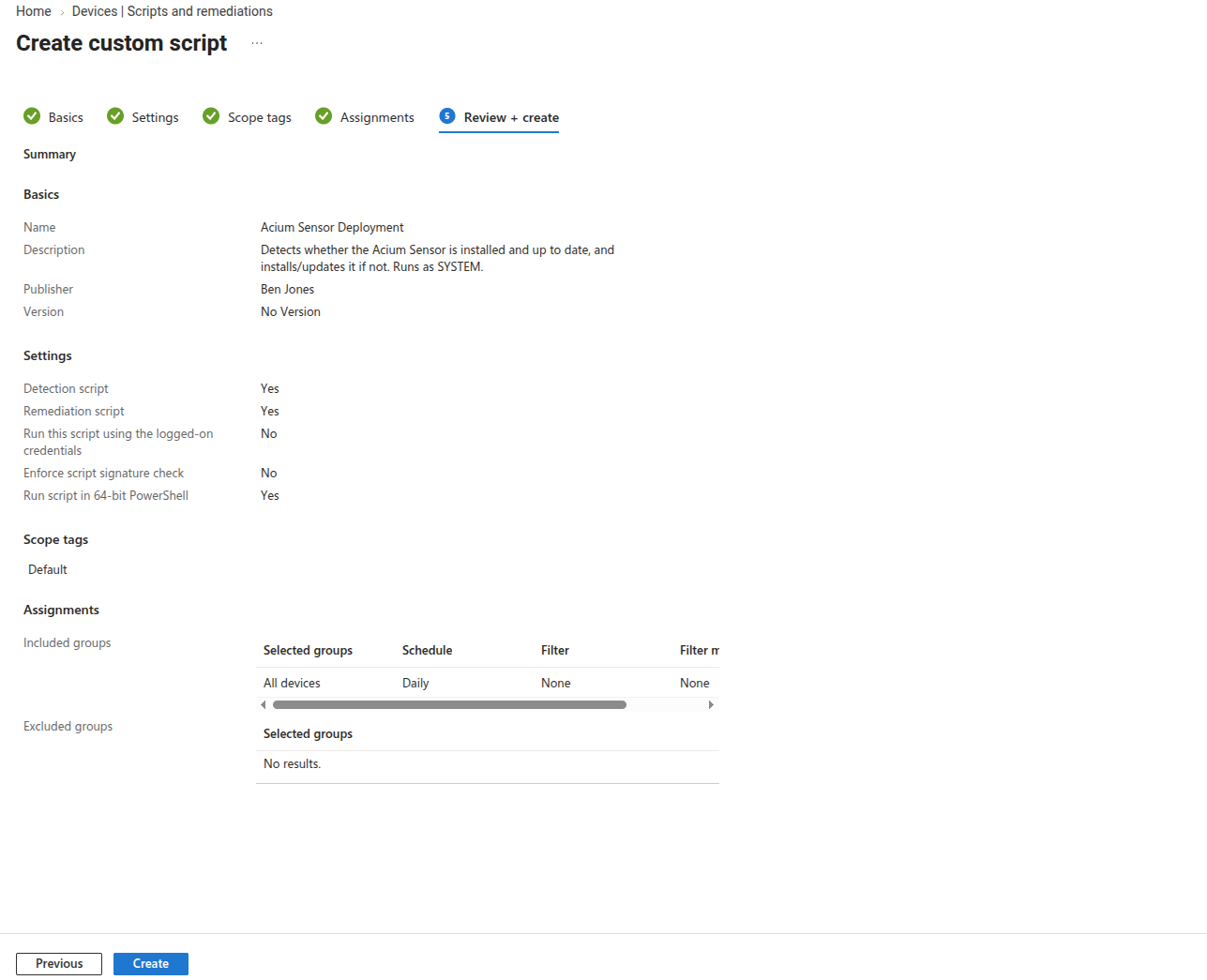
Give it a Name (e.g. "Acium Sensor Deployment") and, optionally, a Description.
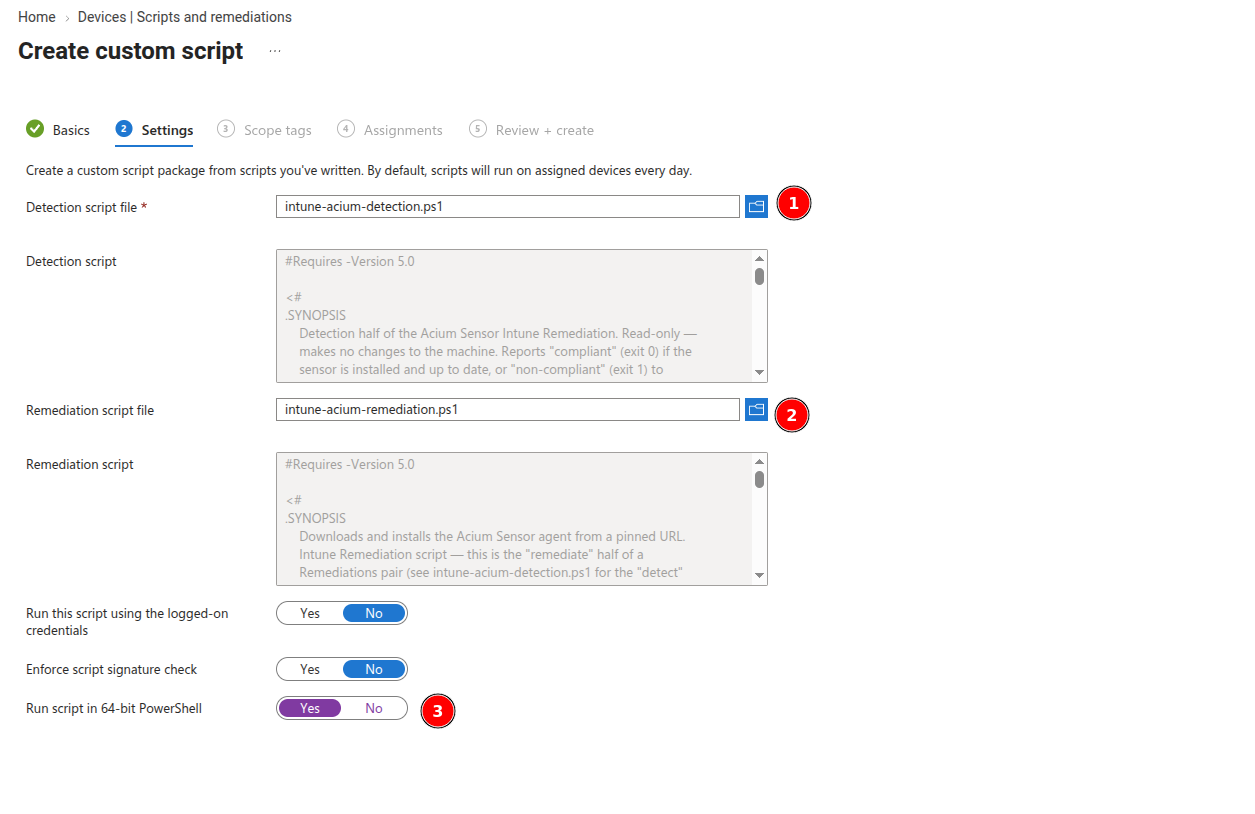
3. Upload the scripts and set options
On the Settings tab, upload intune-acium-detection.ps1 as the detection script file and intune-acium-remediation.ps1 as the remediation script file. Set Run this script using the logged-on credentials to No — this must run as SYSTEM. Set Run script in 64-bit PowerShell to Yes. Enforce script signature check is your call — the repo's own Authenticode check ($ExpectedPublisherCN) is independent of this setting and applies to the downloaded sensor MSI, not to these deployment scripts.
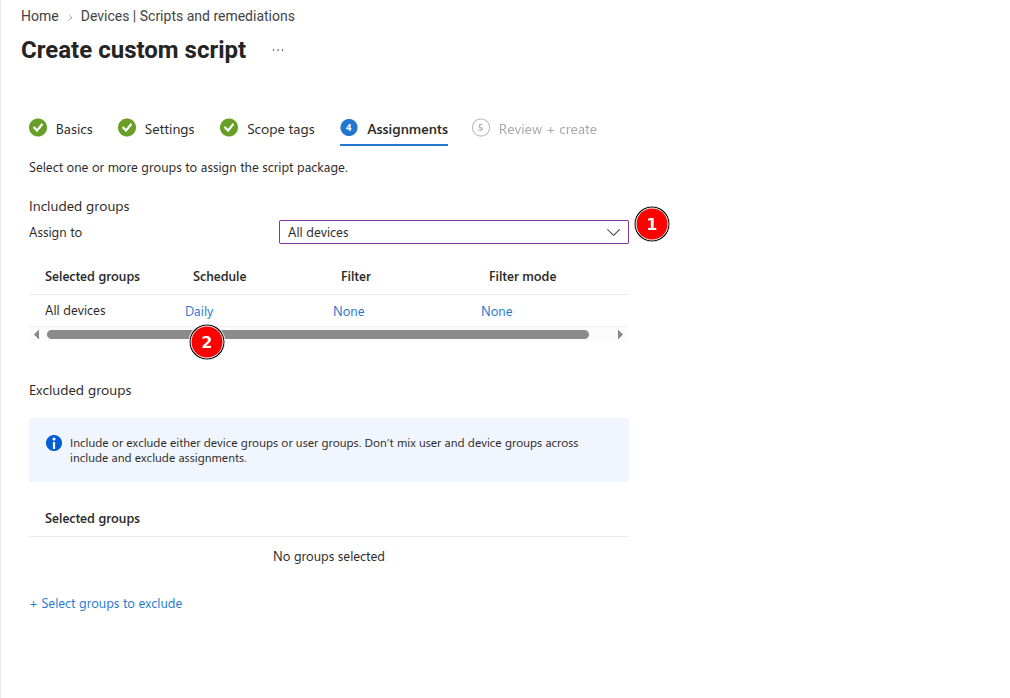
4. Assign to devices and set a schedule
On the Assignments tab, assign to your target device group, and set a schedule (e.g. daily, or hourly for faster convergence after a version bump). Intune also runs detection once immediately when the Remediation is first assigned to a device.
5. Review and create
Confirm the summary on the Review + create tab, then click Create.
Logs
Both scripts write to the same log, so a device's history reads as one continuous timeline:
| File | What's in it |
|---|---|
C:\ProgramData\AciumSensor\Logs\deploy.log | Combined step-by-step log from both scripts — detection entries are tagged [detect]. |
C:\ProgramData\AciumSensor\Logs\msi-install.log | Windows Installer's verbose log for the MSI install. |
C:\ProgramData\AciumSensor\Install\last-installed.json | State file recording the ETag and SHA256 of the last successfully installed package — read by both scripts. |
Intune's own console only shows the detection script's output and the remediation script's exit code for the most recent run — deploy.log has the full history.
Exit codes
Intune's Remediations framework only interprets 0 (compliant/success) vs. non-zero (non-compliant/failed) — it doesn't surface specific codes in the console, but they're useful when reading deploy.log directly.
intune-acium-detection.ps1:
| Code | Meaning |
|---|---|
0 | Compliant — sensor installed and ETag matches the last successful install (or the server couldn't be reached this cycle) |
1 | Non-compliant — sensor missing, ETag changed, or no prior install state recorded — triggers the remediation script |
intune-acium-remediation.ps1:
| Code | Meaning |
|---|---|
0 | Success — installed, already up to date (no-op), or deferred pending a reboot |
1 | Download failed (sensor package or ASP.NET Core Runtime installer) |
2 | Could not secure the working/log directory (ACL hardening failed) |
3 | Install failed (sensor MSI or ASP.NET Core Runtime installer) |
4 | Missing or invalid configuration value in the script |
5 | Zip extraction failed / AciumSensorInstall.msi not found inside the package |
6 | MSI failed Authenticode signature verification |
Verify
Confirm on the device itself — see Step 4: Verify the extension was deployed.
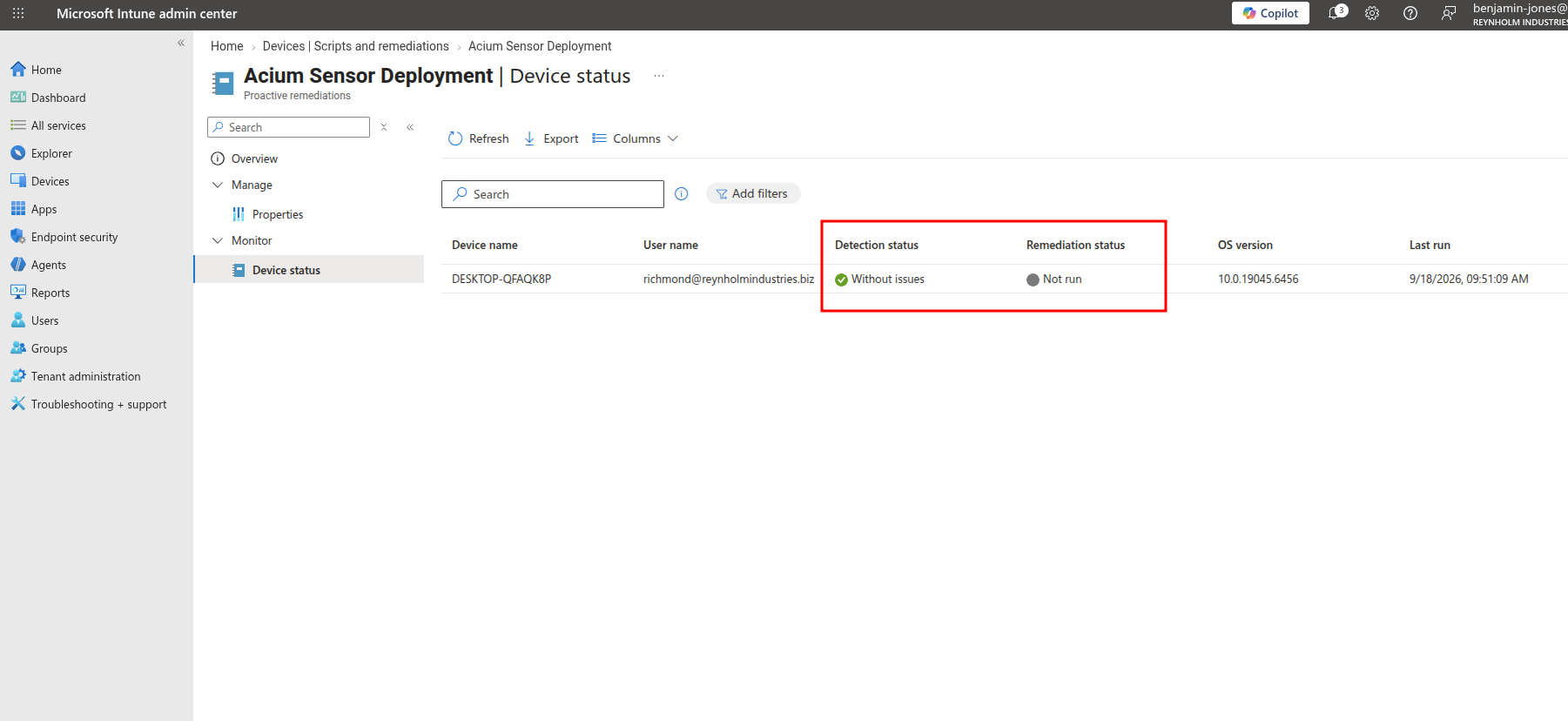
Intune's own console also shows per-device detection/remediation results on the Remediation's Device status page.
For full troubleshooting guidance (including the detection/remediation $DownloadUrl mismatch failure mode and known msiexec error 1638 case) see the intune/ readme in the rmm-scripts repo — that's the source of truth for these scripts.