Sign up for a free trial
Sign up for a free 60-day trial of Acium UBS to get started. No credit card is required.
Authentication methods
Acium UBS supports three ways to create and access your account. All methods provide the same Administrator access level.
| Provider | Button | Recommended for |
|---|---|---|
| Email / Password | Sign Up | Any organization |
| Google Workspace | Sign Up with Google | Google-managed environments |
| Microsoft Entra ID | Sign Up with Microsoft | Azure AD / M365 environments |
If your organization uses Google Workspace or Microsoft Entra ID (Azure AD), selecting the corresponding SSO option is recommended — it eliminates the need to manage a separate password and simplifies future logins. When using SSO, the organization name is automatically set to the domain of your email address (for example, if your email is demo@prueba.com, the organization name is set to prueba).
Step 1: Access the registration portal
Open your browser and go to https://console.acium.io/sign-up.
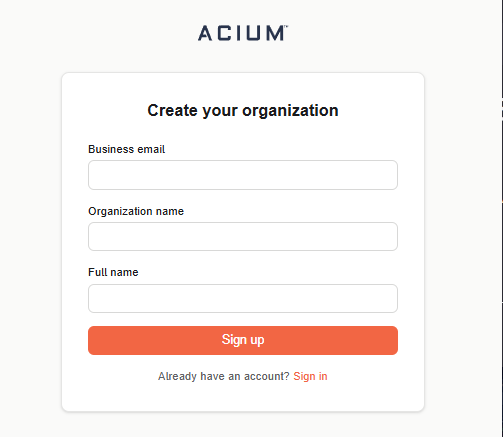
Step 2: Create your account
Choose your preferred registration method.
Option A — Email & password
Fill in the form fields and select Sign Up:
- Email* — Your corporate email address. This is used as your login username.
- Organization* — Your company or tenant name (for example, "Acme Corp").
- Full Name — Your display name (optional).
Option B — Google Workspace
Select Sign Up with Google. You are redirected to Google's authentication flow. Sign in with your Google Workspace account. No password is created — authentication is fully managed by Google.

Option C — Microsoft Entra ID
Select Sign Up with Microsoft. You are redirected to Microsoft's authentication flow. Sign in with your Microsoft Entra ID (Azure AD) account. No password is created — authentication is fully managed by Microsoft.

When using Google or Microsoft SSO, future logins also use your identity provider — select Sign In with Google or Sign In with Microsoft on the login page.
Step 3: Deployment confirmation
After submitting the registration form, the portal displays a confirmation screen: "Your Deployment is Ready!" A welcome email is automatically sent to your registered address.

Step 4: Welcome email
Check your inbox for an email from support@acium.io with the subject "Welcome to Acium". It includes:
- Administrator role confirmation — you are set as Admin of your organization.
- Organization name — the tenant identifier created at sign-up.
- Username / email — your registered credentials.
- Get Started button — a secure link to set your password (valid for 2 hours).

The Get Started link expires after 2 hours. If it expires, contact support@acium.io to request a new activation link. Google and Microsoft SSO users can skip this step — no password setup is required.
Step 5: Set your password
Select Get Started in the welcome email. On the Reset your Password screen, enter a strong password and select Reset Password to activate your account.

This step only applies to email/password accounts. If you signed up via Google or Microsoft SSO, your account is already active — log in directly at console.acium.io.
Step 6: Access the Admin Console
After setting your password (or completing SSO sign-in), you are redirected to the Admin Console dashboard. Your 60-day trial begins from this point.

What's next
Deploy the sensor and browser extension on at least one device to start enforcing policies and collecting data.