Branding & Messages
Branding & Messages lets you white-label what your clients' end users see: your brand, your colors, and the texts of the extension's notifications. Set it once and it applies to every direct client that doesn't have its own brand.
Find this page at Partner Console > Operate > Branding & Messages.
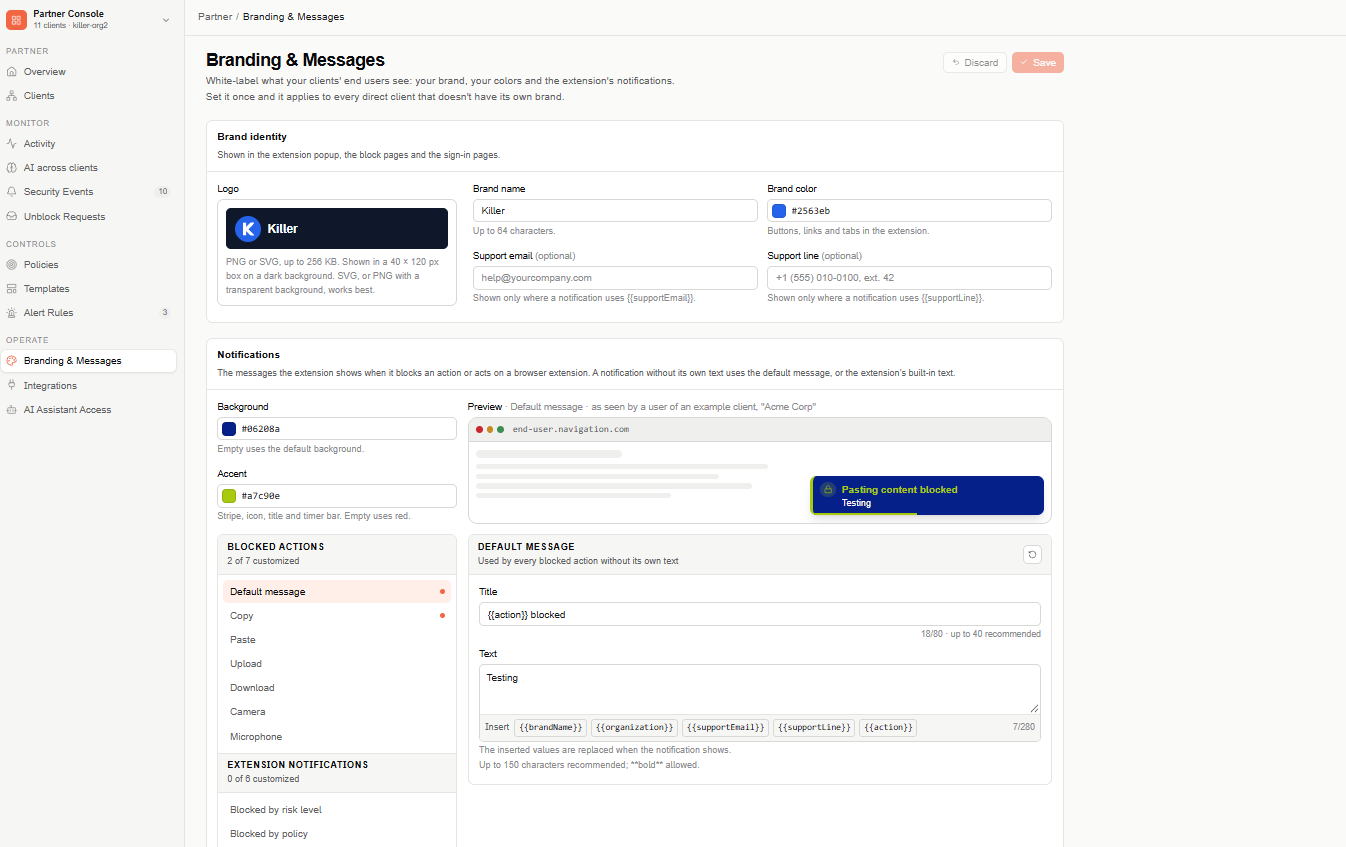
Brand identity
Shown in the extension popup, the block pages, and the sign-in pages.
- Logo — a PNG or SVG file, up to 256 KB. It's shown in a 40 × 120 px box on a dark background, so an SVG or a PNG with a transparent background works best.
- Brand name — up to 64 characters.
- Brand color — used for buttons, links, and tabs in the extension. Pick a color or type its hex code (for example,
#2563eb). - Support email (optional) — shown only where a notification uses
{{supportEmail}}. - Support line (optional) — shown only where a notification uses
{{supportLine}}.
Notifications
The messages the extension shows when it blocks an action or acts on a browser extension.
Colors
- Background — the notification's background. Leave it empty to use the default.
- Accent — the stripe, icon, title, and timer bar. Leave it empty to use red.
Messages
The left panel lists the notifications you can customize, in two groups, each showing how many are customized. A dot marks a notification with its own text.
- Blocked actions — Default message, plus Copy, Paste, Upload, Download, Camera, and Microphone.
- Extension notifications — Blocked by risk level, Blocked by policy, Required extension, Disabled on install, Disabled by risk, and Extension profile applied.
Select a notification to edit its Title (up to 80 characters; 40 recommended) and Text (up to 280 characters; 150 recommended). You can use **bold** in the text.
Use the Insert buttons to add values that are replaced when the notification shows — for example, {{brandName}}, {{organization}}, {{supportEmail}}, {{supportLine}}, or {{action}}. Each notification offers only the values it supports.
A notification without its own text uses:
- for a blocked action, the Default message — so you can set one message for every blocked action and customize only the ones you want;
- otherwise, the extension's built-in text.
To go back to the default, select the reset icon on the notification.
Preview
The Preview shows the selected notification as an end user of an example client ("Acme Corp") would see it, with your colors and the inserted values filled in.
Save your changes
Any change enables Save and Discard. Select Save to apply your brand, or Discard to go back to the last saved version.