Clients
The Clients page lists the organizations directly under your partner organization, with the users and threats blocked in each.
Find this page at Partner Console > Partner > Clients.
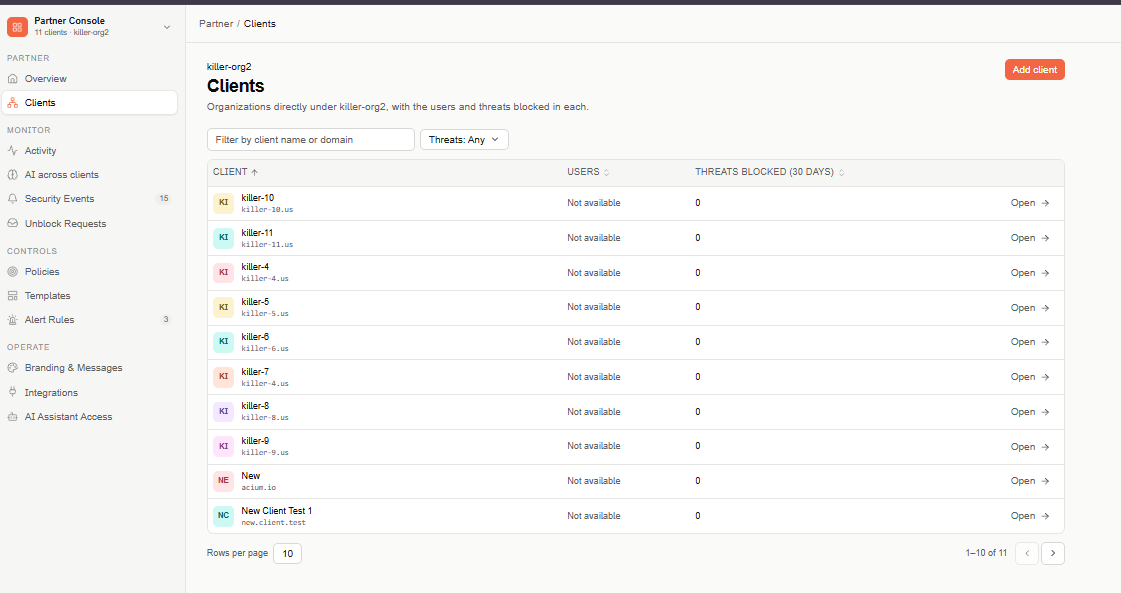
Clients table
The table is paginated (10 rows per page by default) and lists one row per direct client:
- Client — the client's name, with its domain below it.
- Users — the client's users, the figure used for billing.
- Threats blocked (30 days) — threats blocked at that client in the last 30 days.
- Open — switches into the client's own console.
A value that can't be loaded shows Not available — never 0 — and doesn't hide the rest of the row.
Use Filter by client name or domain to find a client, and the Threats filter to narrow the list by how many threats were blocked. Select a column header to sort by client name, users, or threats blocked.
Add a client
Select Add client (top right) to create a new client organization under yours. It's the same flow as adding a client from the organization switcher — see Add a client.
Open a client
Select Open on a client's row to work inside its console. To come back, open the organization switcher and select Switch to Partner View.
If the client turned off partner access, you need an access code from one of its administrators to enter — see Enter a client with an access code.