Integrations
Integrations connects your PSA (ticketing system) so your alert rules open tickets for your clients there. Acium UBS supports Autotask and HaloPSA.
Find this page at Partner Console > Operate > Integrations. Only the Admin role can connect, manage, or disconnect a PSA.
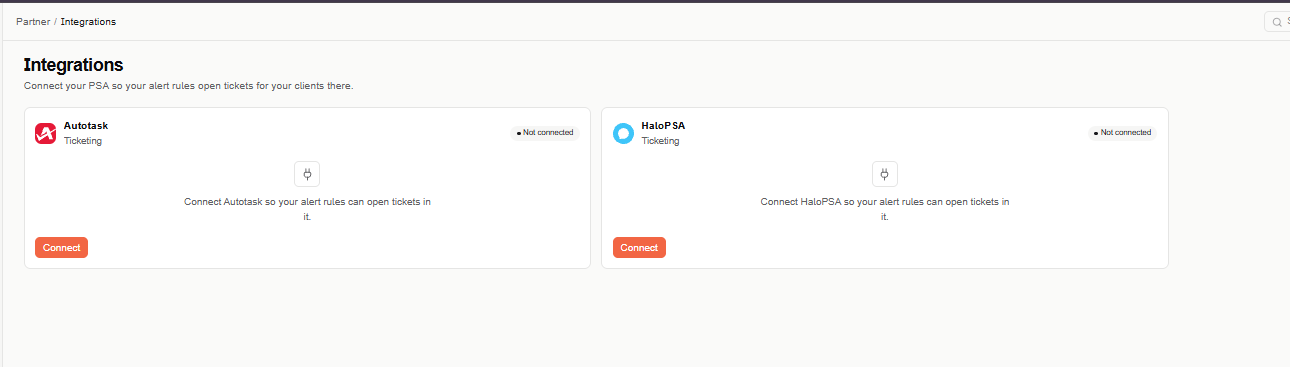
PSA cards
Each PSA has a card with its status:
- Not connected — select Connect to set it up.
- Connected — the connection works, every client has a PSA company or client (or there's a default), and the required ticket defaults are set. Select Manage to change them.
- Failed — the connection isn't working; the card shows the error.
A connected card also shows a checklist — Connection, Client mapping, and Ticket defaults — that tells you what's still missing, for example how many clients have no PSA client and no default.
Connect Autotask
- On the Autotask card, select Connect.
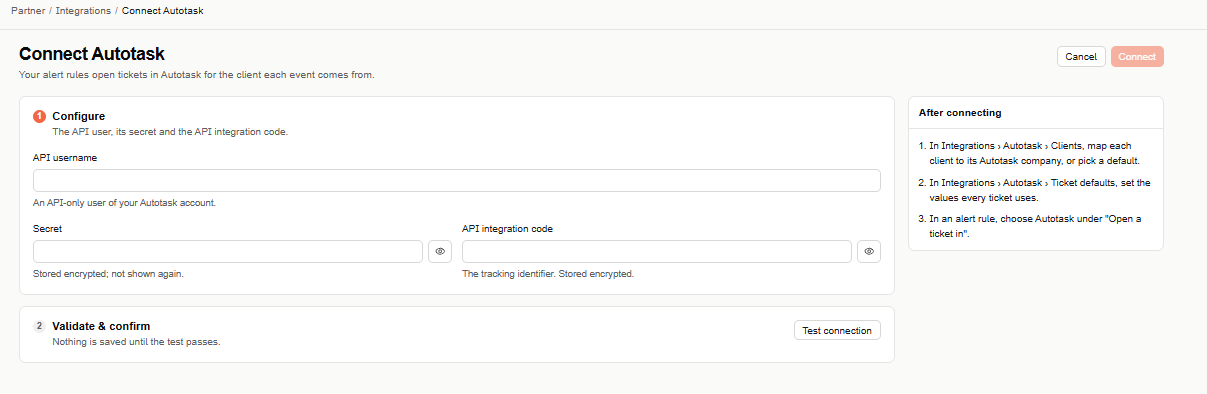
- Under Configure, enter:
- API username — an API-only user of your Autotask account.
- Secret — stored encrypted and not shown again.
- API integration code — the tracking identifier, stored encrypted.
- Under Validate & confirm, select Test connection. Nothing is saved until the test passes.
- Select Connect.
Connect HaloPSA
In HaloPSA, create an API application with client ID and secret authentication. Then:
- On the HaloPSA card, select Connect.
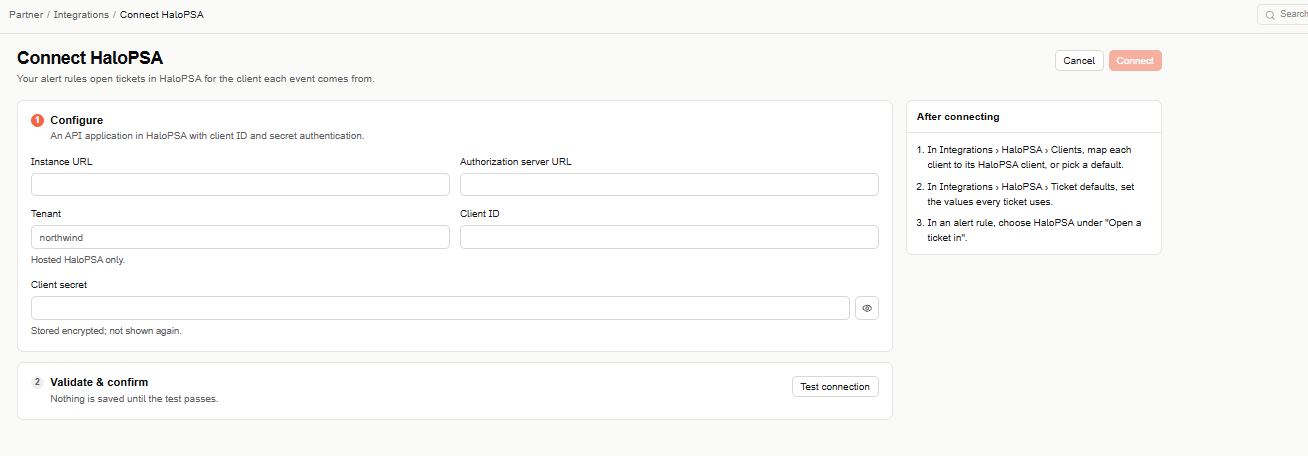
- Under Configure, enter:
- Instance URL — your HaloPSA address, starting with
https://. - Authorization server URL — if your authorization server is on a different address.
- Tenant — for hosted HaloPSA only.
- Client ID and Client secret — from the API application. The secret is stored encrypted and not shown again.
- Instance URL — your HaloPSA address, starting with
- Under Validate & confirm, select Test connection. Nothing is saved until the test passes.
- Select Connect.
After connecting
Select Manage on the PSA's card. It has three tabs:
Connection
Update the connection details. Secrets are never shown: leave them blank to keep the saved values. Test the connection again before saving. Changing the Autotask API username connects a different Autotask account.
Clients
Map each of your clients to its company in Autotask, or its client in HaloPSA, so each ticket is opened for the right customer.
- Pick the PSA company or client on each row. Use the search box, or the filter that shows only clients without one.
- Optionally, set a Default for clients without their own mapping.
A client with no mapping and no default doesn't get tickets — a warning shows how many are affected.
Ticket defaults
Set the values every ticket uses, such as the ticket type. The fields and their options come from your PSA, and required ones are marked. If your PSA asks for fields Acium UBS can't fill, a warning tells you it may reject the tickets — choose another ticket type.
Once the PSA is set up, choose it in an alert rule's Action step to open tickets in it — see Alert Rules.
Disconnect a PSA
Select the trash icon on the PSA's card, or Disconnect in its Manage page, and confirm. Alert rules that open tickets in that PSA stop opening them until you edit them.
ConnectWise isn't supported yet.