Policies
Policies lets you define a policy once and push it to many clients in one step, then see where each policy is deployed, catch clients that changed their copy, and bring them back in line. It covers all six policy types: AI Controls, Data Controls, Web Control, Browser Routing, Extensions, and Browser Settings.
Find this page at Partner Console > Controls > Policies.
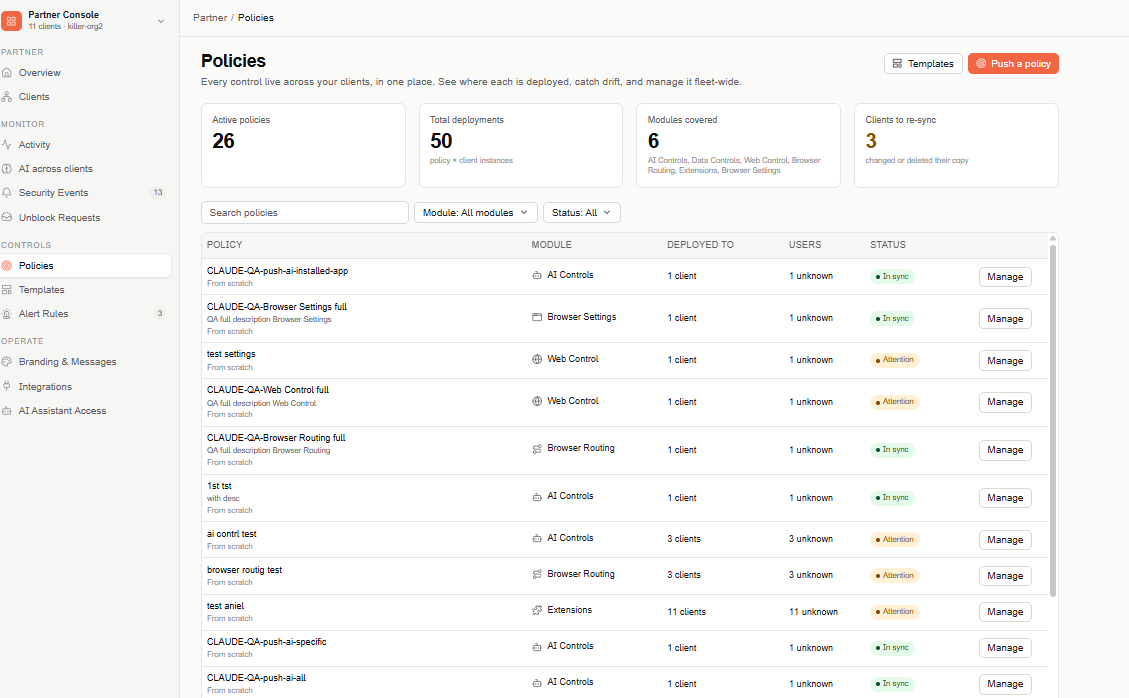
Overview metrics
- Active policies — how many policies you've pushed.
- Total deployments — policy × client instances: a policy pushed to 3 clients counts as 3.
- Modules covered — which policy types your pushed policies use.
- Clients to re-sync — clients that changed or deleted their copy of a pushed policy. A client counts once even if it changed several policies.
Policies table
- Policy — the policy's name and description, and how it was created (for example, From scratch).
- Module — the policy type.
- Deployed to — how many clients have the policy.
- Users — the total users of those clients.
- Status — In sync, or Attention when at least one client changed its copy.
- Manage — opens the policy's Manage panel.
Use Search policies and the Module and Status filters to narrow the list. Templates (top right) opens your Templates.
Push a policy
Pushing a policy follows the same steps as creating that kind of profile in a client's console — for example, Web Control, Data Controls, or AI Controls. The only difference is that, instead of choosing an audience, you choose the Clients that get the policy.
Select Push a policy (top right).
-
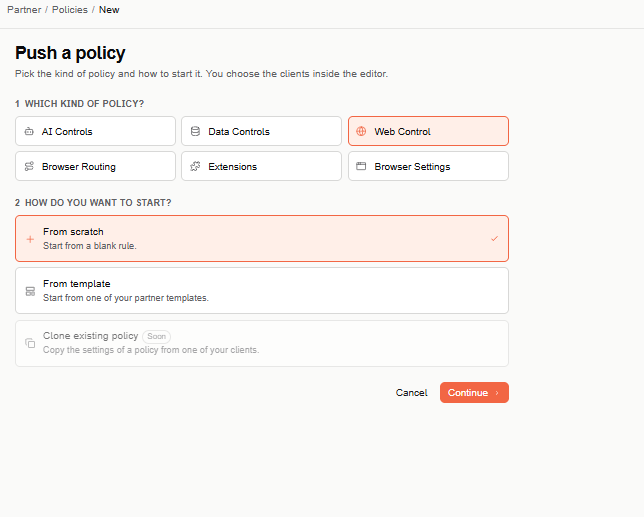
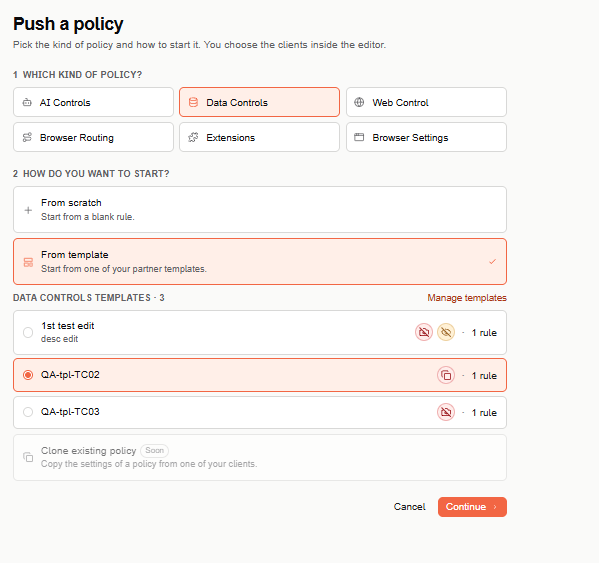
Which kind of policy? — choose AI Controls, Data Controls, Web Control, Browser Routing, Extensions, or Browser Settings.
-
How do you want to start?
- From scratch — start from a blank policy.
- From template — start from one of your partner templates. See Push a policy from a template.
-
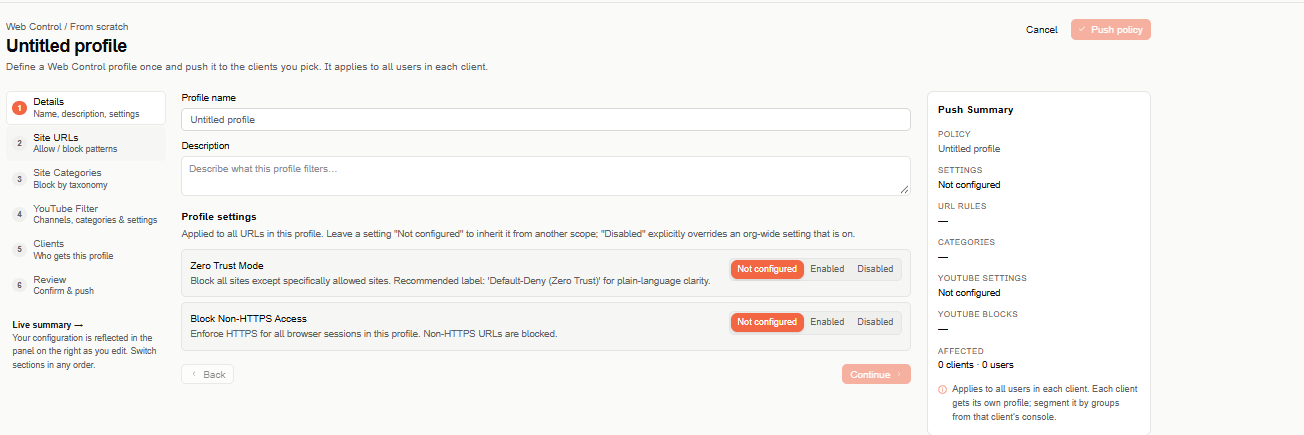
Select Continue. The editor opens with the steps of that kind of profile, plus a Clients step in place of the audience.
-
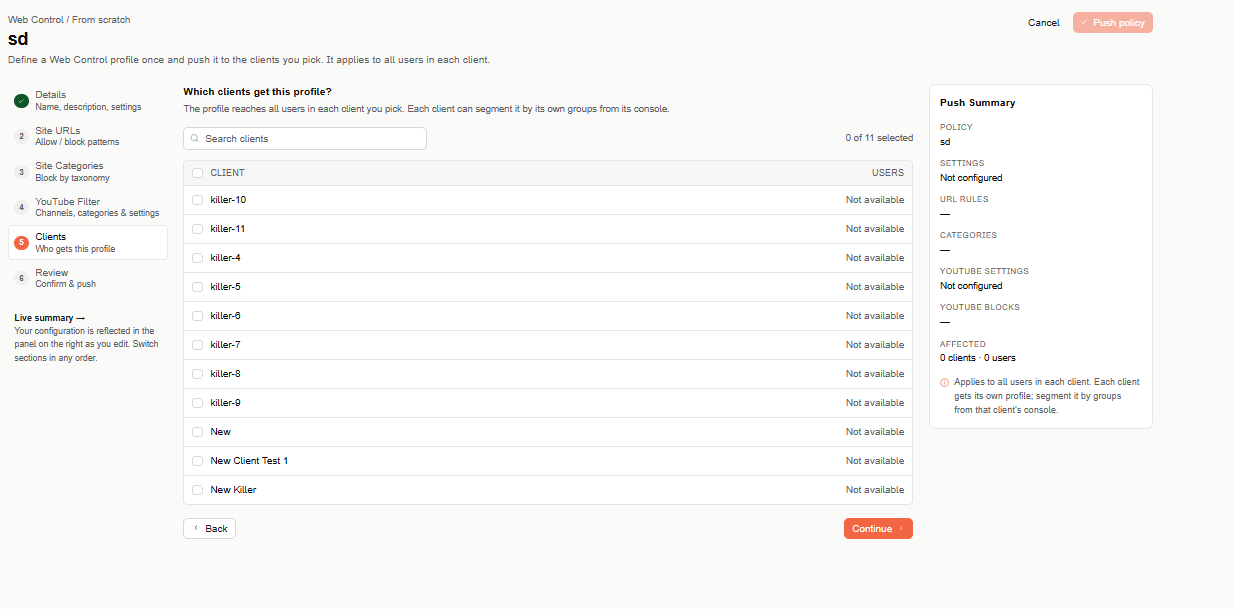
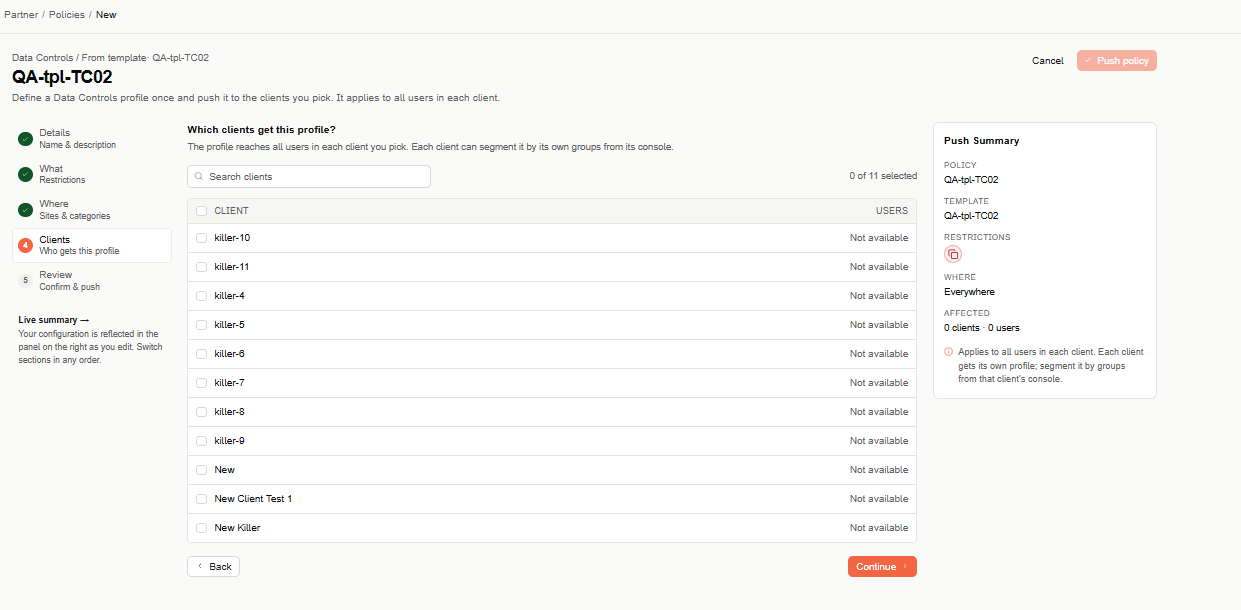
In Clients, pick the clients that get the policy. Use Search clients to find them; the counter shows how many are selected.
-
In Review, check the configuration and select Push policy.
The Push Summary panel on the right updates as you go, including how many clients and users are affected.
A pushed policy applies to all users in each client — each client gets its own copy of the profile. A client can segment it by its own groups from its own console.
Push a policy from a template
-
Select Push a policy and choose the kind of policy.
-
Select From template. The list shows your templates of that kind, each with a summary of its controls and its number of rules. Manage templates opens the Templates page.
-
Pick a template and select Continue.
-
The editor opens already filled in with the template's settings — its header reads, for example, Data Controls / From template · template name. You can still change any step (Details, What, Where, and so on).
-
In Clients, pick the clients that get the policy.
-
In Review, check the configuration and select Push policy.
The Push Summary shows which template the policy started from.
Manage a policy
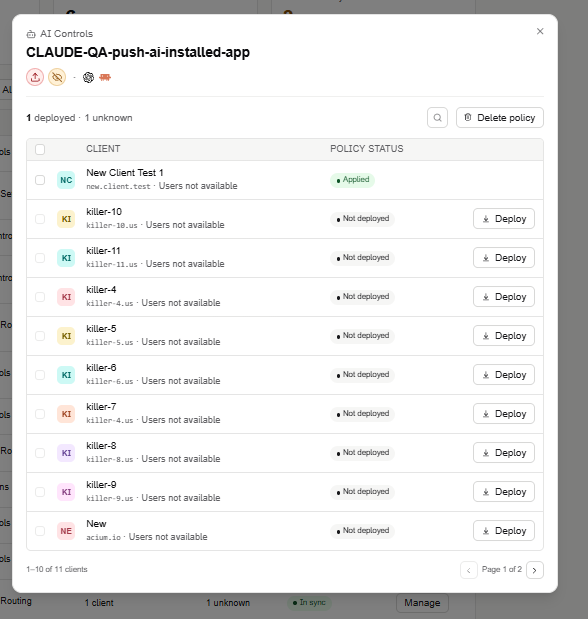
Select Manage on a policy to open its panel: the policy type and name, a summary of its settings (for example, the restriction icons and the AI tools it targets), a count of how many clients have it deployed, and the list of your clients — each with its domain and users — with the Policy status in each one.
| Status | Meaning |
|---|---|
| Applied | The client has the policy as you pushed it. |
| Deploying | The policy is being applied. |
| Drifted | The client changed or deleted its copy. |
| Not deployed | The client doesn't have the policy. |
| Failed | The policy couldn't be applied. |
| Removing / Removed | The policy is being or has been deleted from the client. |
From here you can:
- Deploy — apply the policy to a client that doesn't have it yet, or retry one that failed.
- Re-sync — restore your configuration in a client that changed its copy, for all its users. Re-sync all does it for every drifted client at once.
- Delete policy — delete the policy from all its clients, or from the clients you select. It deletes the policy's profile in those clients, even where they changed it.
Each action asks for confirmation first. Use the search icon to find a client by name or domain.