Templates
Templates are reusable configurations for each Protect module — AI Controls, Data Controls, Web Control, Browser Routing, Extensions, and Browser Settings — kept in your partner library. Use them in two ways:
- Start a push from a template — see Push a policy from a template.
- Assign a template to clients — it shows up in each client's console, and their administrators decide if and when to apply it.
Creating or assigning a template never applies a policy. Enforcement only happens when a client deploys it, or when you push it from Push a policy.
Find this page at Partner Console > Controls > Templates, or select Templates on the Policies page.
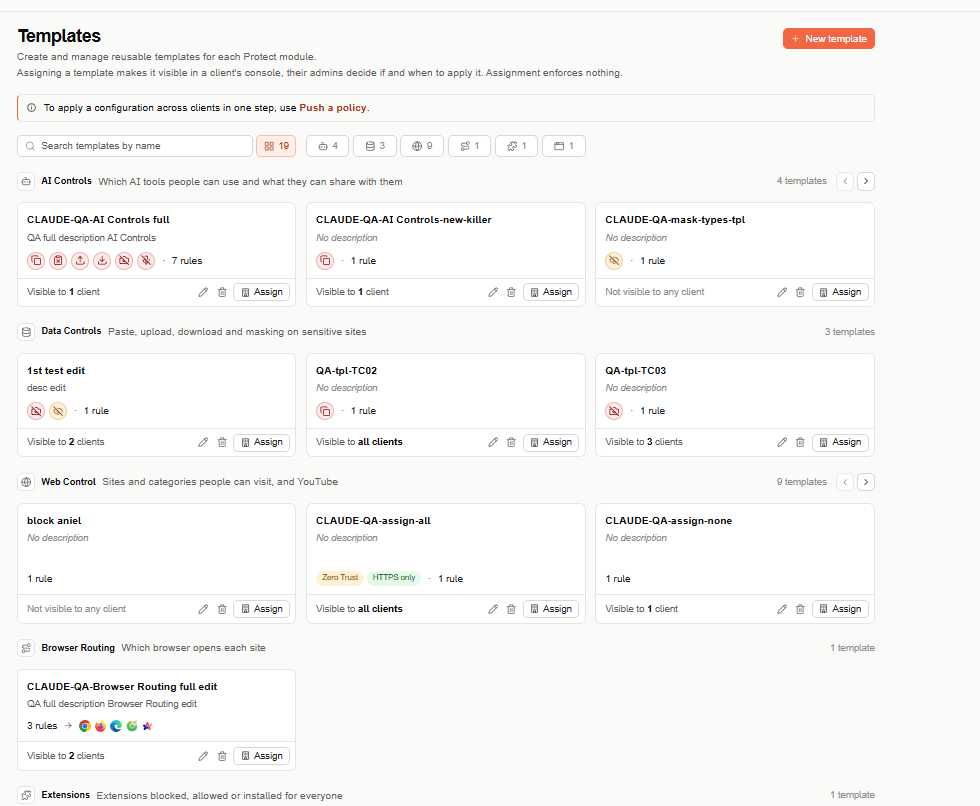
Templates list
Templates are grouped by module, each group with a short description of what the module controls and its number of templates. Use Search templates by name and the module buttons next to it (each showing its count) to narrow the list. When a group has more templates than fit in a row, use the arrows on its header to scroll through them.
Each template card shows:
- Its name and description.
- A summary of its controls — for example, the restriction icons and number of rules, or the Zero Trust and HTTPS only settings.
- Its visibility — Visible to all clients, Visible to N clients, or Not visible to any client.
- Edit (pencil), Delete (trash), and Assign.
Create a template
-
Select + New template and choose the module.
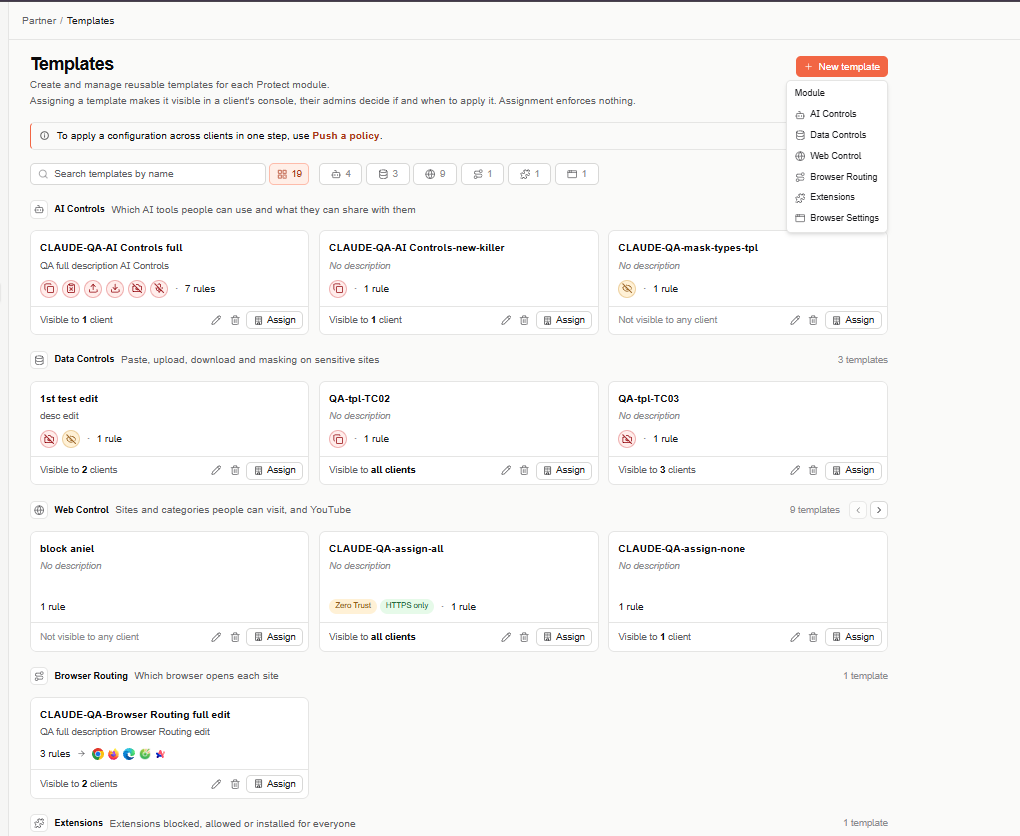
-
The editor has the same steps as creating that kind of profile in a client's console — for example, AI Controls has Details, What, and Where — followed by Visibility and Review. There's no audience or clients step.
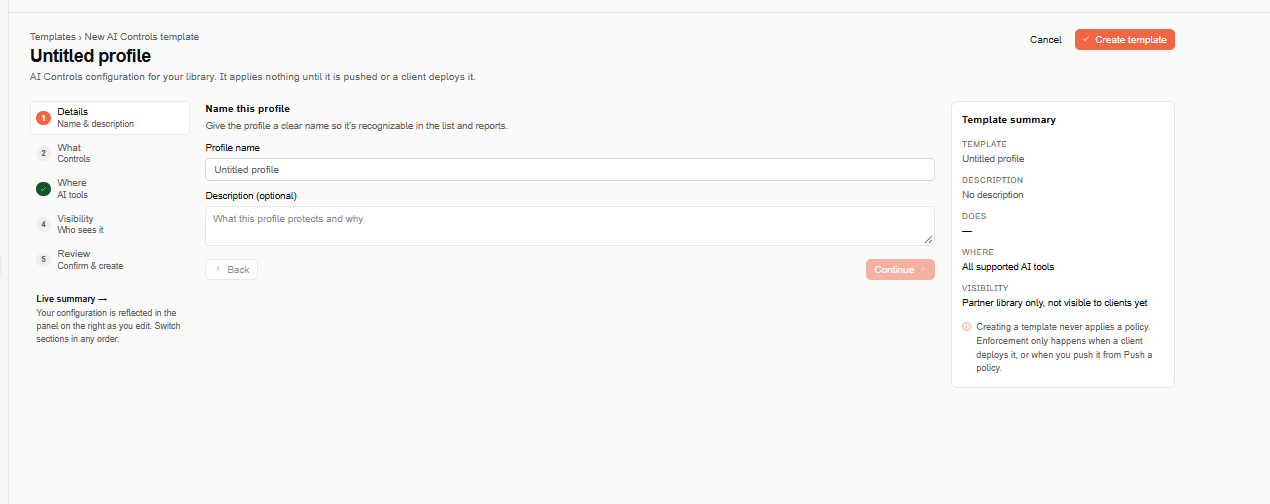
-
In Visibility (Who sees this template), choose:
- All clients, including new ones — clients you add later see it too.
- Selected clients — only the clients you check.
If you leave both unselected, the template stays in your partner library only, not visible to any client yet.
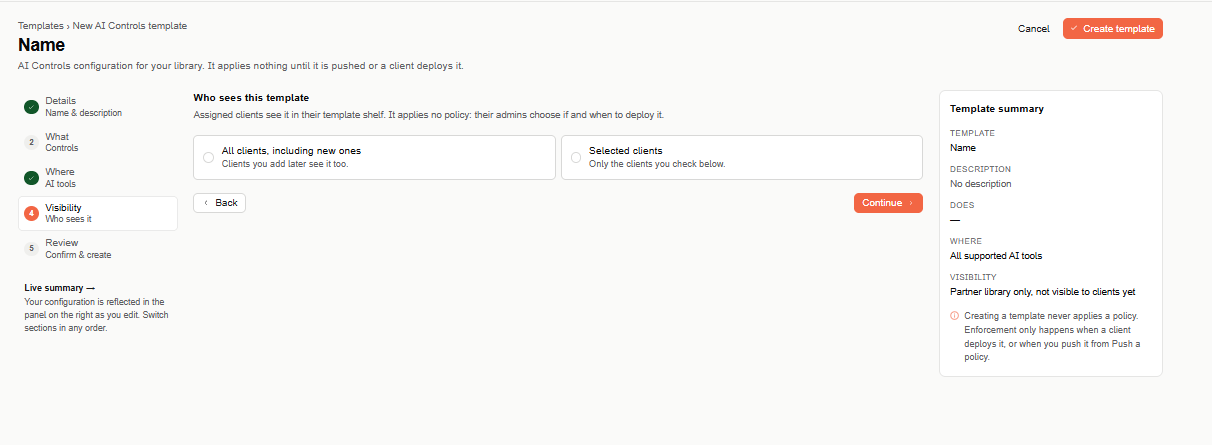
-
In Review & create, check the template, controls, tools, and visibility — select Edit on any row to go back — then select Create template.
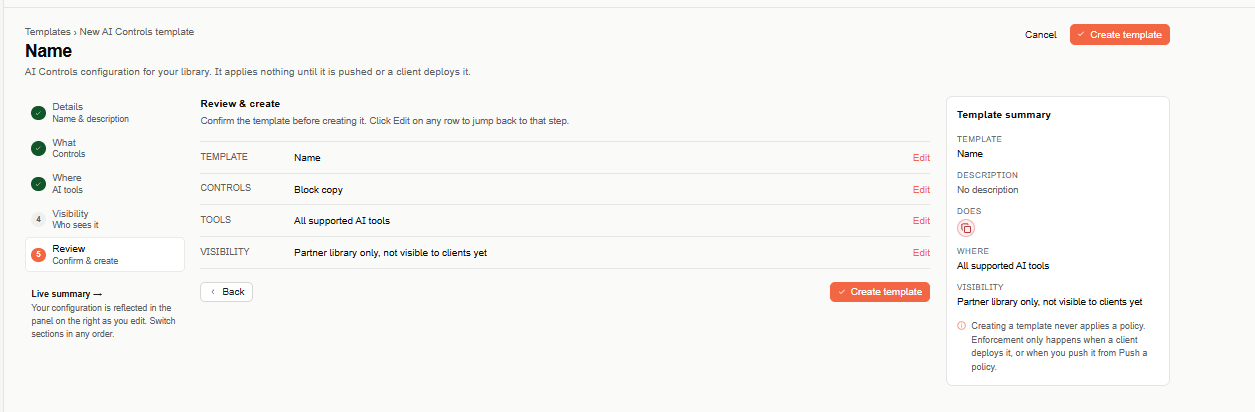
The Template summary panel on the right updates as you go.
Edit a template
Select the pencil on a template's card. The same editor opens with the template's settings and its visibility; make your changes and save. Clients that see the template get the updated version; profiles they already created from it don't change.
Assign a template to clients
Select Assign on a template's card to change which clients see it, without editing the template. The Assign template name dialog opens:
- Under Who sees this template, choose All clients, including new ones, or Selected clients.
- With Selected clients, check the clients in the list — each shows its domain and users. Use Search clients, Select all, or Clear all. The clients that already see the template come first, checked.
- Check the summary at the bottom (for example, "1 selected · No changes") and select the button, which reflects your choice — for example, Make visible to 1 client, Make visible to all clients, or Remove from all clients.
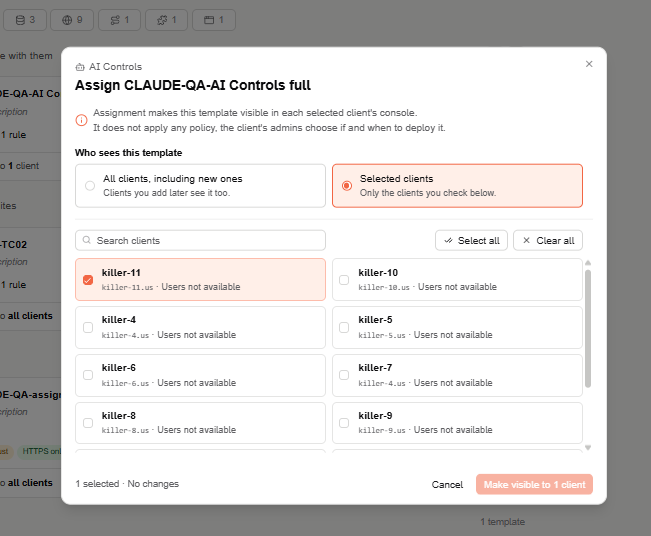
Assignment only makes the template visible in each selected client's console; it doesn't apply any policy — the client's administrators choose if and when to deploy it.
Delete a template
Select the trash icon on a template's card and confirm. Clients that could see it stop seeing it; profiles already created from it don't change. Deleting can't be undone.
What clients see
In a client's console, templates assigned by its partner appear under Start from a template at the top of the matching Protect page, next to the built-in templates, marked Assigned by your partner. Selecting one opens a new profile filled in with the template's settings; the client's administrators review it, pick the audience, and deploy it when they decide.