Unblock Requests
Unblock Requests lists the pending unblock requests from your direct clients — end users asking for access to a page the extension blocked — and lets you approve or deny them without switching into each client. It's the same queue as each client's Unblock Requests, across all of them.
Find this page at Partner Console > Monitor > Unblock Requests. The badge next to it in the menu shows how many requests are pending.
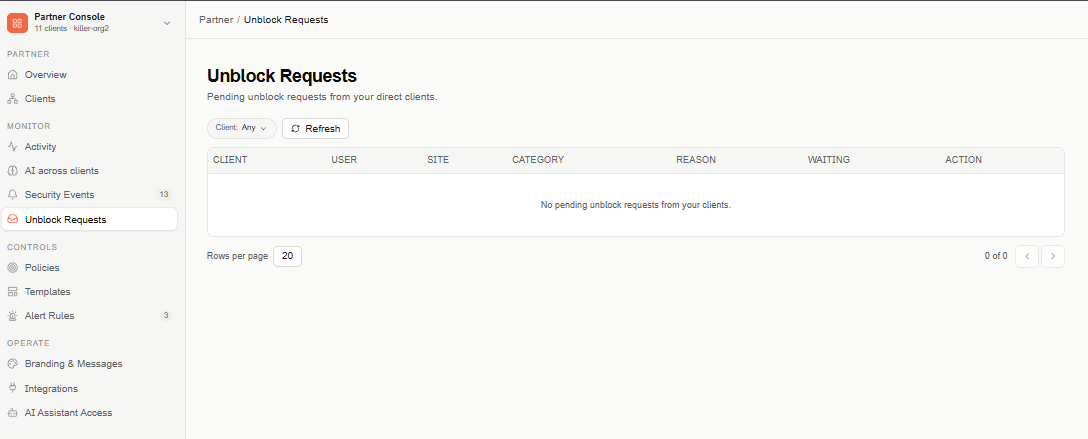
Requests table
The table lists pending requests only, newest first, 20 per page:
- Client — the client the request came from.
- User — who requested access.
- Site — the page the user tried to reach.
- Category — the site's categories.
- Reason — the explanation the user submitted with the request, in full.
- Waiting — how long ago the request was submitted. Hover it to see the exact date and time.
- Action — Approve and Deny.
Use the Client filter to see one client's requests, and select Refresh to reload the list. Clients that turned off partner access aren't shown, and a notice tells you how many were left out.
Approve or deny a request
Only the Admin role sees Approve and Deny.
- Approve asks "Grant user access to site?", with an optional comment. Confirming creates an exception so that user can access the page from then on.
- Deny asks "Keep site blocked for user?". A comment is required to deny.
Comments can be up to 500 characters. Once confirmed, the request leaves the queue and the badge count goes down. In the client's own Unblock Requests page, the request shows as Approved or Denied, with your email as the person who resolved it.
If another administrator already resolved the request, you see "This request was already resolved by another admin." and the request leaves the queue — the first decision stands.