AI Controls
AI Controls profiles restrict what people can do in AI tools: block a tool entirely, allow it only with a corporate account, or block copy, paste, uploads, and more inside it — per tool and per audience. Unlike Data Controls, you don't write URLs or pick categories: you pick AI tools from a catalog.
Find this section at Define > Protect > AI Controls.
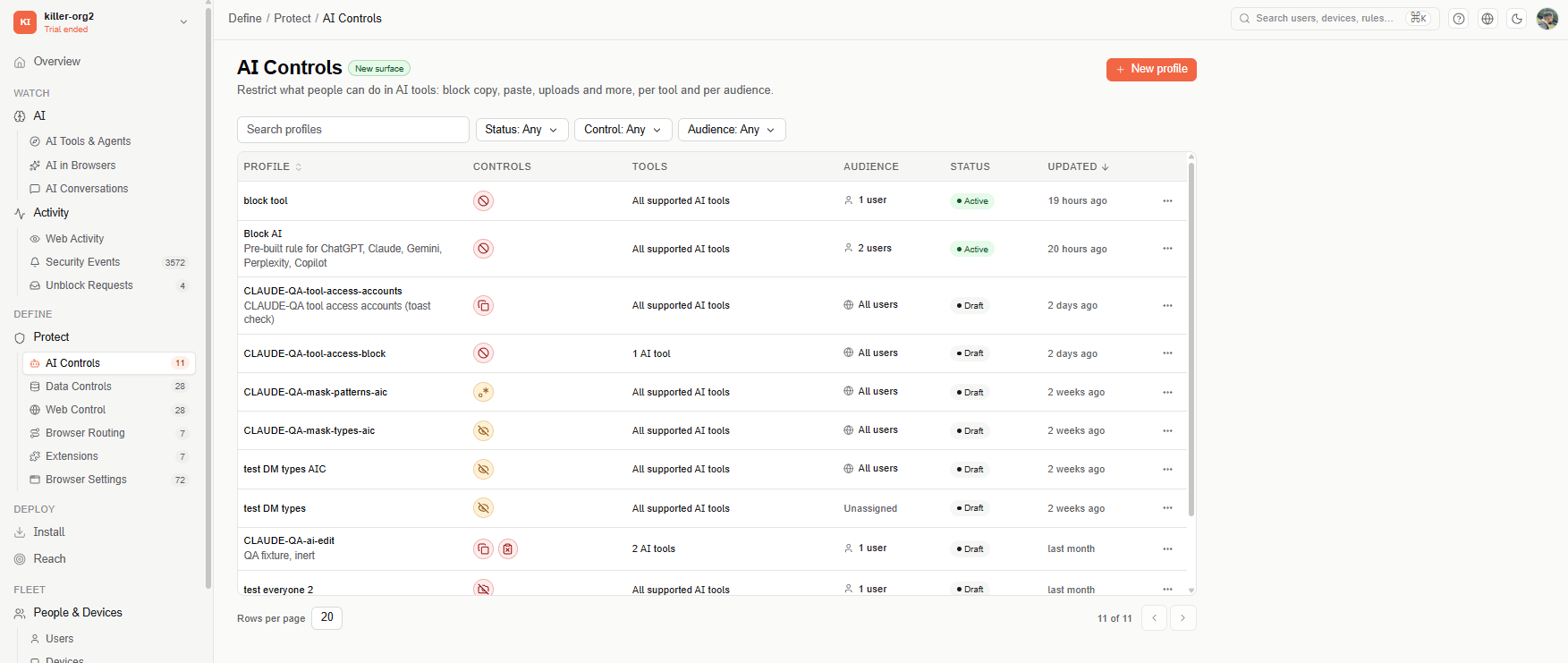
Profiles table
The main page lists every AI Controls profile with the following columns:
- Profile — the profile name, with its description below it. Select the name to open the profile for editing.
- Controls — one icon per control the profile applies. Hover an icon to see its name.
- Tools — All supported AI tools, or the number of tools the profile targets (for example, "2 AI tools"). Hover the count to see the tool names.
- Audience — All users, the number of groups or users the profile targets, or Unassigned.
- Status — Active or Draft.
- Updated — when the profile was last changed. The table is sorted by this column, newest first.
Use the Search profiles box and the Status, Control, and Audience filters above the table to narrow the list. Each row's ⋯ menu offers Delete.
Admins and Editors can create, edit, and delete profiles. Viewers see the same table, without New profile or the row actions.
Create a profile
Select + New profile. The editor has five steps — Details, What, Where, Who, and Review — and a Summary panel on the right (Does / Where / Who) that updates as you go. You can move between steps in any order; a step shows a green check once it's complete, and turns red if something is missing when you try to deploy.
Step 1: Details
Enter a Profile name (required, up to 128 characters, and it can't contain \ / * ?) and an optional description of what the profile protects and why.
Step 2: What — Controls
Pick one or more controls. They stack, and all of them enforce on the tools the profile applies to.
Tool access
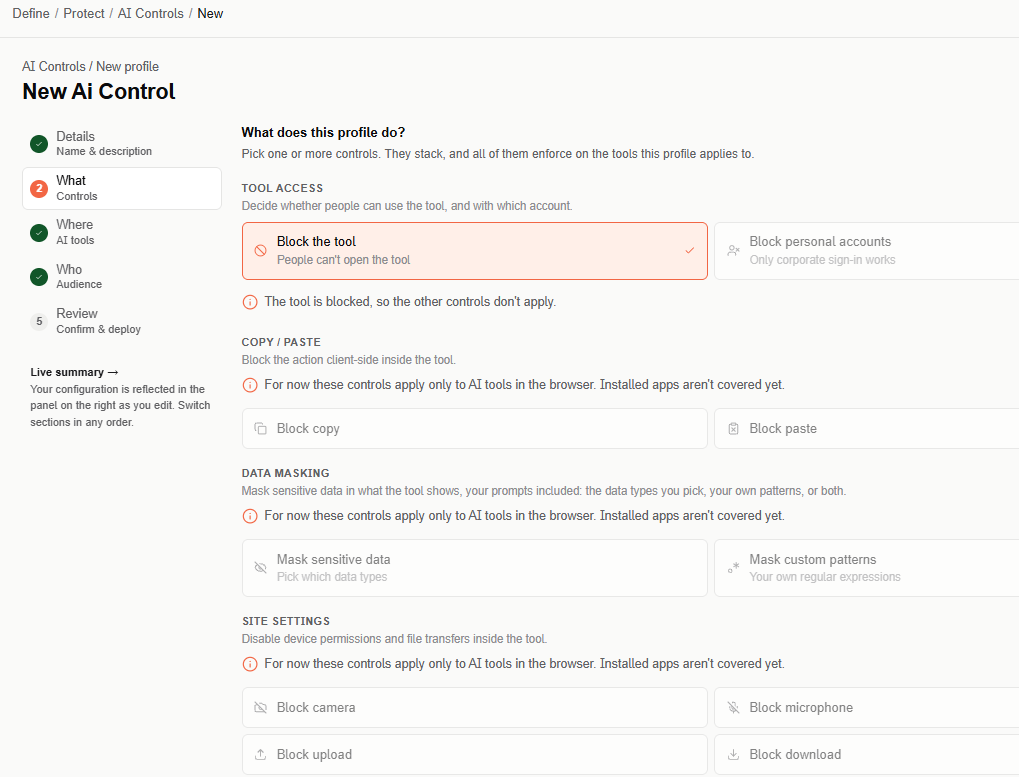
Decide whether people can use the tool, and with which account:
-
Block the tool — people can't open the tool. While it's selected, every other control is disabled and the editor shows "The tool is blocked, so the other controls don't apply." Deselect it to get your previous choices back.
-
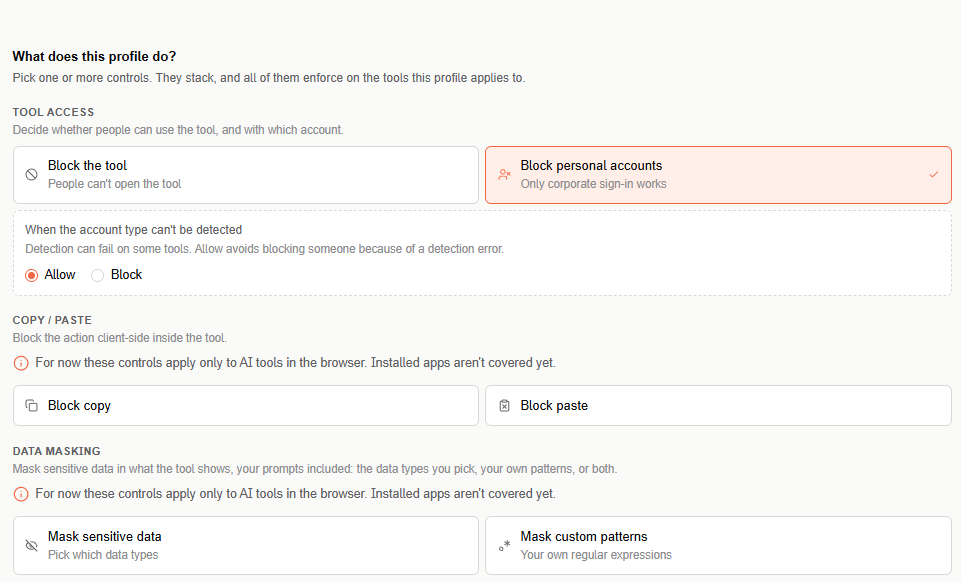
Block personal accounts — only corporate sign-in works: people can use the tool with your organization's account, but not with a personal one. When you select it, choose what happens When the account type can't be detected:
- Allow (default) — the person can use the tool. Detection can fail on some tools, and Allow avoids blocking someone because of a detection error.
- Block — the person is blocked too. The profile then shows Block personal and undetected accounts.
Copy / Paste
Block copy and Block paste inside the tool.
Data masking
Mask sensitive data in what the tool shows, your prompts included:
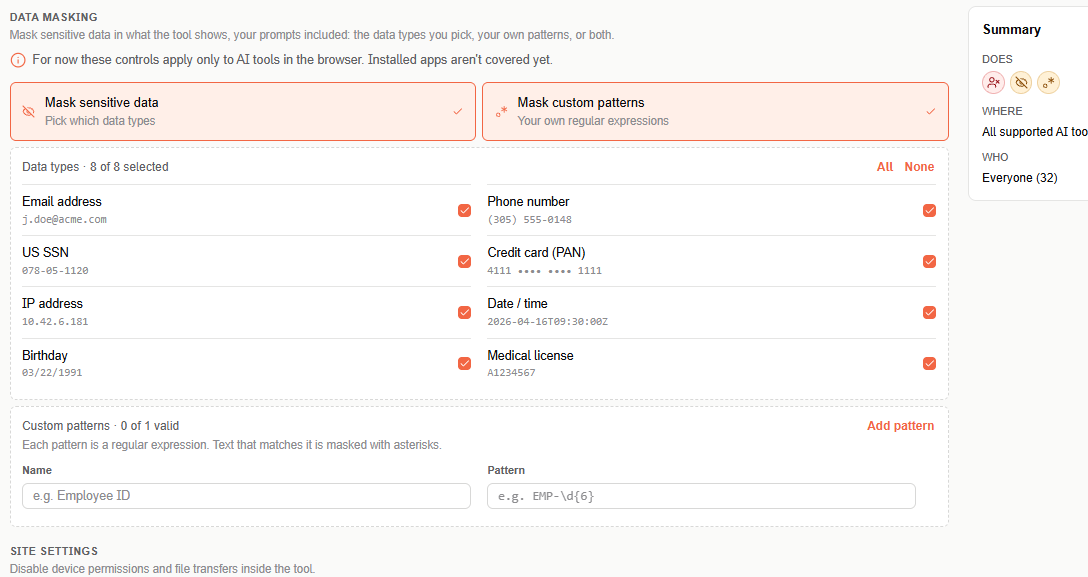
- Mask sensitive data — pick which data types to mask: Email address, Phone number, US SSN, Credit card (PAN), IP address, Date / time, Birthday, and Medical license. Each type shows an example of what it matches; use All or None to select or clear them all.
- Mask custom patterns — add your own patterns. Select Add pattern, give it a Name (for example,
Employee ID), and enter the Pattern as a regular expression (for example,EMP-\d{6}). Text that matches a pattern is masked with asterisks.
You can use either option or both. Only the data types you select and the values matching your patterns are masked — everything else stays visible. A pattern is applied exactly as written, so it's case-sensitive unless the expression says otherwise.
See How data masking works for what people see in the tool.
Site settings
Block camera, Block microphone, Block upload, and Block download inside the tool.
Copy / Paste, Data masking, and Site settings apply only to AI tools in the browser. Installed apps aren't covered by them yet.
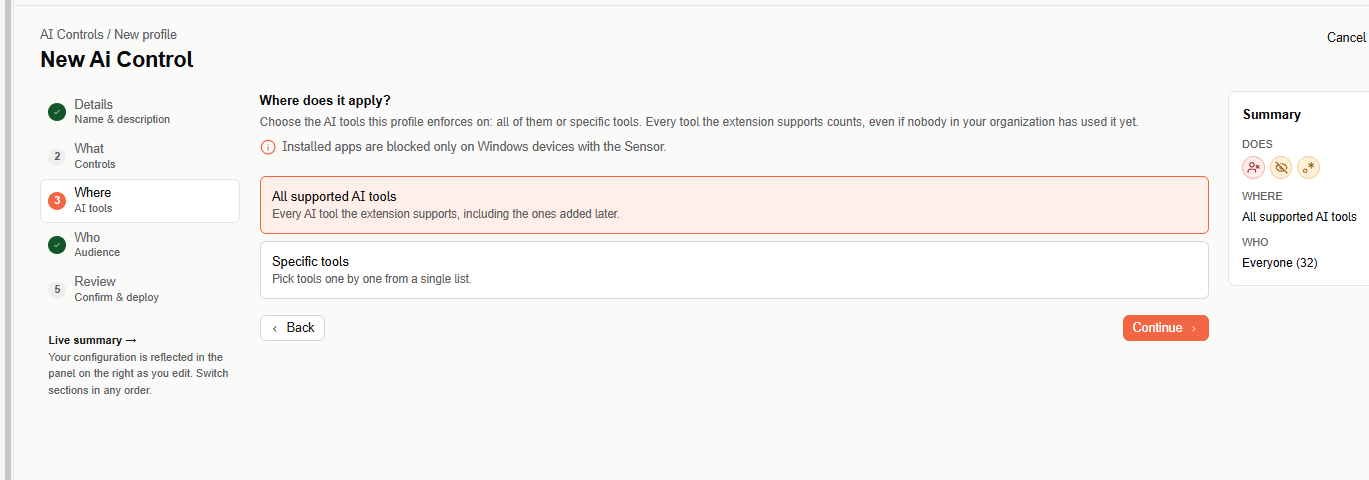
Step 3: Where — AI tools
Choose the AI tools the profile enforces on:
- All supported AI tools (default) — every AI tool Acium UBS supports, including the ones added later.
- Specific tools — pick tools one by one from a single list.
With Specific tools, the list shows every supported tool, even ones nobody in your organization has used yet:
- Web tools — AI tools used in the browser, such as ChatGPT, Claude, Gemini, or Grok. Each shows its domain below the name.
- Installed apps — desktop apps and command-line tools, such as Claude, Claude Code, Cursor, or Ollama. Each shows Installed app below the name.
For each tool, the list shows its Usage (how many people in your organization used it, or Not used yet) and its Status from AI Tools & Agents: Sanctioned, Shadow, or Unreviewed.
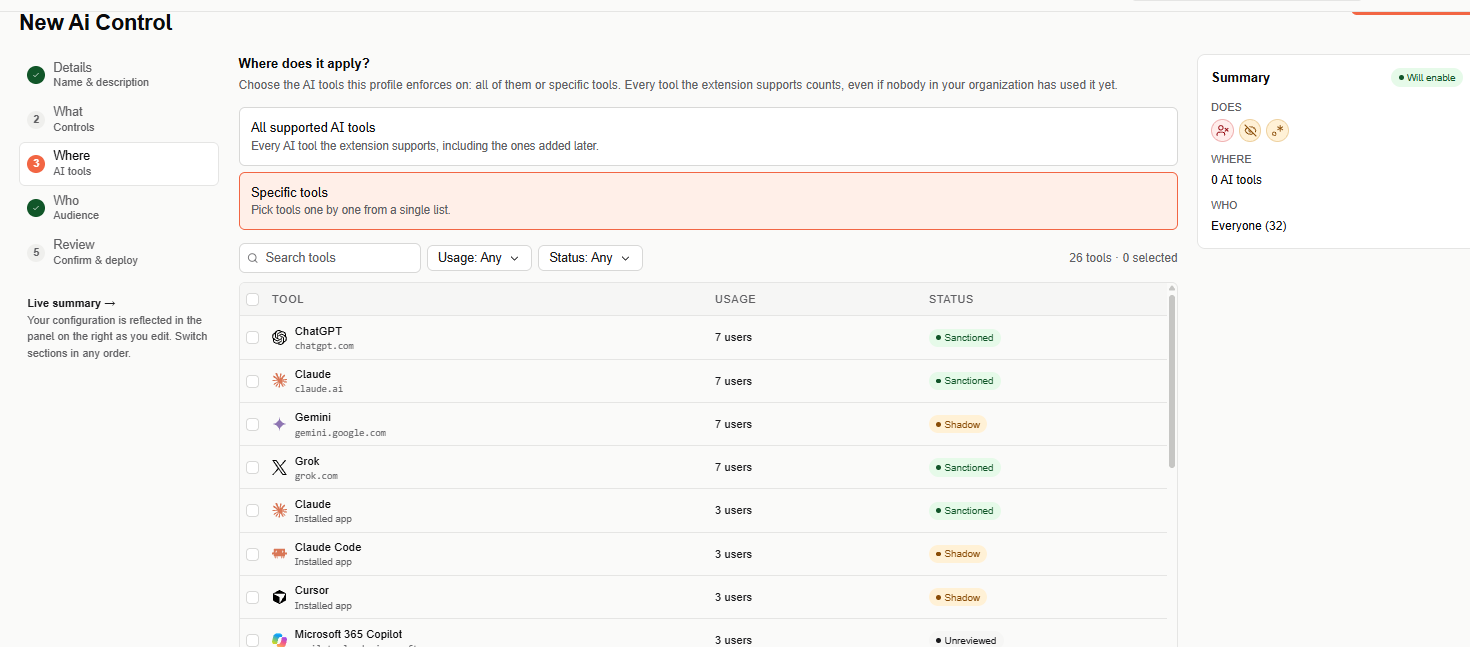
Use Search tools and the Usage and Status filters to narrow the list. The header checkbox selects every visible tool, and the counter (for example, "26 tools · 3 selected") shows how many tools are visible and how many are selected.
Installed apps are blocked only on Windows devices with the Acium sensor.
If a tool the profile saved is no longer supported, the editor marks it No longer supported. It doesn't apply, and it's removed the next time you save the profile.
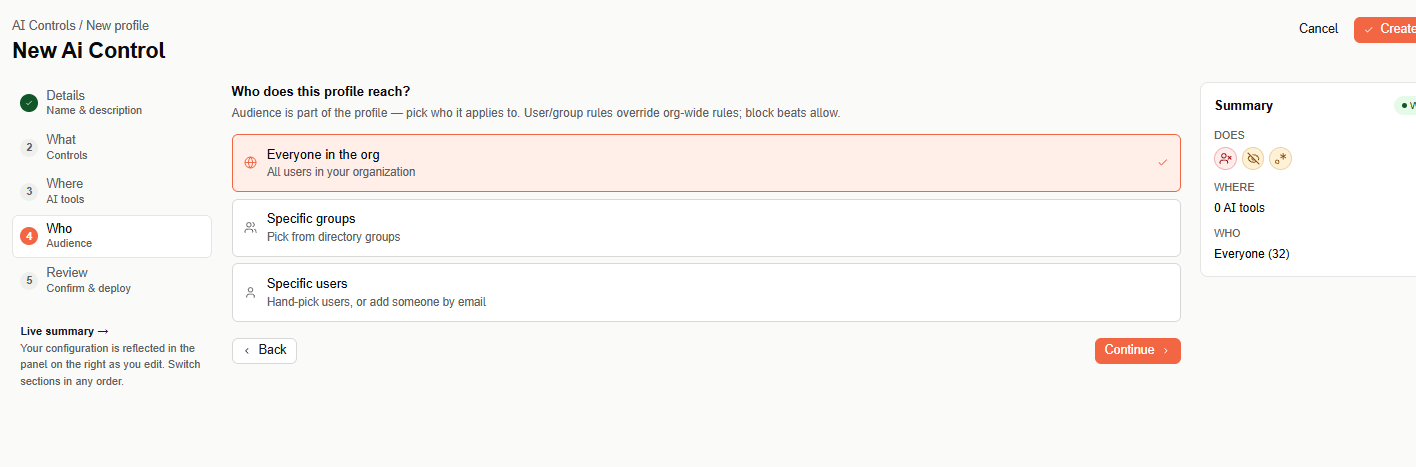
Step 4: Who — Audience
Choose who the profile applies to. User and group rules override org-wide rules, and block beats allow.
- Everyone in the org — all users in your organization.
- Specific groups — pick from directory groups.
- Specific users — hand-pick users, or add someone by email.
Step 5: Review & deploy
Review the Name, Controls, Tools, and Audience. Select Edit on any row to jump back to that step.
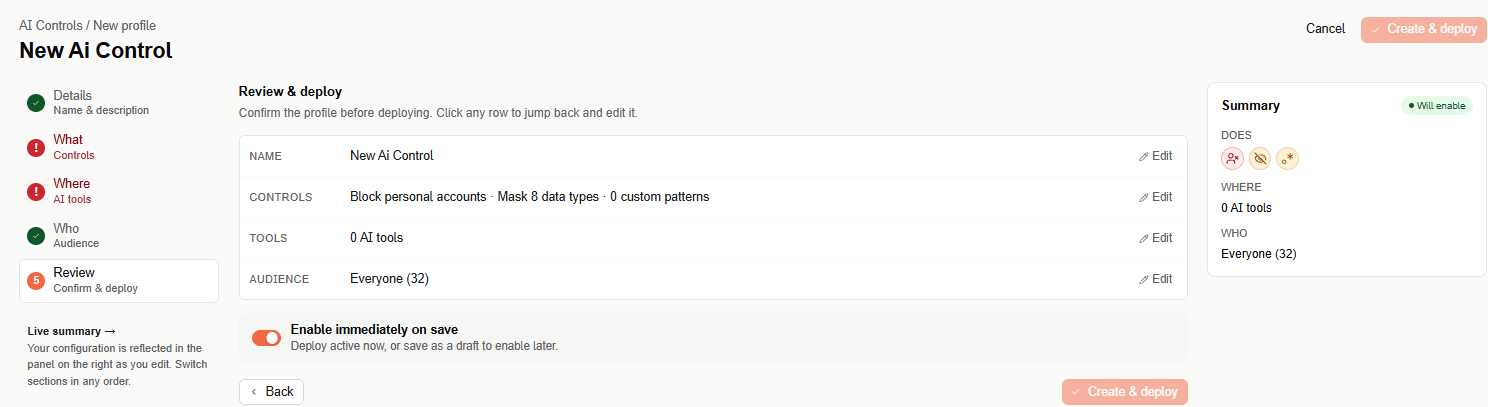
Enable immediately on save is on by default: the button reads Create & deploy, and the profile is Active as soon as it's saved. Turn it off to save the profile as a draft — the button then reads Create draft. If a step is incomplete, it turns red and the button stays disabled until you fix it.
What people see
AI Controls are enforced by the Acium extension in Chrome, Edge, and Firefox, and by the Acium sensor for installed apps on Windows. They apply only to tools in the supported AI tools catalog — AI sites outside the catalog aren't affected.
Block the tool
In the browser, when someone in the profile's audience opens a blocked tool, the extension shows an AI Tool Blocked page instead of the tool: "Tool has been blocked due to organization's policies. Please contact IT Support if you require assistance." This also happens when they open a direct link to a page inside the tool, such as a conversation.
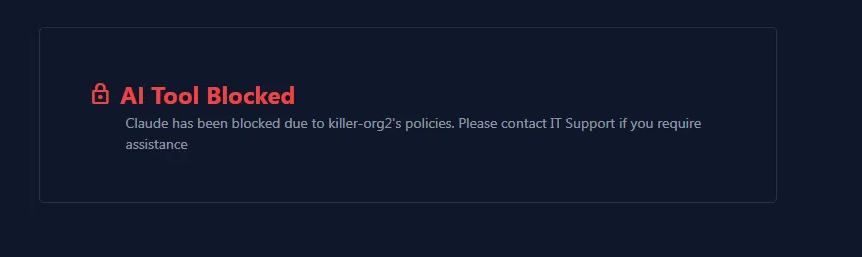
- The page doesn't offer Request Site Review or a bypass PIN, unlike the Web Control block page.
- A Web Control rule that allows the tool's site doesn't lift the AI Controls block.
- With All supported AI tools, the block also reaches tools added to the catalog later, and tools nobody in your organization has used yet.
On Windows devices with the sensor, blocked installed apps (such as Claude Code or Cursor) are prevented from running, and the person sees a notice explaining why the app was blocked.
Block personal accounts
In the browser, when someone in the profile's audience uses a tool with a personal account:
- The tool still opens, and they can read their history.
- They can't type or send prompts, upload files (with the attach button, by dragging, or by pasting), or use voice dictation or voice mode.
- The extension shows a Blocked Tool message in the tool saying only the organization's account can be used there — for example, "Organization only allows its own accounts in chatgpt.com." This message appears even if you turned off the extension's notifications.
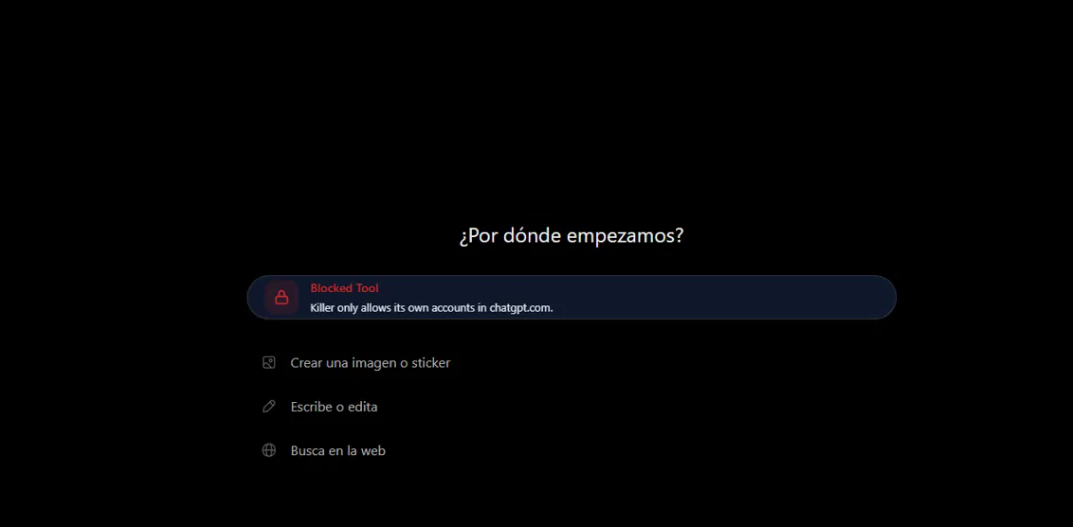
The account type comes from the email the person signed in to the tool with: an email from a consumer domain (such as Gmail or Outlook.com) counts as personal, and any other domain — including a customer's or partner's — counts as corporate. Using the tool without signing in counts as an undetected account, and follows the profile's When the account type can't be detected option.
To keep working, the person can sign out of the tool and sign back in with their corporate account. Detecting the account type takes a few seconds after the tool opens; a prompt sent before then isn't stopped.
On Windows devices with the sensor, personal accounts are also blocked in installed apps.
How data masking works
With Mask sensitive data or Mask custom patterns, the extension replaces matching values with ***** in two places:
- What the tool shows — when the page loads, when its URL changes (for example, switching to another chat), and when the policy changes.
- What the person types or pastes — into any text field of the tool, including the prompt box. A pasted value is masked as soon as it's pasted; a typed value is masked as soon as the person types a space or punctuation after it, leaves the field, or sends the prompt.
The person sees ***** in the field, and the AI tool receives ***** — the original value never leaves the browser. The rest of the text doesn't change, the cursor stays after the masked value, and undo (Ctrl+Z) doesn't bring the original value back. Password, email, URL, and other typed fields are never masked.
Each prompt sent with masked data generates one masking event in Security Events, listing the masked data types and custom pattern names — never the values themselves. In AI Conversations, the conversation shows a redaction marker with the type or pattern name where the value was.
Data masking doesn't currently cover:
- Installed apps.
- The content of uploaded files.
- Responses the AI tool writes after the page has loaded.
- Content inside embedded frames.
The person isn't notified that data was masked.
When the block starts to apply
Changes to an active profile reach the extension with the same timing as other profiles (see Communication interval). If the tool is already open in a tab, the new control applies the next time the person reloads the page or opens the tool again — moving between conversations inside the tool doesn't trigger it. A profile in Draft doesn't apply anything.
When several profiles apply
If more than one AI Controls profile reaches the same person on the same tool, only one of them applies — profiles aren't combined:
- The profile closest to the person wins: one assigned to the user, then one assigned to a group, then one assigned to everyone in the organization.
- At the same level, the profile that picks the tool more specifically wins: Specific tools over All supported AI tools.
- If they're still tied, one of them applies in full, including its option for undetected accounts.
For example, if a profile assigned to a user blocks ChatGPT and an organization-wide profile only blocks paste in ChatGPT, ChatGPT is blocked for that user. If it's the other way around, the user can open ChatGPT, and only paste is blocked.
If a Data Controls rule is assigned closer to the person than the AI Controls profile, the Data Controls rule applies in full on that tool. If they're assigned at the same level, the AI Controls profile applies — even when the Data Controls rule targets the tool's URL, a category, or all sites.
Edit or delete a profile
Select a profile's name in the table to open it in the same editor, make your changes, and select Save changes.
To delete a profile, select Delete in the row's ⋯ menu or in the editor header, then confirm. Deleting can't be undone.