Browser Routing
When a user opens a matched URL, Browser Routing reopens it in a different, selected browser instead. This is useful when an internal app only works correctly in one browser engine. Browser Routing is available for all browsers.
Find this section at Define > Protect > Browser Routing.
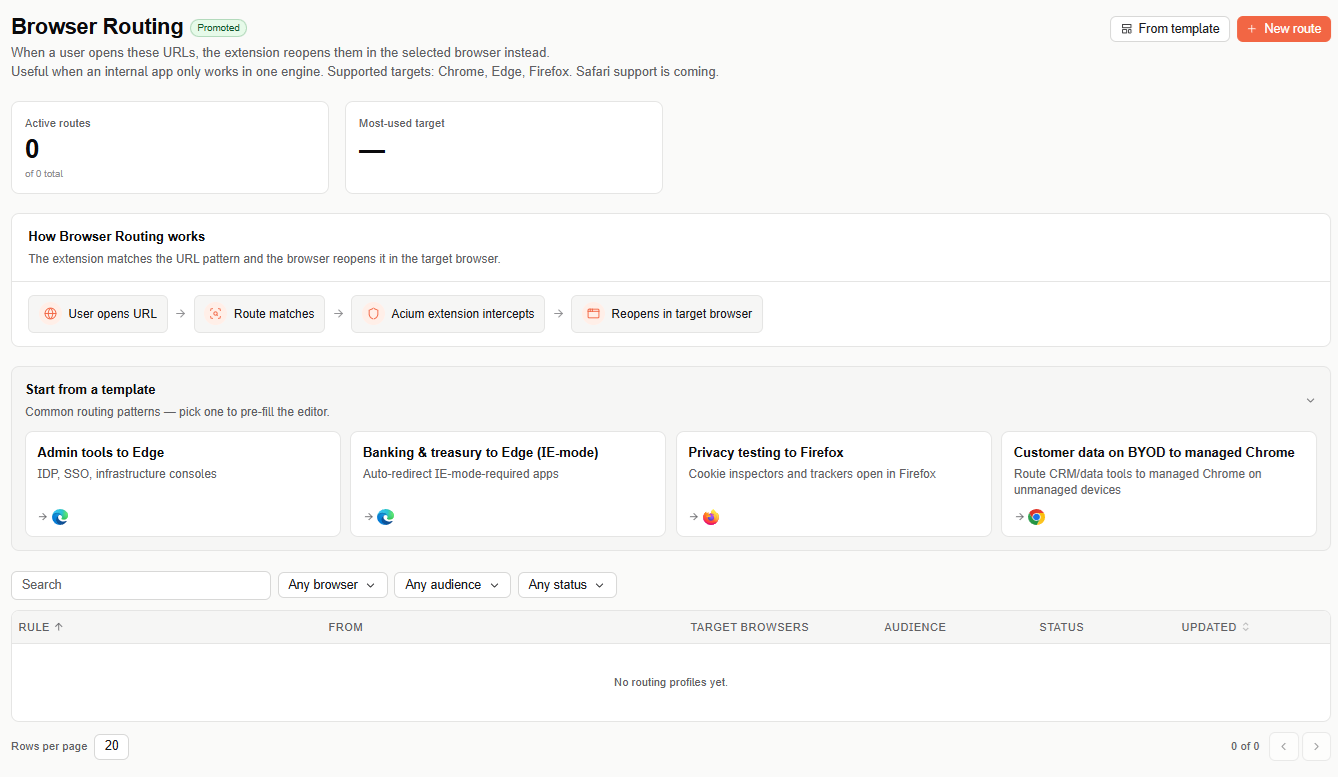
Browser Routing requires the Acium Sensor and Detours, and only enforces on Windows. It has no effect on Mac or Linux devices.
Overview metrics
- Active routes — number of enabled routes out of the total configured.
- Most-used target — the browser that routes redirect to most often.
How Browser Routing works
- A user opens a URL, in any browser.
- The route matches — by a specific URL, a site category, or the org-level default.
- The Acium extension intercepts the navigation.
- The page reopens in the profile's target browser.
The extension evaluates which rule applies to the current navigation in this order: a specific URL match takes precedence over a site category match, which takes precedence over the org-level default. If the URL is opened in a browser that isn't one of the route's target browsers, the extension blocks it there and reopens it in the target browser instead — regardless of which browser the user originally used. The extension passes the routing instruction to the Acium Sensor, which performs the reopen via Detours.
Start from a template
Templates are pre-built routes covering common routing patterns. Selecting a template opens the same route wizard used for a custom route, with its criteria, target browsers, and audience already filled in — you only need to review and adjust before deploying.
| Template | What it does |
|---|---|
| Admin tools to Edge | Routes IdP, SSO, and infrastructure consoles to Microsoft Edge. |
| Banking & treasury to Edge (IE-mode) | Auto-redirects apps that require IE-mode to Edge. |
| Privacy testing to Firefox | Opens cookie inspectors and trackers in Firefox. |
| Customer data on BYOD to managed Chrome | Routes CRM and data tools to managed Chrome on unmanaged devices. |
Create a custom route
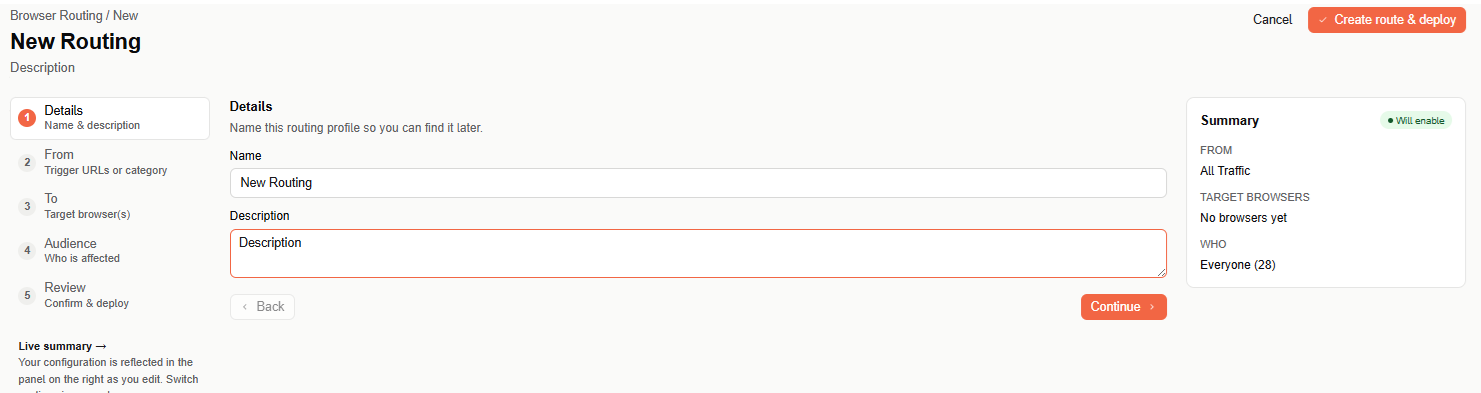
If none of the templates fit, select + New route to build a route from scratch. The wizard has five steps, and a live summary panel on the right reflects your configuration as you go — you can switch between steps in any order.
Step 1: Details
Name the routing profile so you can find it later, and add an optional description.
Step 2: From — trigger URLs or category
Define which URLs are routed through the selected browsers in this profile.
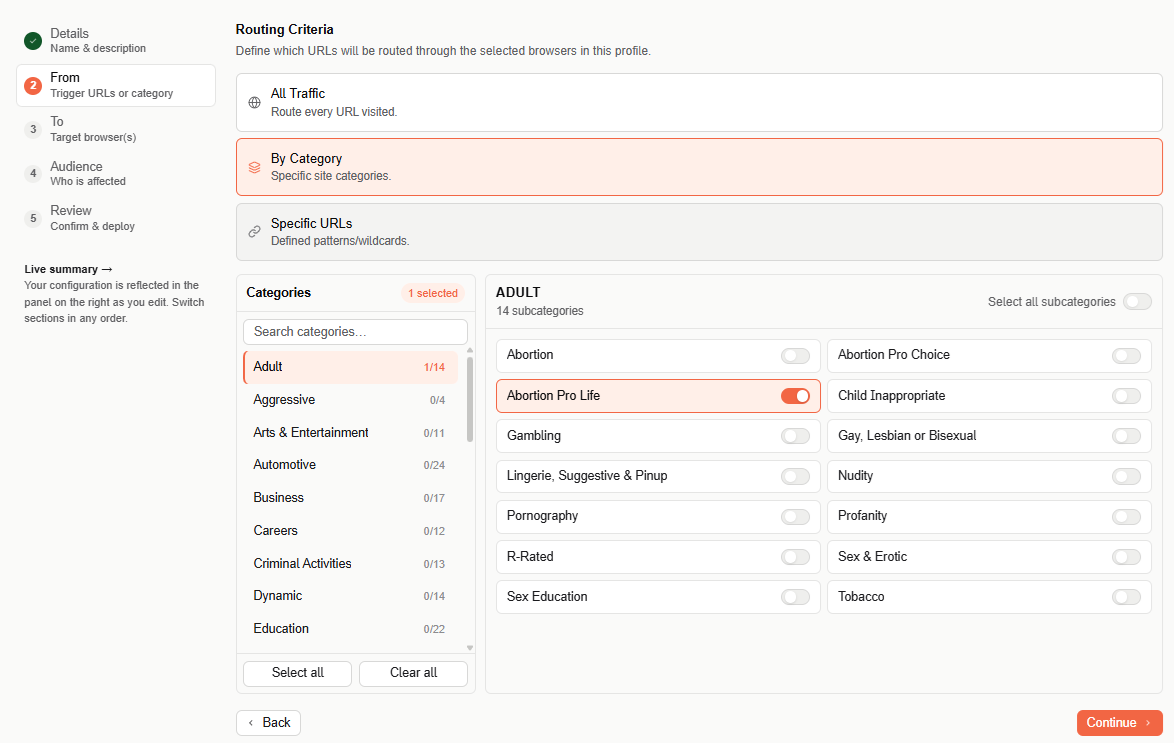
- All Traffic — routes every URL the user visits.
- By Category — select specific site categories and subcategories, using the same category picker as Web Control (search, per-category subcategory toggles, Select all / Clear all).
- Specific URLs — define URL patterns or wildcards.
Step 3: To — target browser(s)
Select the browsers this route can open, and set their priority order — the system tries each one in sequence until it finds one that's available.
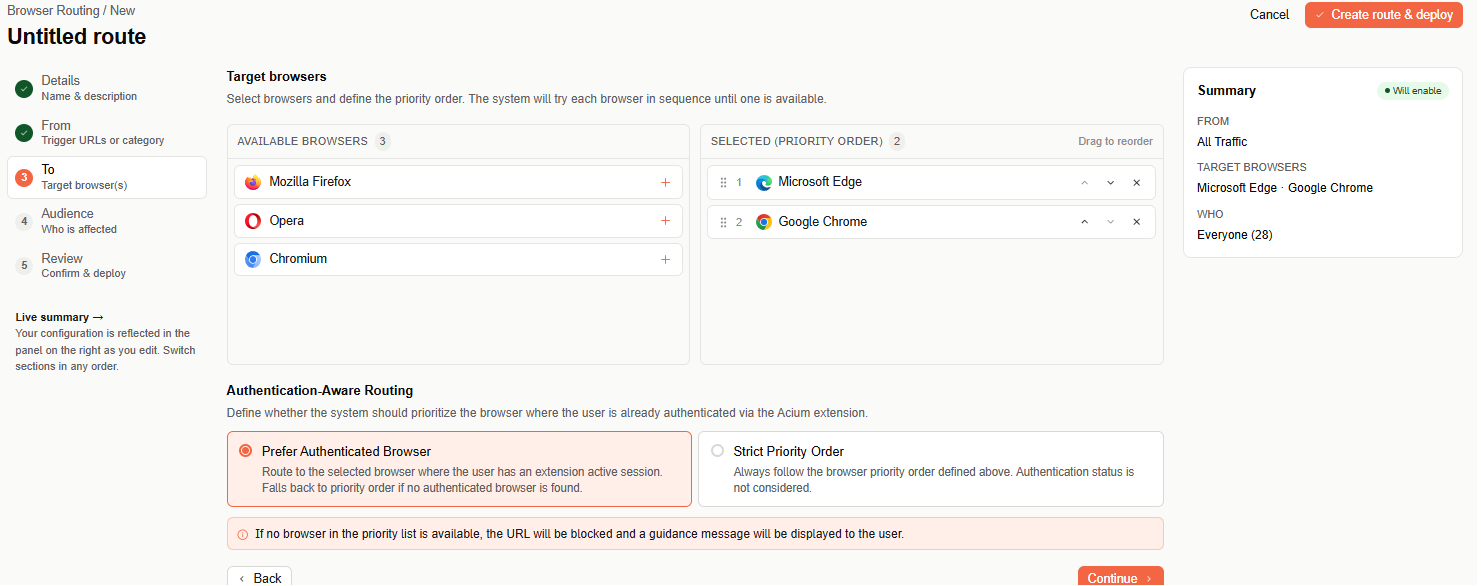
Move a browser from Available Browsers to Selected (Priority Order) with the + button, then drag to reorder, or use the up/down arrows.
Authentication-Aware Routing determines whether the system should prioritize the browser where the user is already authenticated via the Acium extension:
- Prefer Authenticated Browser — routes to the browser where the user has an active extension session. Falls back to the priority order if no authenticated browser is found.
- Strict Priority Order — always follows the browser priority order defined above; authentication status isn't considered.
If no browser in the priority list is available, the URL is blocked and a guidance message is displayed to the user.
Step 4: Audience
Audience is part of the route — pick who it applies to. User and group rules override org-wide rules, and block always beats allow.
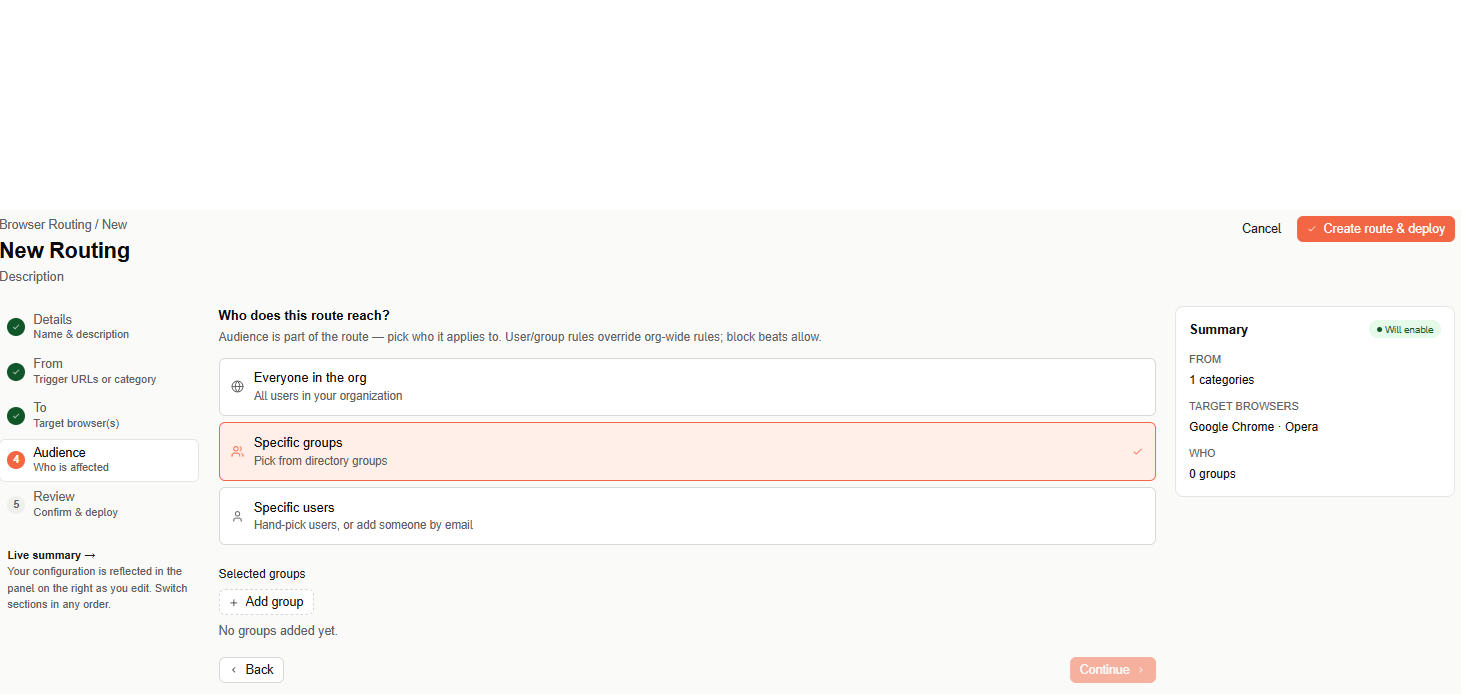
- Everyone in the org — all users in your organization.
- Specific groups — pick one or more directory groups from a searchable list.
- Specific users — search and hand-pick users, or add someone new by email if they aren't found.
Step 5: Review & deploy
Review the full configuration — name, trigger, target browsers, authentication routing, and audience — before deploying. Select Edit next to any row to jump back to that step.
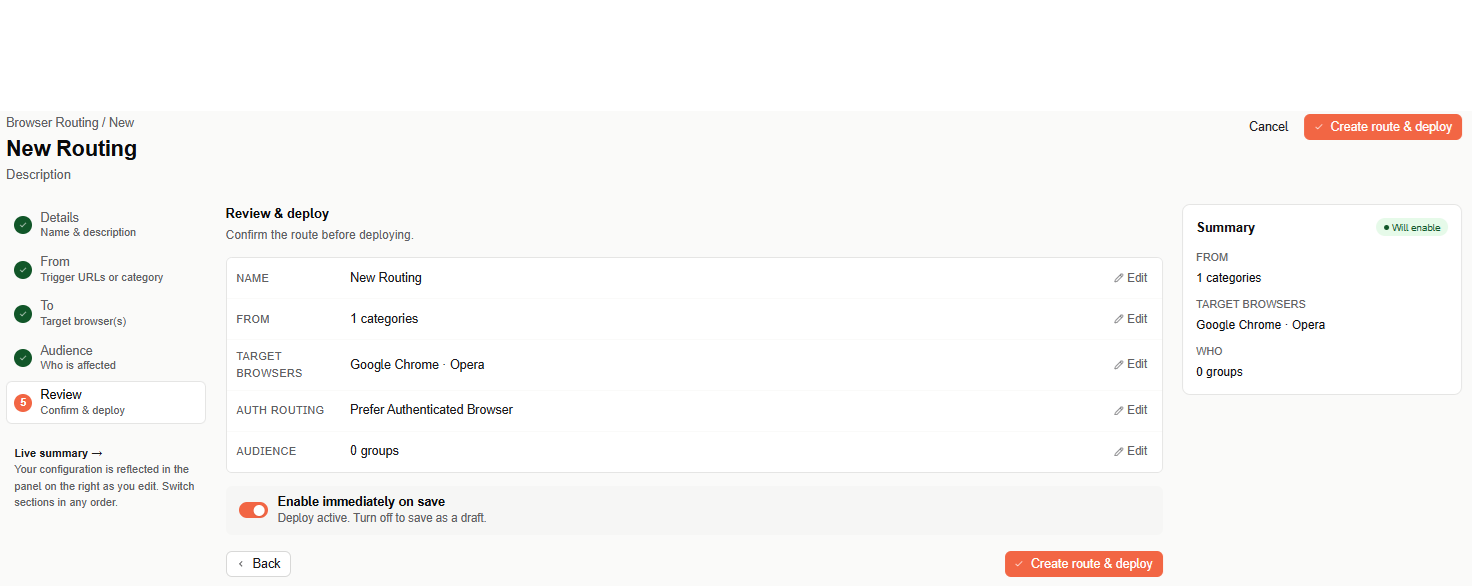
Use Enable immediately on save to deploy the route as active right away, or turn it off to save it as a draft you can enable later. Select Create route & deploy to finish — the route then appears in the routes table on the main page.
Routes table
The main page lists every configured route with the following columns: Rule, From, Target Browsers, Audience, Status, and Updated. Use the search box and the Browser, Audience, and Status filters above the table to narrow the list.