Browser Settings
Browser Settings profiles are profile-based browser hardening for Google Chrome, Microsoft Edge, Mozilla Firefox, and Safari. Each profile pins managed settings for one or more browser engines, then targets an audience, so you can control how these browsers operate and comply with your company's security policies.
Find this section at Define > Protect > Browser Settings.
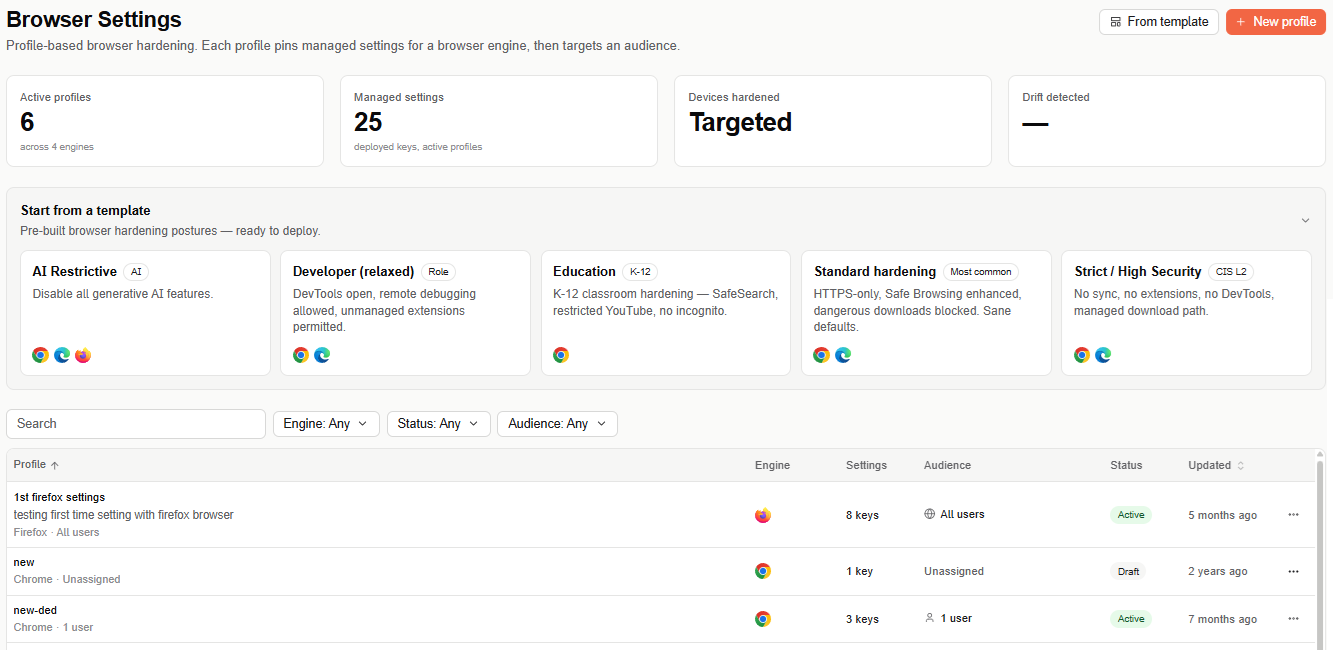
Overview metrics
- Active profiles — number of enabled profiles, across however many browser engines they target.
- Managed settings — deployed keys across active profiles.
- Devices hardened — how many targeted devices have the settings applied.
- Drift detected — devices where the applied settings no longer match the profile.
Start from a template
Templates are pre-built browser hardening postures, ready to deploy. Selecting a template opens the same profile wizard used for a custom profile, with its settings and audience already filled in — you only need to review and adjust before deploying.
| Template | What it does |
|---|---|
| AI Restrictive | Disables all generative AI features. |
| Developer (relaxed) | Keeps DevTools open, allows remote debugging, and permits unmanaged extensions. |
| Education (K-12) | K-12 classroom hardening — SafeSearch, restricted YouTube, no incognito. |
| Standard hardening | HTTPS-only, enhanced Safe Browsing, dangerous downloads blocked — sane defaults. |
| Strict / High Security | No sync, no extensions, no DevTools, managed download path. |
Create a custom profile
If none of the templates fit, select + New profile to build a profile from scratch. The wizard has four steps, and a live summary panel on the right reflects your configuration as you go — you can switch between steps in any order. Save draft and Create & deploy are both available at every step.
Step 1: Information
Name the profile, add an optional description, and select the target browsers.
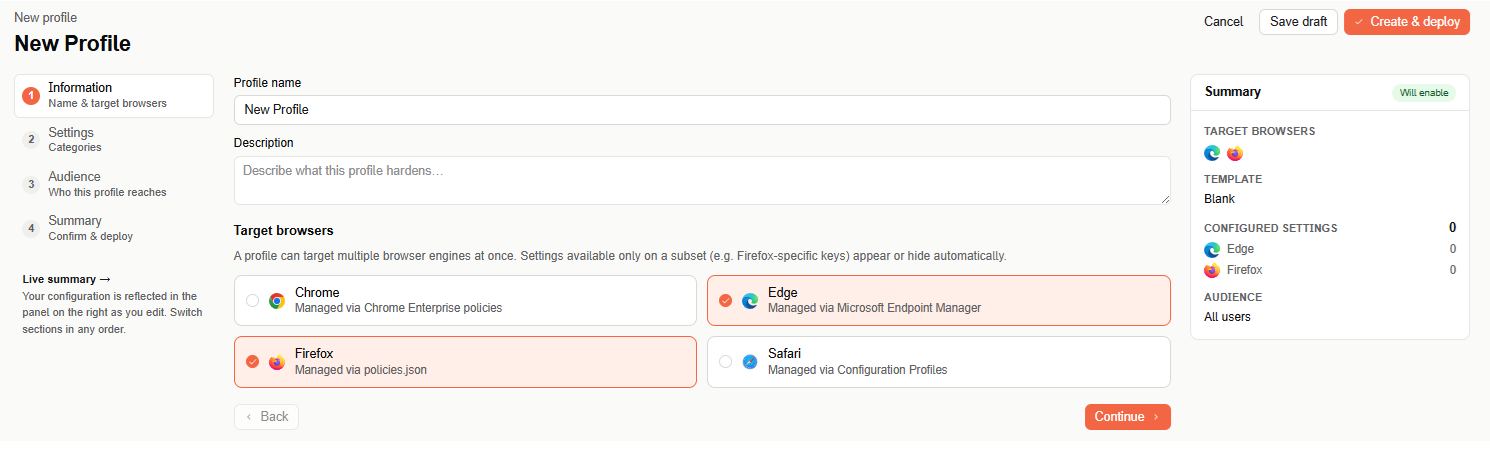
A profile can target multiple browser engines at once — settings available only on a subset (for example, Firefox-specific keys) appear or hide automatically as you configure them.
- Chrome — managed via Chrome Enterprise policies.
- Edge — managed via Microsoft Endpoint Manager.
- Firefox — managed via
policies.json. - Safari — managed via Configuration Profiles.
Each browser you select keeps its own independent set of settings — changing your target browsers later doesn't affect settings you've already configured for the others.
Step 2: Settings
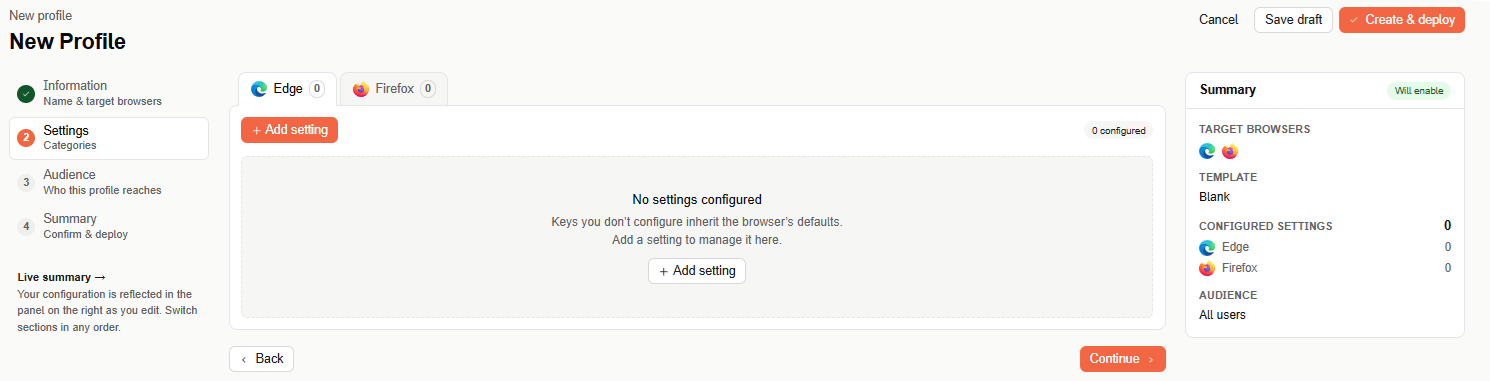
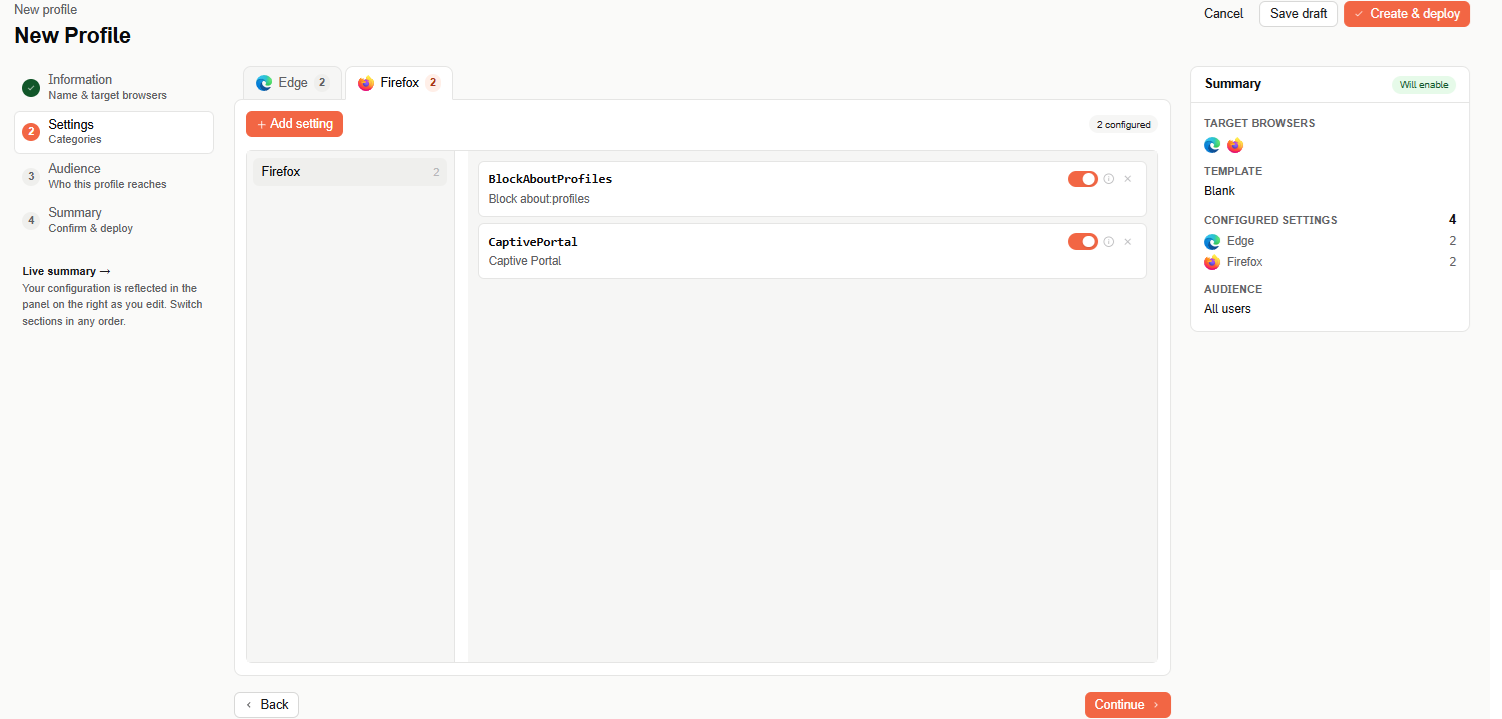
Each target browser gets its own tab, showing how many settings are configured for it. Select + Add setting to open the catalog.
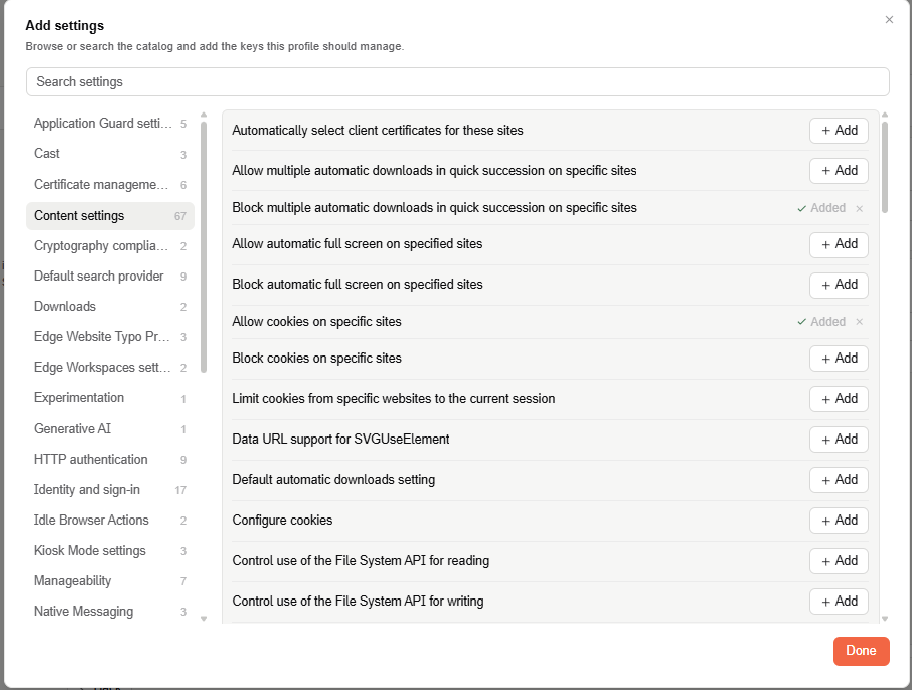
In the Add settings modal, search or browse the catalog by category, then select + Add next to each setting you want to manage — it's marked Added, with an × to remove it again. Select Done when you're finished.
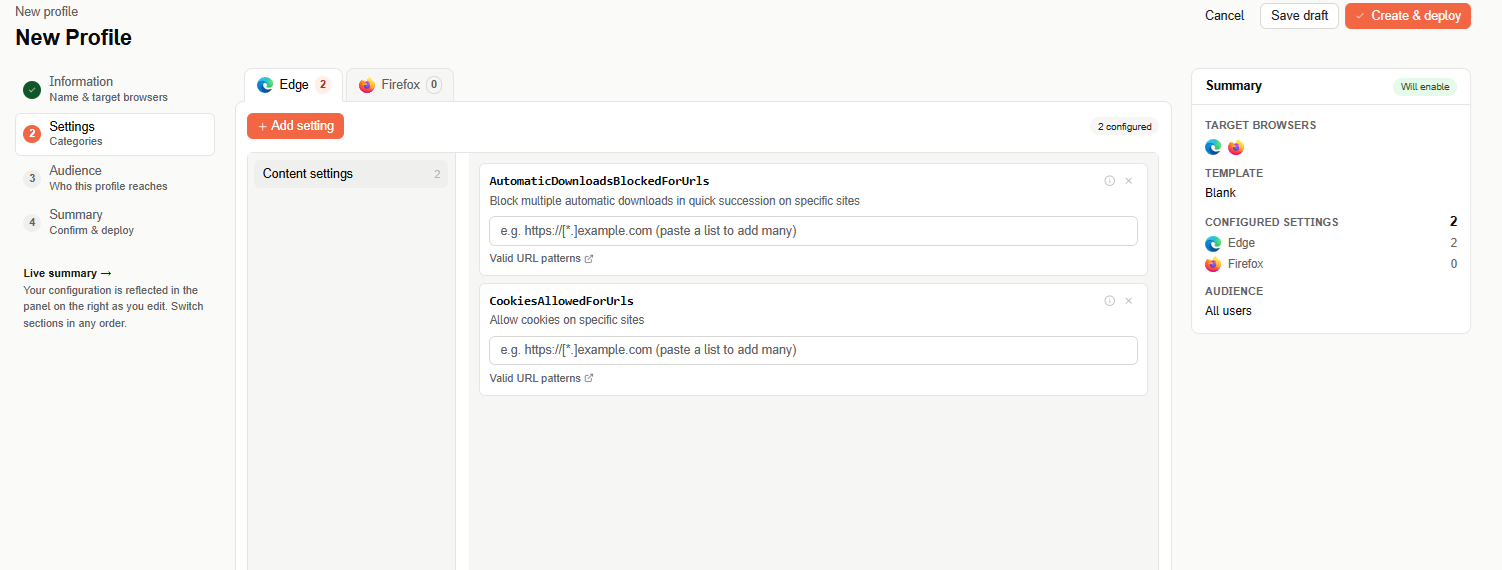
Back in the Settings step, each added setting appears grouped by category, showing its policy key name and description, with a control to configure it — a toggle for on/off settings, or a text field for list-based settings such as URL patterns. Select the info icon next to a setting for more detail, or the × to remove it. Keys you don't configure inherit the browser's default.
For reference on what a policy key does across browsers, see the vendor's own policy documentation — Chrome Enterprise's policy list, Microsoft Edge policies, Mozilla's Firefox policy templates, and Apple's guide to managing Safari with Configuration Profiles.
Step 3: Audience
Audience is part of the profile — pick who it applies to. User and group rules override org-wide rules, and block always beats allow.
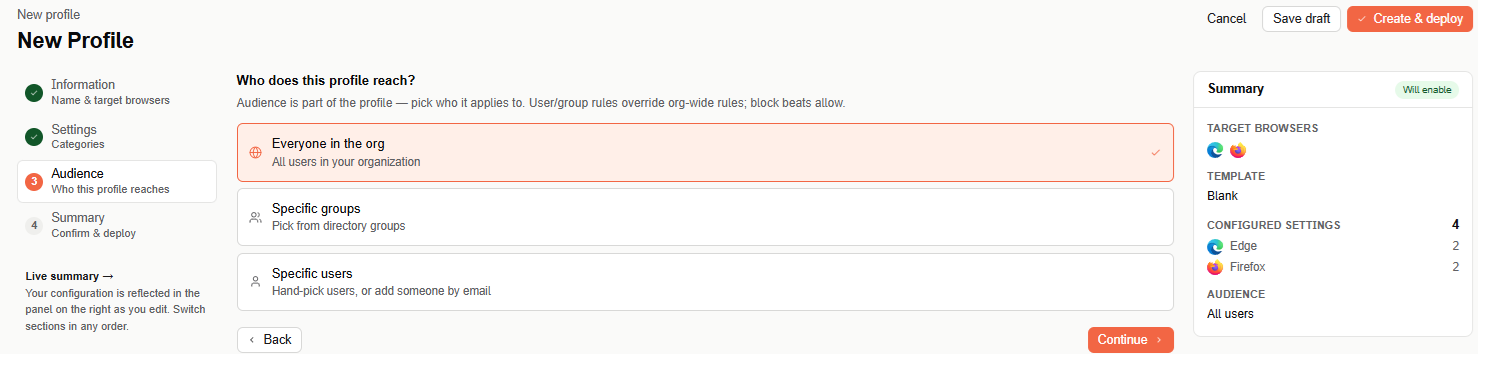
- Everyone in the org — all users in your organization.
- Specific groups — pick one or more directory groups from a searchable list.
- Specific users — search and hand-pick users, or add someone new by email if they aren't found.
Step 4: Summary
Review the full configuration — target browsers, template, configured settings per browser, and audience — before deploying. Click any row to jump back and edit it.
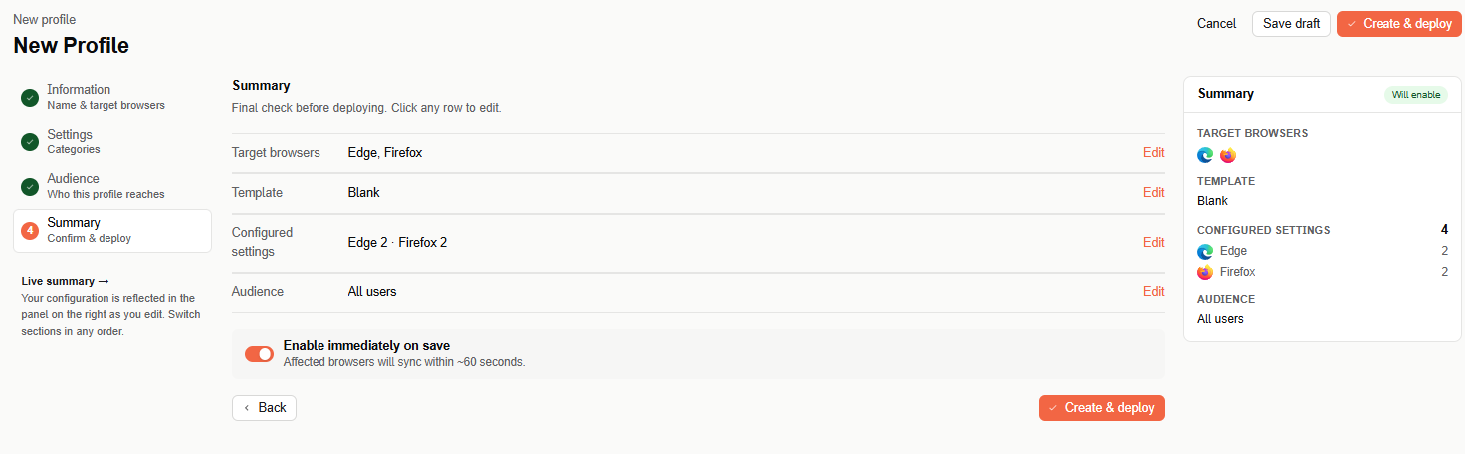
Use Enable immediately on save to deploy the profile as active right away — affected browsers sync within about 60 seconds — or turn it off to save it as a draft you can enable later. Select Create & deploy to finish — the profile then appears in the profiles table on the main page.
Profiles table
The main page lists every configured profile with the following columns: Profile, Engine, Settings, Audience, Status, and Updated. Use the search box and the Engine, Status, and Audience filters above the table to narrow the list. Each row also has a ⋯ menu with additional actions.