Extensions
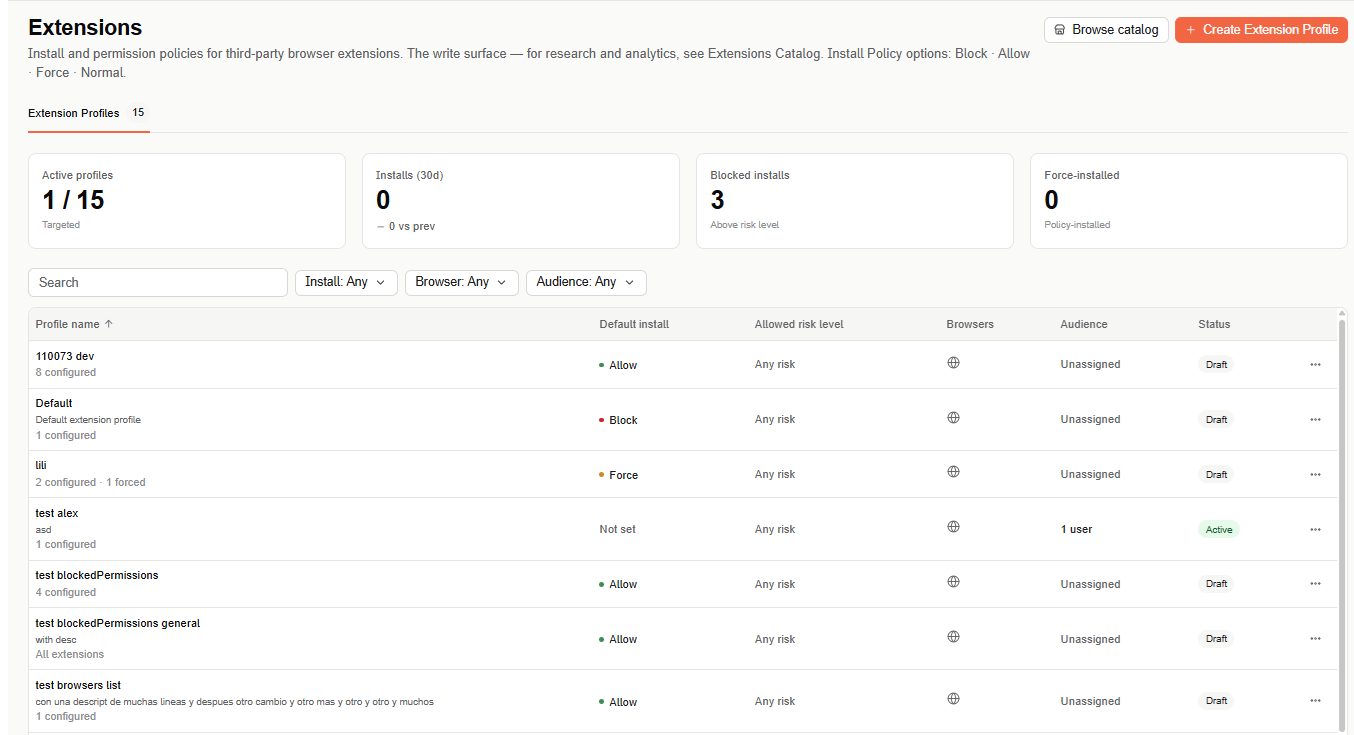
Extension profiles control which third-party browser extensions can be installed and used in your organization — this is the write surface for install and permission policies. For extension research and analytics, see Extensions Catalog.
Find this section at Define > Protect > Extensions.
With extension profiles, you can:
- Force-install a set of standard extensions through enterprise policy.
- Allow installation of specialized extensions for specific users or groups.
- Block installation of known malicious extensions.
- Block installation of extensions that request permissions you consider risky.
Overview metrics
- Active profiles — number of enabled profiles out of the total configured.
- Installs (30d) — extension installs recorded in the last 30 days, compared to the previous period.
- Blocked installs — installs blocked for requesting permissions above the allowed risk level.
- Force-installed — extensions currently installed by policy.
Select Browse catalog to open the Extensions Catalog — the extension inventory — or + Create Extension Profile to build a new profile.
Create an extension profile
The wizard has four steps, and a live summary panel on the right reflects your configuration as you go — you can switch between steps in any order.
Step 1: Information
Name the profile, add an optional description, and configure:
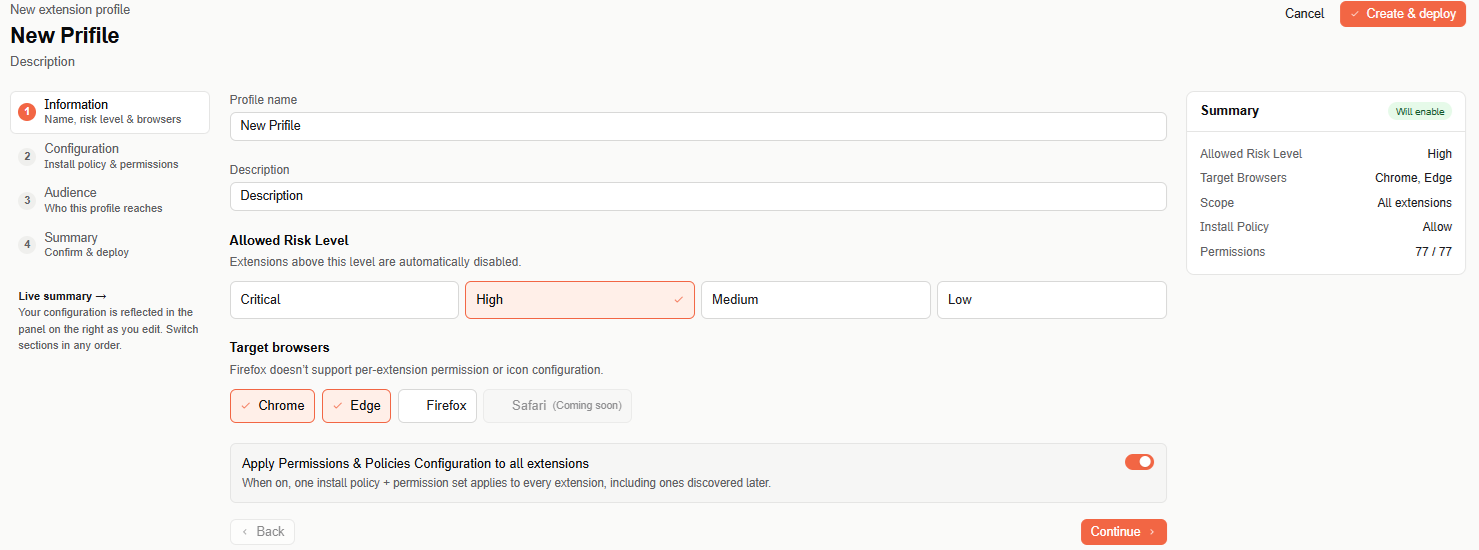
- Allowed Risk Level — Critical, High, Medium, or Low. Extensions above the level you select are automatically disabled.
- Target browsers — Chrome, Edge, and Firefox (Safari is coming soon). By default, the profile applies to all supported browsers.
note
Firefox doesn't support per-extension permission or icon configuration. If you select only Firefox, the Configuration step shows only the Install Policy setting.
- Apply Permissions & Policies Configuration to all extensions — when on, one install policy and permission set applies to every extension in the profile, including ones discovered later.
Step 2: Configuration
What this step shows depends on the toggle from Step 1.
When "Apply to all extensions" is on, you configure global settings that apply to every extension in the profile:
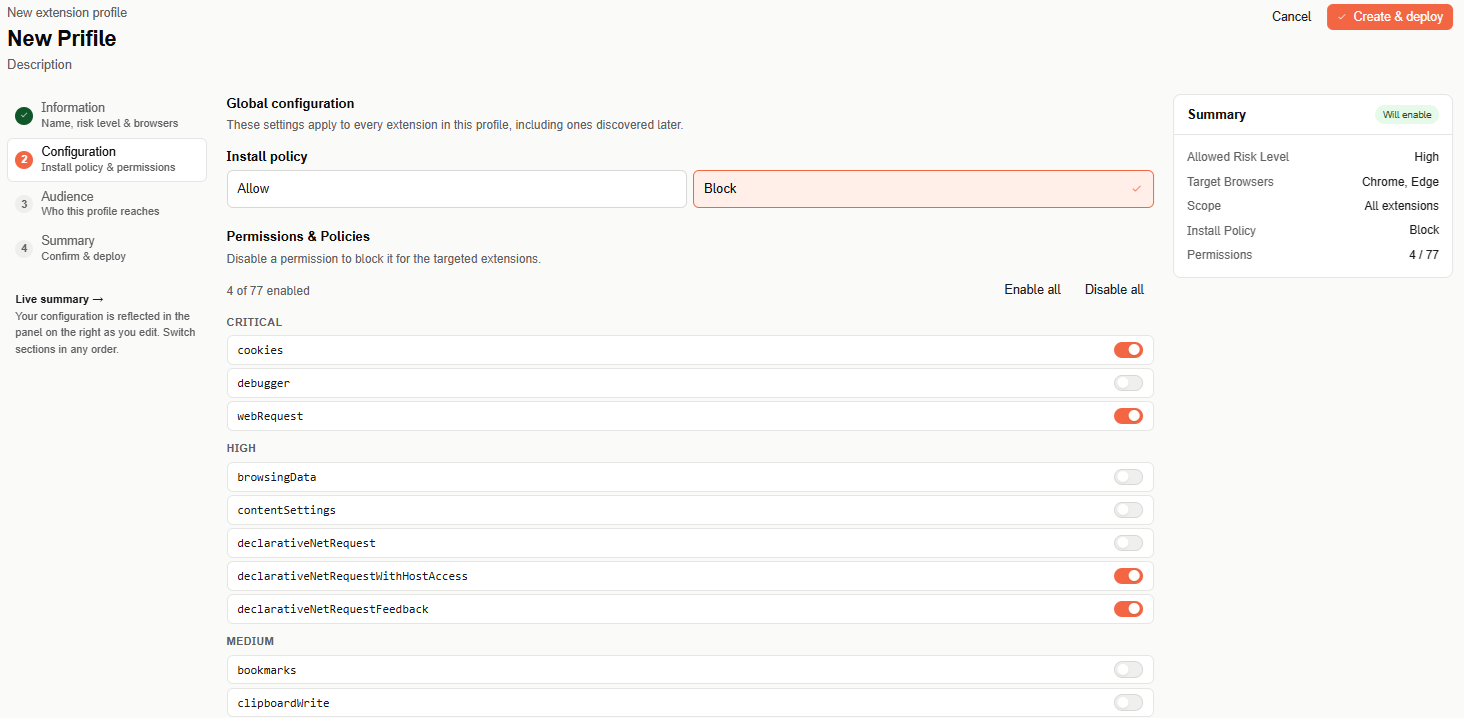
- Install policy — Allow or Block.
- Permissions & Policies — browser permissions grouped by risk level (for example, Critical, High, Medium, or Standard). Disable a permission to block it for the targeted extensions. Use Enable all / Disable all to toggle the whole list at once.
When "Apply to all extensions" is off, you manage extensions individually:
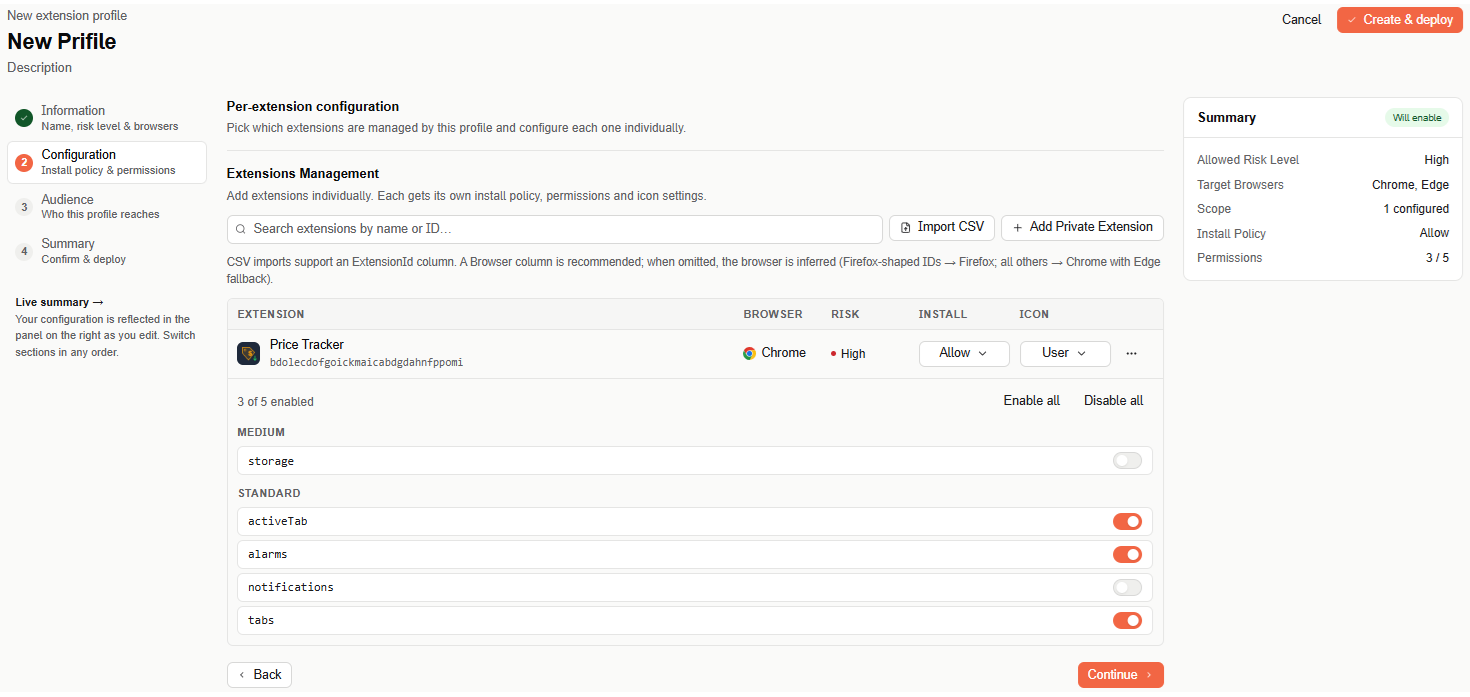
Search for an extension by name or ID, select Import CSV to add extensions in bulk, or select + Add Private Extension to add one that isn't in a public store.
CSV imports support an ExtensionId column. Include a Browser column too — when it's omitted, the browser is inferred (Firefox-shaped IDs go to Firefox; everything else falls back to Chrome, with Edge as a fallback).
Each extension you add gets its own Install policy, Icon setting, and permissions, configured independently. Use the ⋯ menu next to an extension for Permissions or Remove.
Extension Icon, available in either configuration mode:
- User selected — the user controls whether the extension icon is visible in the toolbar.
- Force pinned — the icon is always visible and can't be hidden by the user.
Minimum Version — you can require a minimum extension version; versions below it aren't allowed to install.
Install Policy options, wherever they appear:
- Allow — the user can install it freely.
- Block — installation is blocked entirely.
- Force — the extension installs automatically; users can't remove it.
- Normal — the user can enable or disable the extension.
If you block an extension that's already installed for a user, the Acium extension disables it — it doesn't uninstall it. If the user re-enables it, the profile disables it again the next time they sign in to the Acium extension. If you switch a disabled extension's install policy to Force, the Acium extension enables it.
Finding an extension ID
To manage or import an extension, you need its unique ID. The format depends on the browser:
- Chrome and Edge — a 32-character string, for example
kcgcgklndcbhdmfgofkbeeafainmnpfg. - Firefox — either a GUID (
{e8ffc3db-2875-4c7f-af38-d03e7f7f8ab9}) or an email-style identifier (firefox-compact-light@mozilla.org).
To find an extension's ID, visit its page on the Chrome Web Store, Microsoft Edge Add-ons, or Firefox Browser Add-ons store — the ID appears as the trailing string in the page URL. For example, in https://chromewebstore.google.com/detail/example-app/kcgcgklndcbhdmfgofkbeeafainmnpfg, the extension ID is kcgcgklndcbhdmfgofkbeeafainmnpfg.
Step 3: Audience
Audience is part of the profile — pick who it applies to. User and group rules override org-wide rules, and block always beats allow.
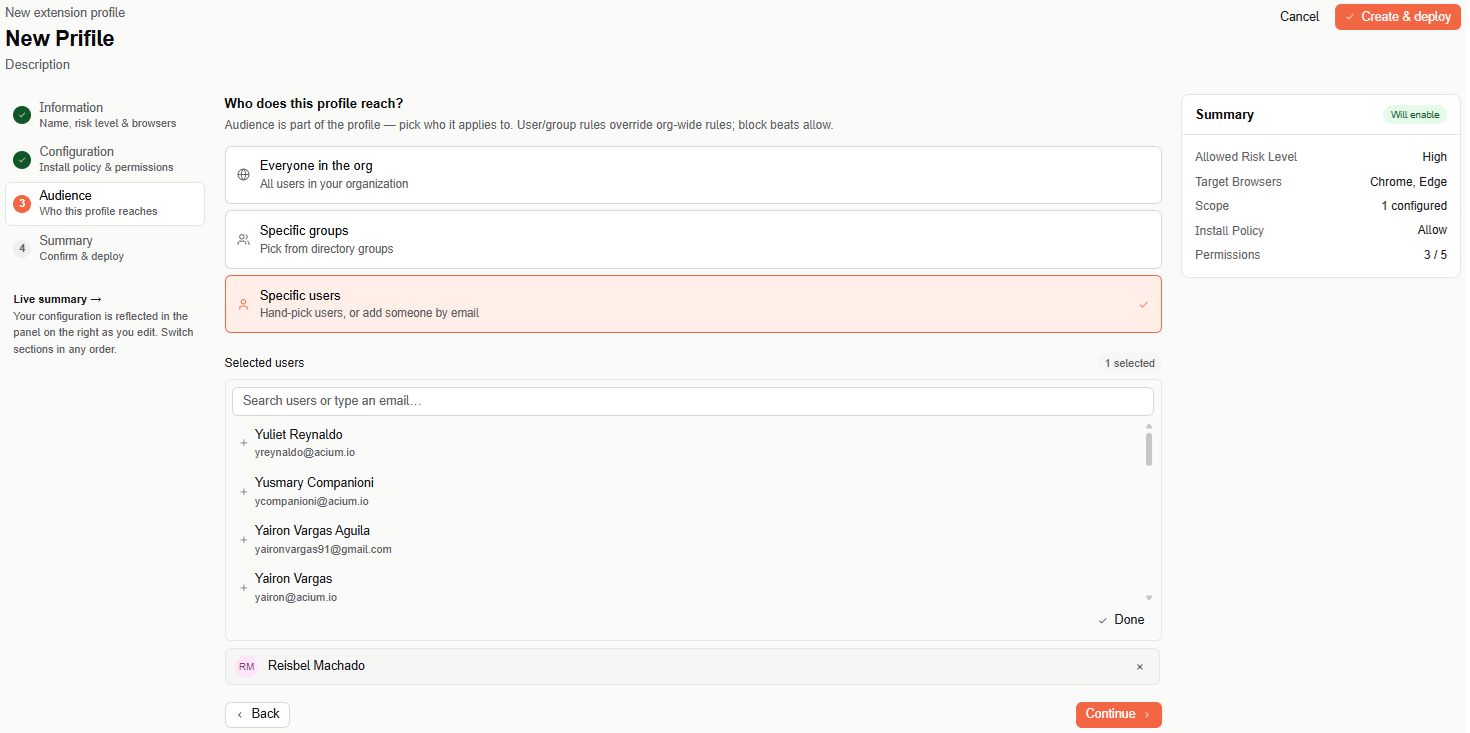
- Everyone in the org — all users in your organization.
- Specific groups — pick one or more directory groups from a searchable list.
- Specific users — search and hand-pick users, or add someone new by email if they aren't found.
Step 4: Summary
Review the full configuration — allowed risk level, target browsers, scope, install policy, and permissions — before deploying. Click any row to jump back and edit it.
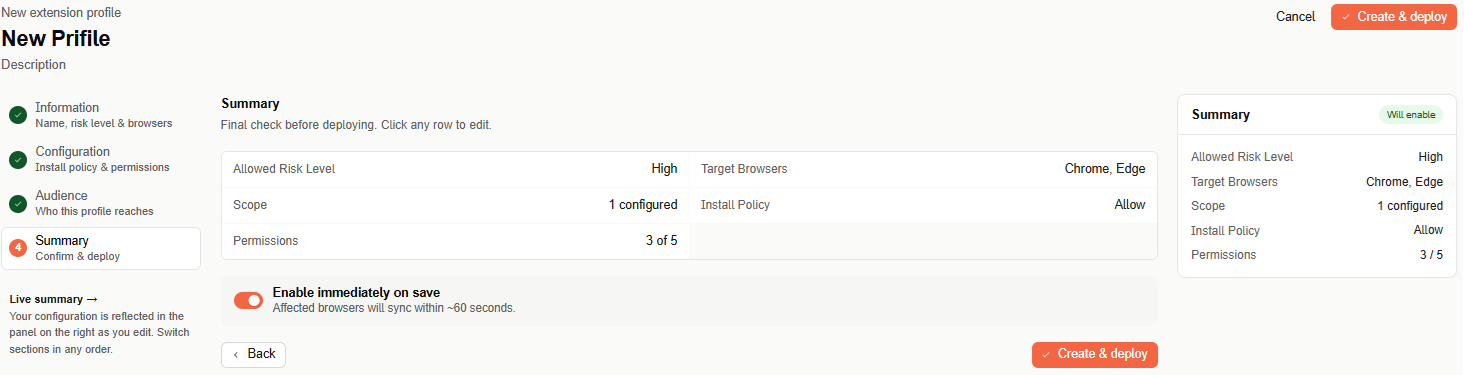
Use Enable immediately on save to deploy the profile as active right away — affected browsers sync within about 60 seconds — or turn it off to save it as a draft you can enable later. Select Create & deploy to finish — the profile then appears in the profiles table on the main page.
Profiles table
The main page lists every configured profile with the following columns: Profile name, Default install, Allowed risk level, Browsers, Audience, and Status. Use the search box and the Install, Browser, and Audience filters above the table to narrow the list. Each row also has a ⋯ menu with additional actions.