Web Control
Web Control profiles provide profile-based URL and category filtering. Each profile bundles URL rules, category posture, and YouTube controls, then targets an audience.
Find this section at Define > Protect > Web Control.
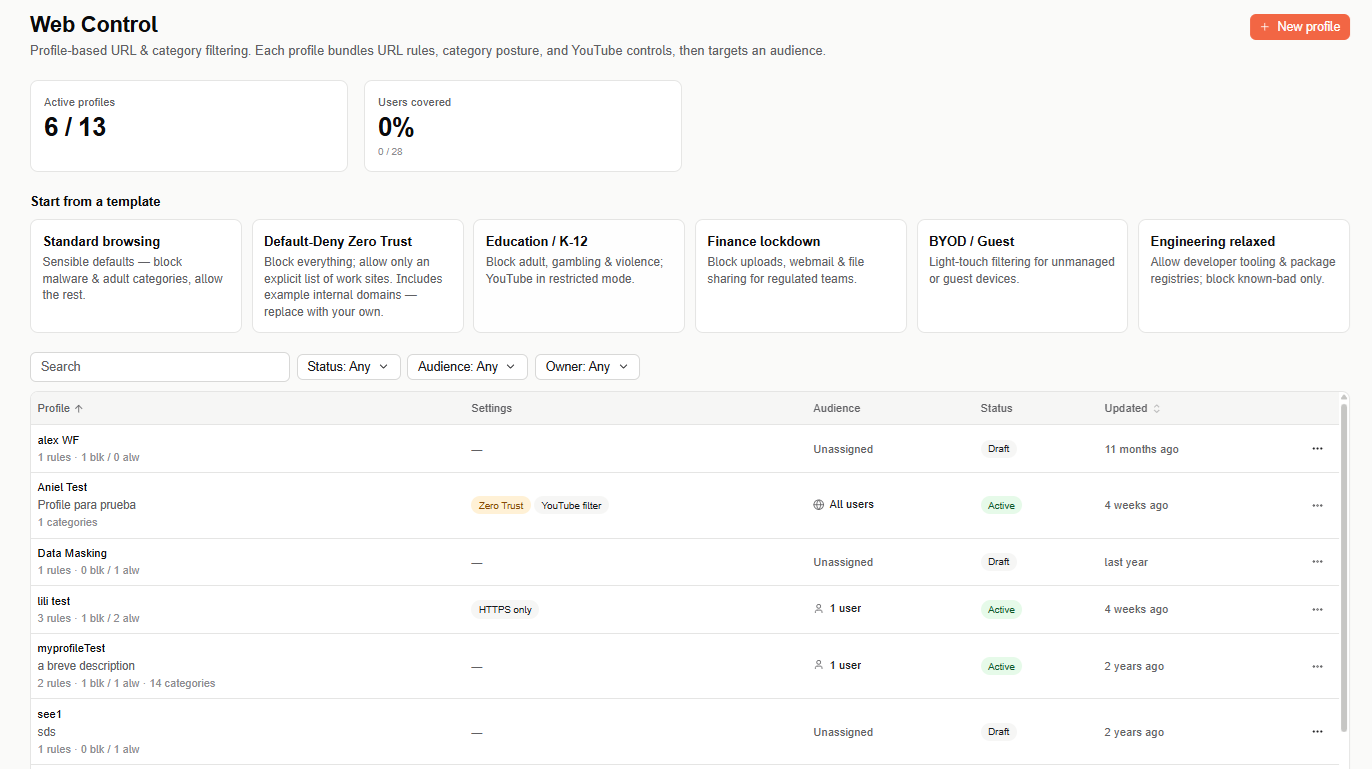
Overview metrics
- Active profiles — number of enabled profiles out of the total configured.
- Users covered — the percentage and count of users in the org matched by at least one profile.
Start from a template
Templates are pre-built profiles covering common web control postures. Selecting a template opens the same profile wizard used for a custom profile, with its rules and audience already filled in — you only need to review and adjust before deploying.
| Template | What it does |
|---|---|
| Standard browsing | Sensible defaults — block malware & adult categories, allow the rest. |
| Default-Deny Zero Trust | Block everything; allow only an explicit list of work sites. Includes example internal domains — replace with your own. |
| Education / K-12 | Block adult, gambling & violence; YouTube in restricted mode. |
| Finance lockdown | Block uploads, webmail & file sharing for regulated teams. |
| BYOD / Guest | Light-touch filtering for unmanaged or guest devices. |
| Engineering relaxed | Allow developer tooling & package registries; block known-bad only. |
Create a custom profile
If none of the templates fit, select + New profile to build a profile from scratch. The wizard has six steps, and a live summary panel on the right reflects your configuration as you go — you can switch between steps in any order.
Step 1: Details
Give the profile a name and an optional description, then configure profile-wide settings. These settings apply to all URLs in the profile — leave a setting Not configured to inherit it from another scope, or set it to Disabled to explicitly override an org-wide setting that's on.
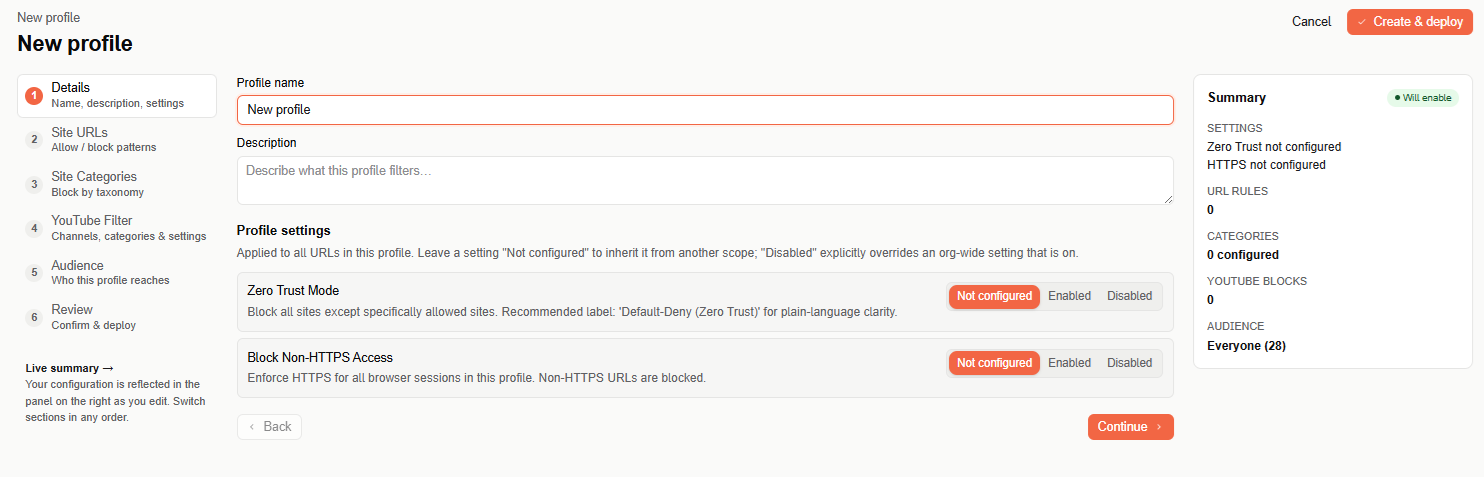
- Zero Trust Mode — blocks all sites except specifically allowed sites. Also labeled "Default-Deny (Zero Trust)" for plain-language clarity.
- Block Non-HTTPS Access — enforces HTTPS for all browser sessions in this profile; non-HTTPS URLs are blocked.
Step 2: Site URLs
Allow or block specific URLs. Enter a URL or wildcard pattern, choose Block or Allow, and select Add.
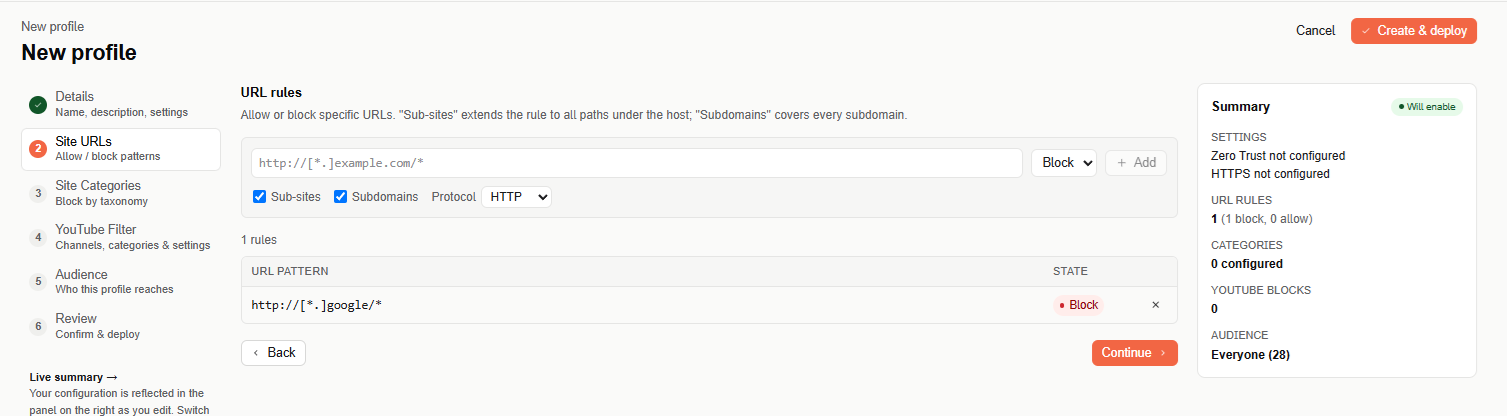
- Sub-sites — extends the rule to all paths under the host.
- Subdomains — extends the rule to cover every subdomain.
- Protocol — restricts the rule to HTTP, HTTPS, or file URLs.
URL formatting
When adding a site URL, use the format <scheme>://<host>/<path>, where:
<scheme>ishttp,https,file, or a wildcard that matches onlyhttporhttps.<host>is the hostname, such aswww.example.com.<path>is the URL path, such as/example.
For example, to add the URL for a site, use its full URL such as https://www.example.com. Entering just the domain (example.com) is treated as invalid input.
Use wildcard expressions to block or allow URLs using keywords, regardless of the remaining part of the URL. For example, use https://*.example.com to match all subdomains of the example.com domain.
To use keywords for filtering URLs, surround the domain or term with asterisks (*). For example, the expression *example.com* targets all URLs that contain the example.com domain. The expression *example* targets all URLs that contain the word example.
You can also use:
- Search operators such as
starts with,ends with, andcontains. - Regular expressions as conditions of the URLs.
A few examples:
- Block Google Images — add the expression
*tbm=ischas a block rule. - Filter Google searches for a specific term — use the format
*search*term*, wheretermis the keyword you want to target. This method only targets searches for the specified term; URLs that contain the term elsewhere are still allowed. For example, to target search queries for the term "snake," add the expression*search*snake*. - URLs that include a specific phrase — use the plus sign (
+) to indicate a space between words. For example, to target URLs with the phrase "unblocked games," add the expression*unblocked+games*.
Step 3: Site Categories
Block by category — this instantly blocks sites that match the taxonomy. Block beats allow.
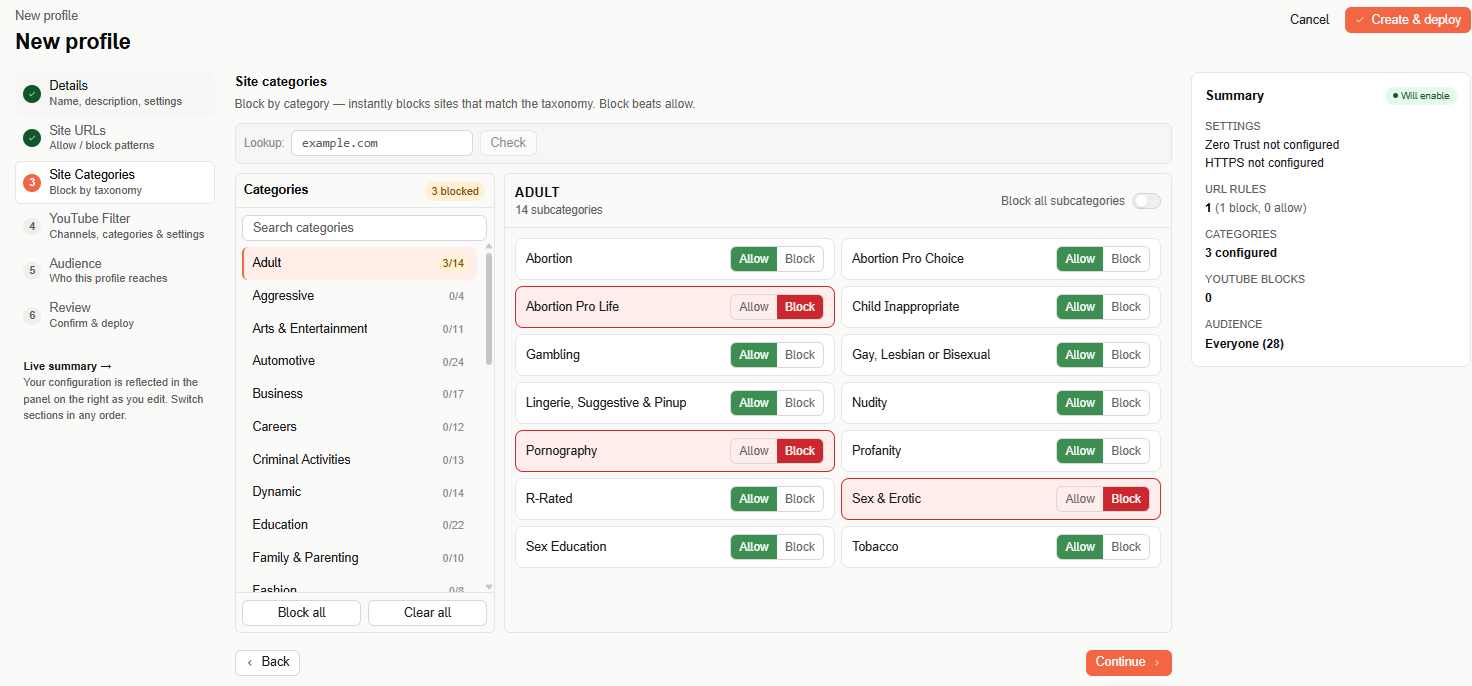
Use Lookup to check which category a given domain falls under. Browse or search the category list on the left — each category shows how many of its subcategories are blocked (for example, "Adult 1/14"). Select a category to show its subcategories on the right, each with its own Allow or Block button. Use Block all subcategories (top right of the subcategory panel) to block every subcategory in the category you're viewing, or use Block all / Clear all (bottom of the category list) to block or clear every category and subcategory at once.
Step 4: YouTube Filter
Block or allow YouTube content by channel, video, keyword, or category. On-page elements (sidebar, comments, live chat) and age restriction are configured separately, under YouTube settings.
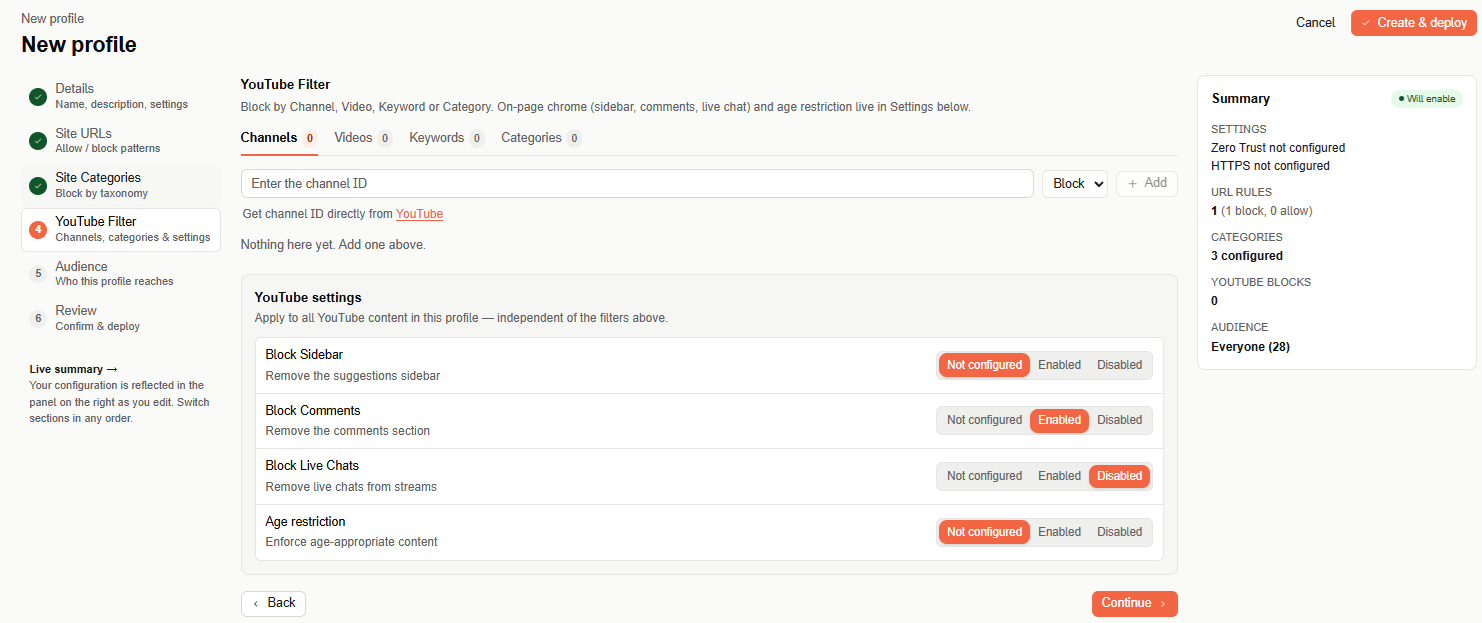
The step has four tabs — Channels, Videos, Keywords, and Categories — each showing a count of configured rules. All four follow the same pattern: enter an ID or keyword, choose Allow or Block, and select Add.
- Channels — enter the channel ID. To find a channel's ID, go to the channel's YouTube page, select the ...more link in the channel description, then select Share channel > Copy channel ID.
- Videos — enter the video ID, the alphanumeric code that typically appears at the end of a video's URL (or in the middle of a shareable
youtu.belink). - Keywords — enter a word or phrase found in a video's title or description. Wildcards and boolean expressions aren't accepted.
- Categories — select the YouTube content categories you want to block.
Acium UBS might not block videos or channels that aren't categorized, or that use inappropriate categories — YouTube doesn't require creators to categorize content correctly, and doesn't verify that a selected category fits a given video or channel. As a best practice, use categories to block undesired categorized content, monitor web traffic for YouTube content you've allowed, and add specific video or channel rules for anything undesired that you confirm.
YouTube settings apply to all YouTube content in the profile, independent of the filters above:
- Block Sidebar — removes the "Up next" and related-videos sidebar.
- Block Comments — removes the comments section.
- Block Live Chats — removes live chat and chat replays from streams.
- Age restriction — enforces age-appropriate content, blocking videos YouTube deems unsuitable for viewers under 18. To make an exception for a specific age-restricted video, add an allow rule for that video.
When a user tries to access blocked YouTube content, the video's page still loads, but the video itself stops and a block message appears over it:
- Blocked video: "This video has been restricted in accordance with your content access policy."
- Blocked channel: "This channel has been restricted in accordance with your content access policy."
- Blocked category: "This video is inaccessible due to its categorization."
- Blocked keyword: "This video is inaccessible because it contains the keyword keyword," where keyword is the actual blocked word or phrase.
- Age restriction: "This video has been blocked by your organization's age restriction policy."
Step 5: Audience
Audience is part of the profile — pick who it applies to. User and group rules override org-wide rules, and block always beats allow.
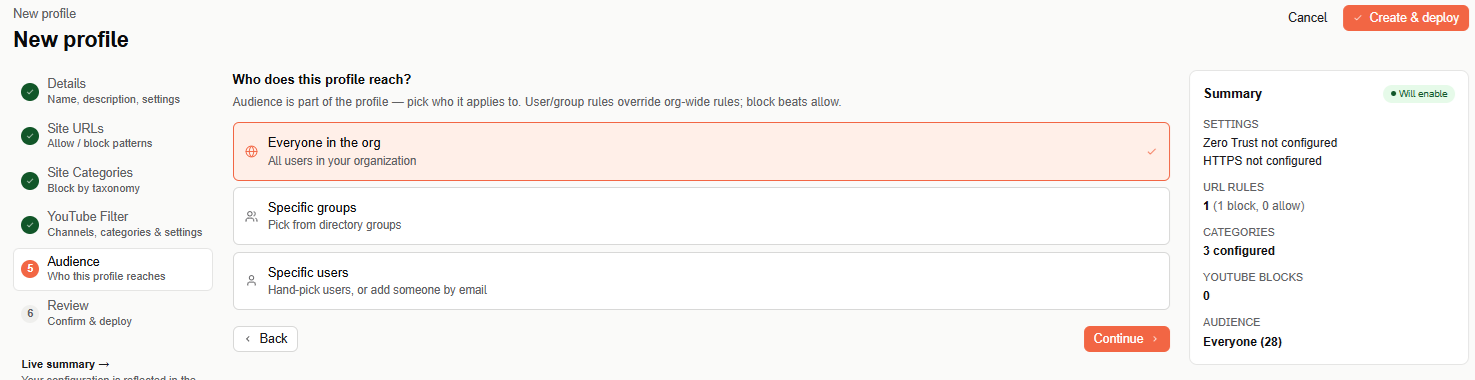
- Everyone in the org — all users in your organization.
- Specific groups — pick one or more directory groups from a searchable list.
- Specific users — search and hand-pick users, or add someone new by email if they aren't found.
Step 6: Review & deploy
Review the full configuration — settings, URL rules, categories, YouTube rules, and audience — before deploying. Select Edit next to any row to jump back to that step.
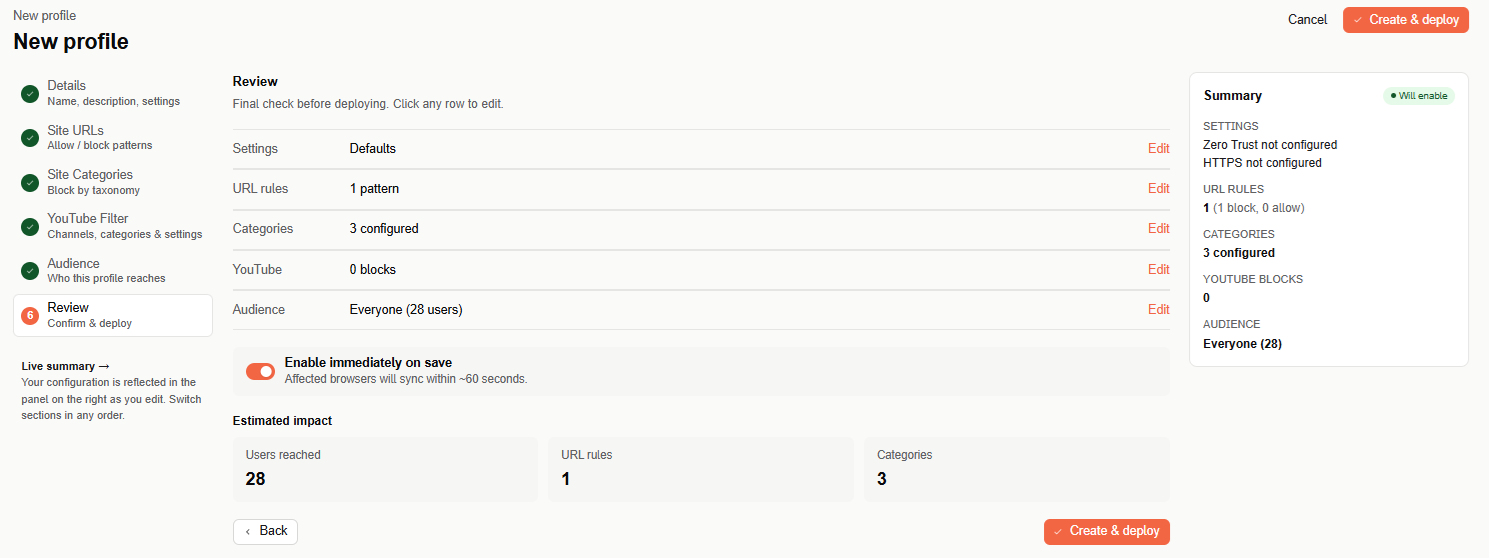
Use Enable immediately on save to deploy the profile as active right away — affected browsers sync within about 60 seconds — or turn it off to save the profile as a draft you can enable later. The Estimated impact tiles show the number of users reached, URL rules, and categories configured. Select Create & deploy to finish — the profile then appears in the profiles table on the main page.
Profiles table
The main page lists every configured profile with the following columns: Profile, Settings, Audience, Status, and Updated. Use the search box and the Status, Audience, and Owner filters above the table to narrow the list. Select a profile's name to open it in the wizard for editing. Each row also has a ⋯ menu — currently offering Delete.