AI Conversations
AI Conversations is a searchable, read-only audit stream of the conversations your employees have with AI tools in the browser, captured for compliance, incident response, and legal investigation.
Find this section at Watch > AI > AI Conversations.
Only admins can see this view — there's no separate compliance or audit role.
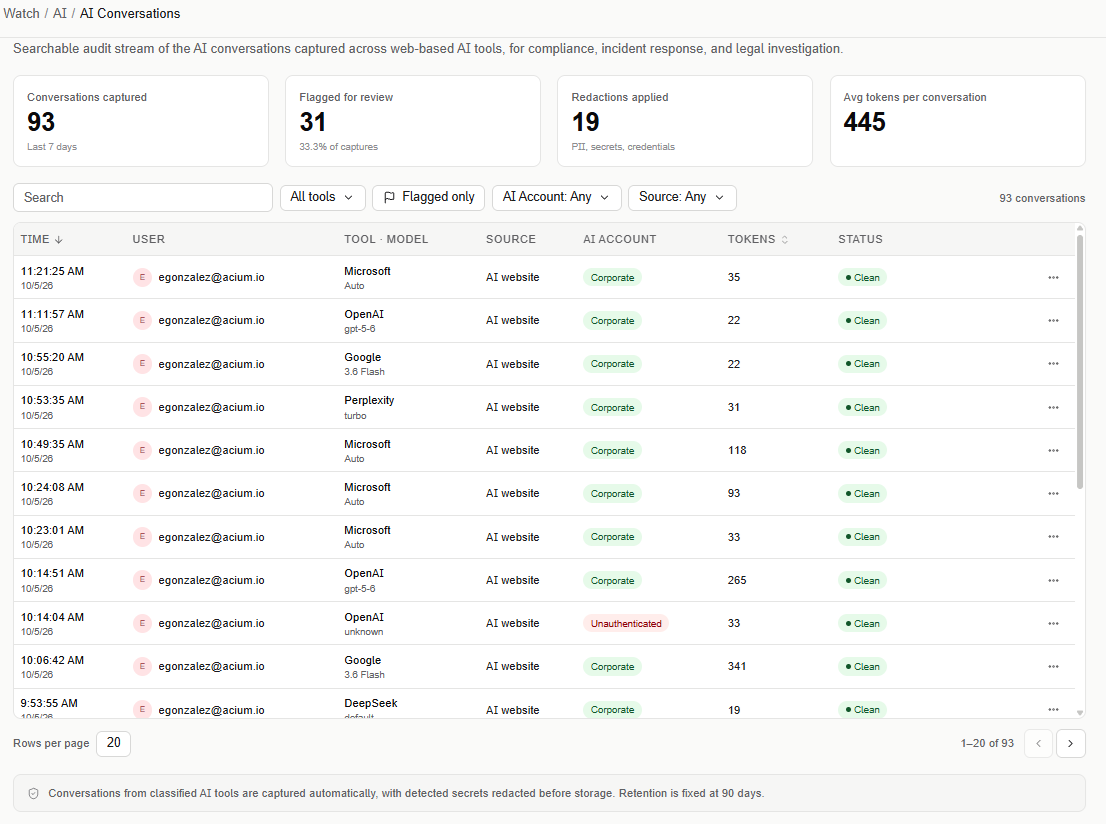
Overview metrics
The KPI strip recalculates for whichever date range is selected at the top of the page — there's no fixed period behind it. While there are no captured conversations in range, each KPI shows an empty/zero value, not an error.
- Conversations captured — total conversations in range. Turns that share the same session identifier are grouped into a single conversation before counting.
- Flagged for review — how many of those conversations are Flagged (at least one redaction applied, or a personal account), plus the percentage that represents of all conversations captured in range.
- Redactions applied — total redactions applied across captured conversations in range (PII, secrets, credentials). Each masked secret or piece of data counts individually — a conversation with 2 redactions applied adds 2 to this total, not 1.
- Avg tokens per conversation — tokens are summed across all of a conversation's turns, then that per-conversation total is averaged across every conversation captured in range.
Filters
Narrow the table with a free-text search, plus filters for Tool, Flagged only (a toggle, not a dropdown), AI Account (Any, Corporate, or Personal), and Source.
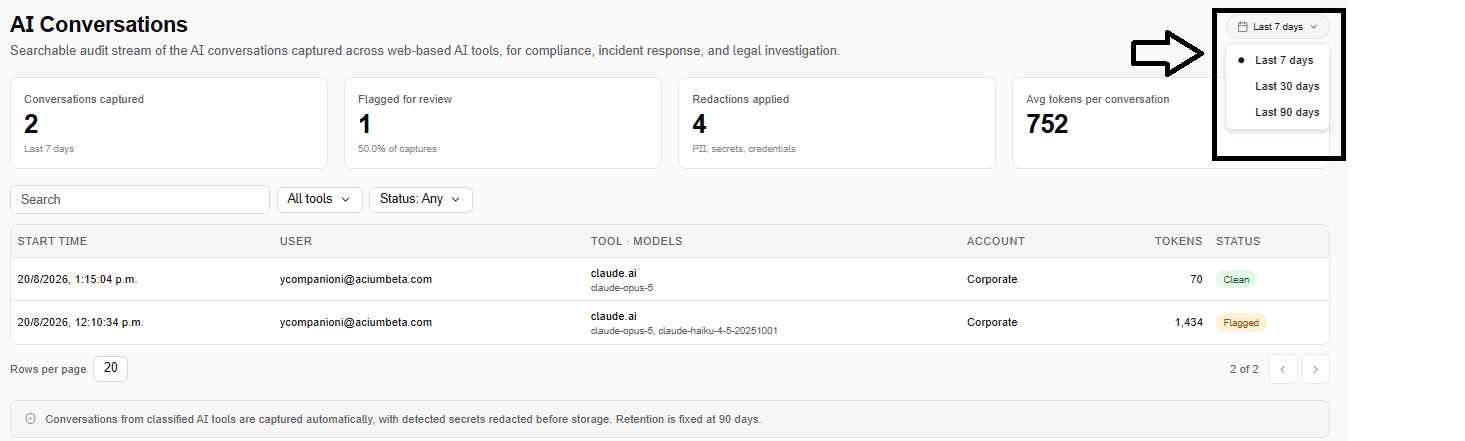
The date range selector (top right) defaults to Last 7 days, and can be widened to Last 30 days or Last 90 days — the KPI strip and table update to match. 90 days is the largest window available, since it's also the retention limit for captured conversations.
Conversations table
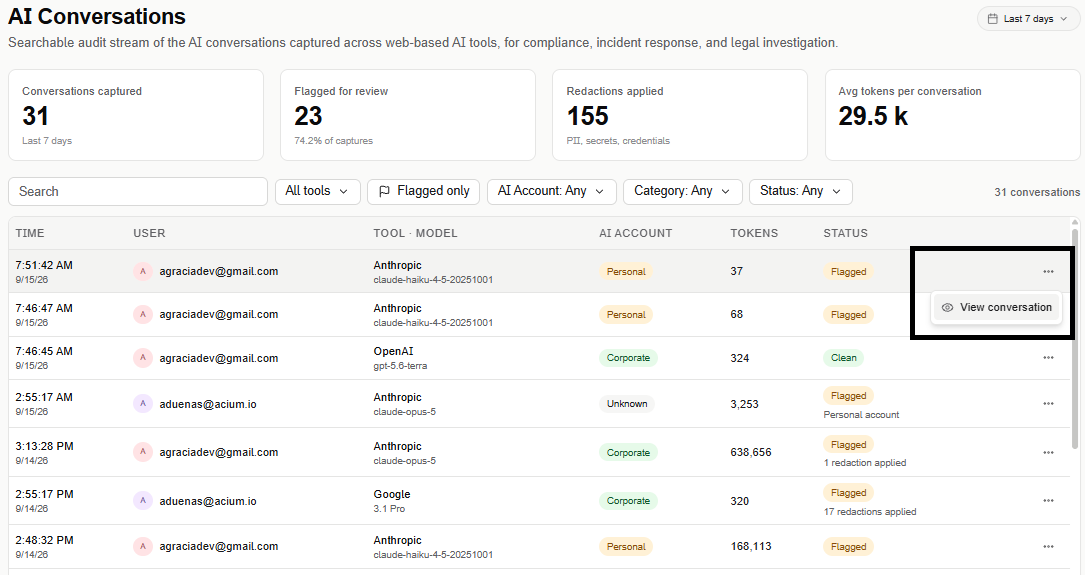
The table is paginated (20 rows per page by default). Each row is one complete conversation, not an individual turn:
- Time — when the conversation started.
- User — who had the conversation.
- Tool · Model — the AI tool and the first model used in it. A conversation can span more than one model; only the first one appears here.
- Source — where the conversation was captured (for example, AI website).
- AI Account — Corporate, Personal, or Unauthenticated, reported by the extension along with the rest of the conversation data.
- Tokens — total tokens across the conversation.
- Status — Clean or Flagged. Flagged means the conversation has at least one redaction applied, or it happened on a personal account. v1 doesn't surface why a redaction fired (for example, "Mask secrets & API keys") — only the Clean/Flagged state.
Where content was redacted, the conversation text shows a marker in place of the original content.
There's no live tail: the table reflects what's been captured and stored, not a real-time feed.
Each row's ⋯ menu has a single action — View conversation — for accounts with permission to see the full thread. See Conversation detail.
Conversation detail
Selecting View conversation opens the conversation's full thread on its own page. Select Back to AI Conversations to return — the list keeps whatever filters and results page you had before opening the conversation.
Top right, ‹ › step to the previous or next conversation in the same filtered list without returning to it first — the counter next to them (for example, "53 of 94") shows your position within that filtered set.
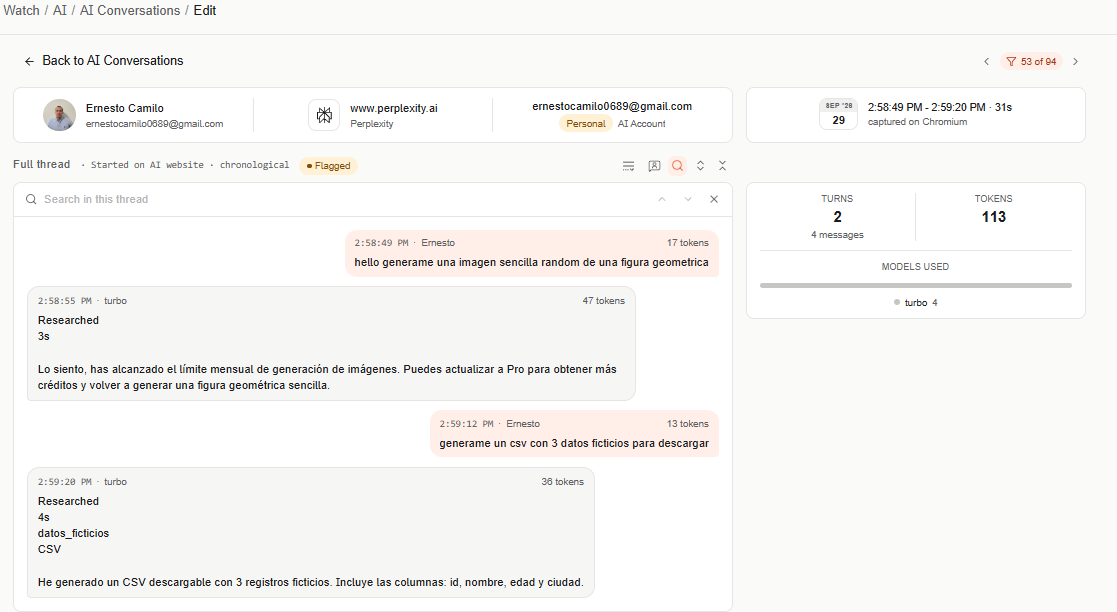
The header repeats the conversation's identifying details: User, Tool and Model, AI Account (with the email it signed in with), and Time (start–end and duration, plus the browser it was captured on).
Below that, the full thread — every turn sharing the same session identifier as the selected conversation, in chronological order. A conversation with only one turn shows just that turn, not an error. For each turn:
- The prompt and the response are shown as separate messages, each with its sender (the user, or the model that answered) and its own token count — this is the prompt/response token breakdown.
- The model used for that turn — a conversation can switch models partway through, so this is tracked per turn rather than assumed from the header.
- Redaction markers, wherever content in that turn was masked.
A toolbar above the thread controls how it's displayed:
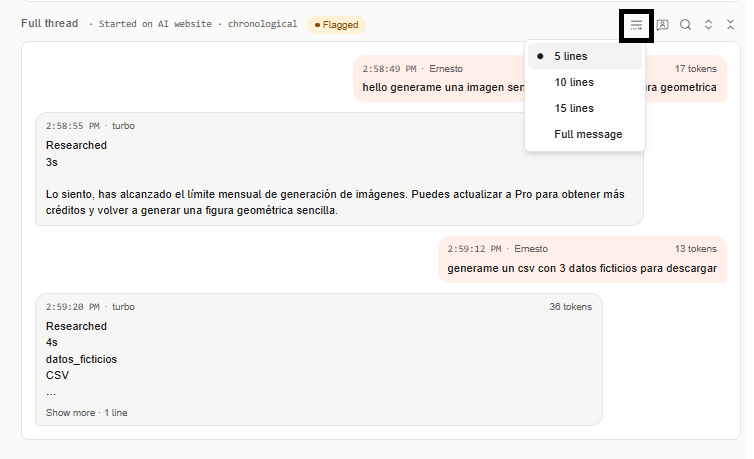
-
Lines per message — truncate each message to 5, 10 (the default), or 15 lines, or select Full message to show it in full.
-
Show all messages — toggles between showing every message and showing only the prompts, with each response collapsed behind a "1 response hidden" placeholder — a quick way to scan what was asked without reading every answer.
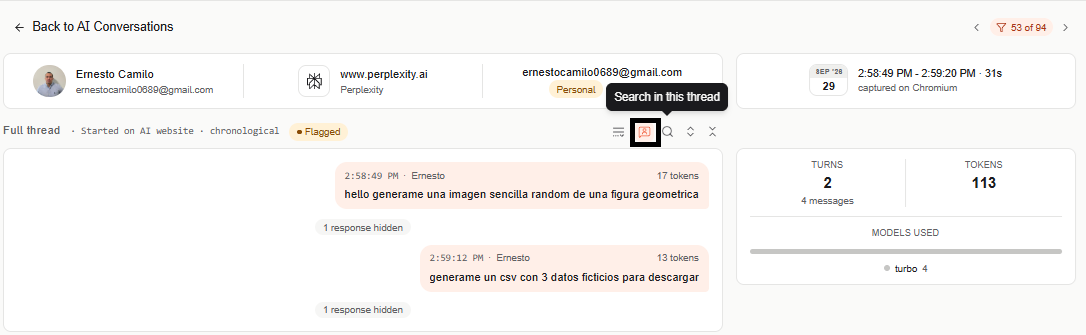
-
Search in this thread — opens a search bar to find text within the conversation, with controls to step between matches.
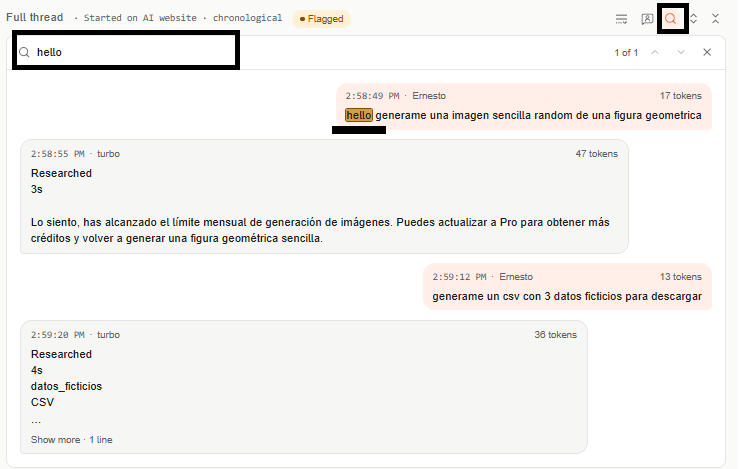
-
The remaining two controls expand or collapse the full thread.
A summary panel alongside the thread shows the conversation's total Turns, Tokens, and a Models used breakdown (how many messages used each model). Attachments isn't populated yet — conversation attachments aren't captured or shown in this release.
Viewing a conversation's full thread requires a separate permission from viewing the list. It isn't tied to a role — it's a Special permission ("AI Conversations") an admin grants per person when inviting or editing them under Administrators, independent of whether that person is an Admin, Editor, or Viewer. An account that can see the list but lacks this permission doesn't see the View conversation action at all: it's absent, not disabled, so its presence can't confirm to that account that a full thread exists. Opening a conversation's URL directly without the permission returns to the list rather than the conversation, for the same reason.
Export
The Export button is hidden unless a separate feature flag is enabled for your organization.
Data and retention
A conversation only appears here once its AI tool is classified — conversations on unclassified hosts are never captured or shown. Redactions are applied before storage. Retention is fixed at 90 days in v1 and isn't configurable per organization.
Redaction rules themselves are authored in Protect > AI and Data Controls, not here.