AI Tools & Agents
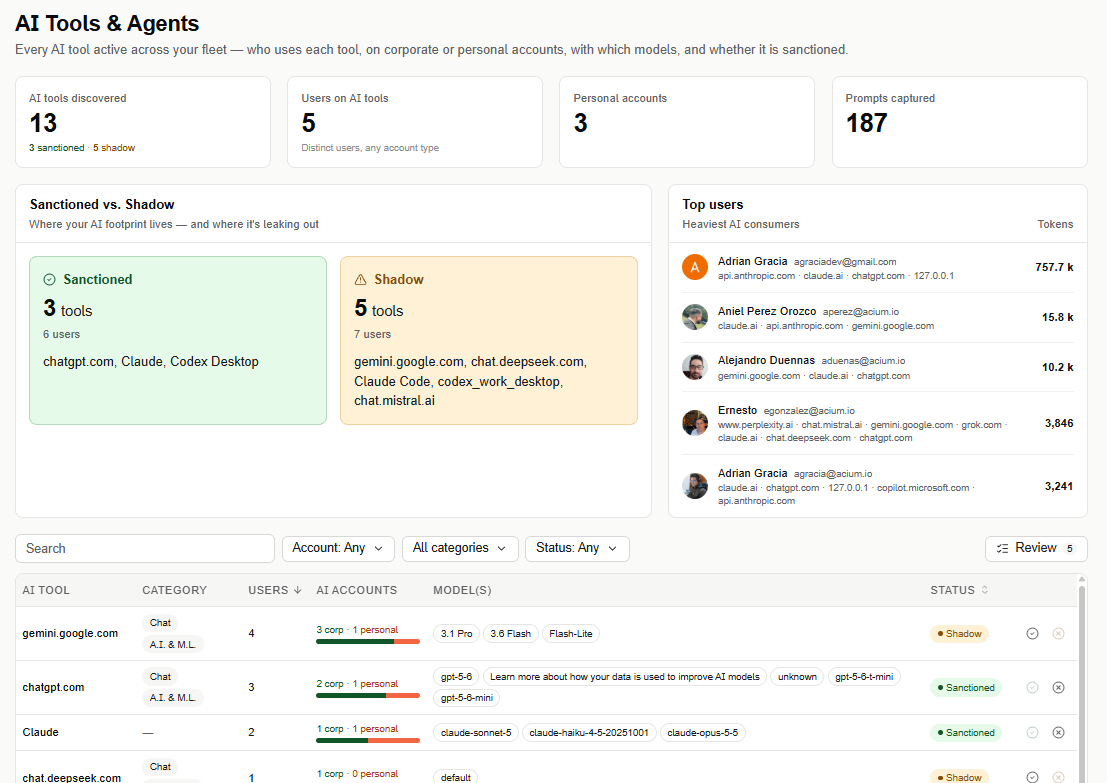
Every AI tool active across your fleet — who uses each tool, on corporate or personal accounts, with which models, and whether it's sanctioned.
Find this section at Watch > AI > AI Tools & Agents.
Only admins can see this view.
Overview metrics
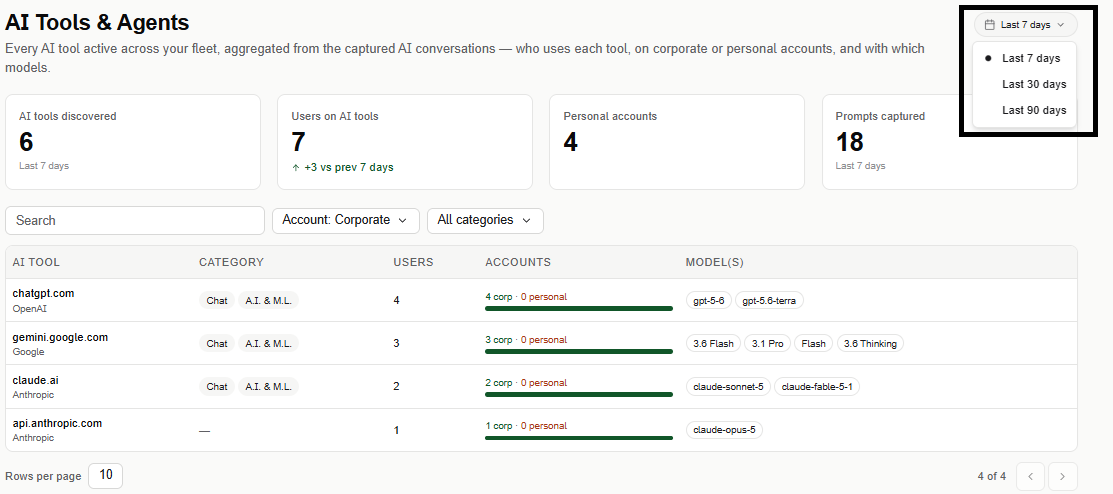
The KPI strip recalculates for whichever date range is selected at the top of the page.
- AI tools discovered — number of distinct AI tools detected in range, with a sanctioned/shadow breakdown underneath (see Sanctioned vs. Shadow for what that split does and doesn't count).
- Users on AI tools — distinct users who used an AI tool in range, plus the change versus the previous equivalent range.
- Personal accounts — how many personal accounts were used.
- Prompts captured — total prompts captured in range.
Sanctioned vs. Shadow
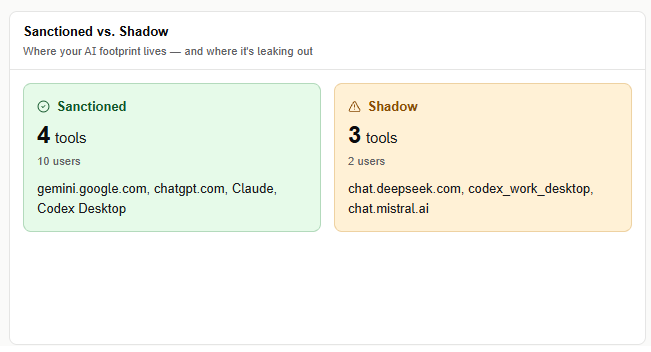
This panel covers only installed AI applications — AI browser extensions have their own sanctioned count elsewhere on this page, and web-based tools live in AI in Browsers.
Two cards, Sanctioned and Shadow, each showing how many installed apps carry that classification, how many distinct users are on them, and the names of the apps themselves. There's no third card for Unreviewed — an app in that state isn't counted or named in either card, so the two cards don't add up to the total apps discovered; the gap is what nobody has classified yet. A user who uses both a sanctioned and a shadow app is counted in both cards.
This panel only reflects a classification declared elsewhere — the admin sets an app's status from its row in the tools table below, not from this panel. There's no drill-in from a card to another view.
Unlike the rest of the page, this panel doesn't respect the date range selected at the top — it always reflects current classification state, not a snapshot of usage during that window. If an app moves from Shadow to Sanctioned, it shows as Sanctioned here immediately, regardless of what range is selected. Its heading names no period, for the same reason.
With no AI apps detected at all, the panel shows an empty state, not an error. With apps detected but none classified yet, both cards show zero — that's correct, not an error either.
Top users
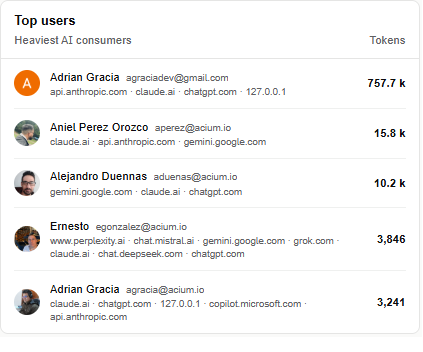
Alongside the KPI strip, a panel surfaces your heaviest AI consumers — the users generating the most volume, not just the most active ones. For each user: their identity, the installed AI tools they used, and their token count.
Ranked by tokens, not by conversation count — a user with a few very long conversations ranks above one with many short ones, since token volume is what matters for gauging how much information is actually flowing out to AI tools.
The panel respects the date range selected at the top of the page and recalculates when it changes; its heading doesn't name a fixed period. While there's no data captured in range, it shows an empty state, not an error.
Filters
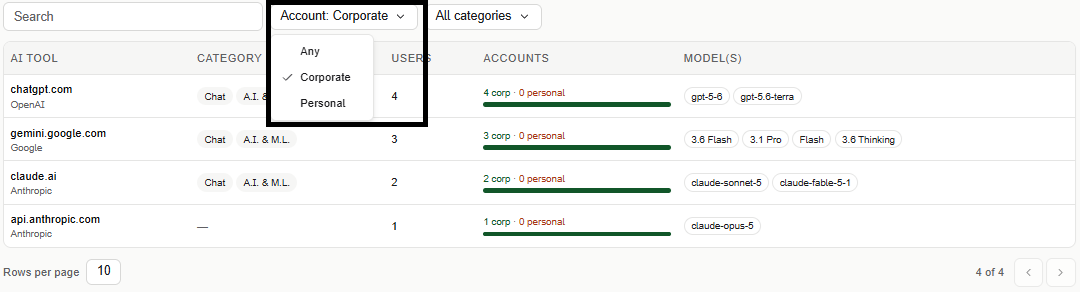
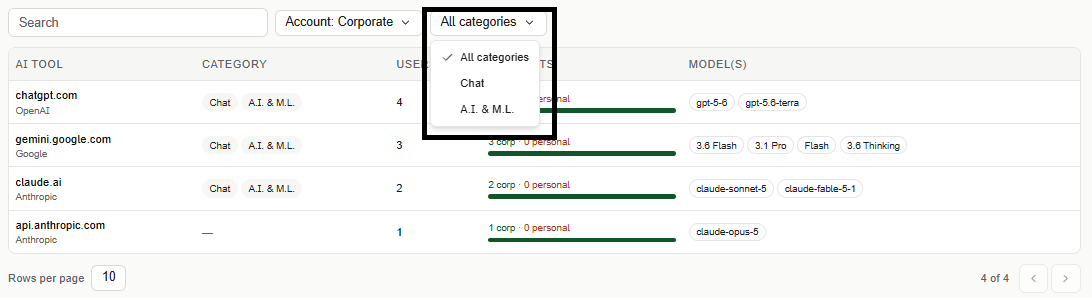
Narrow the table with a free-text search, an Account filter (Any, Corporate, or Personal), a Category filter (All categories, Chat, A.I. & M.L.), and a Status filter (Sanctioned, Shadow, or Unreviewed). Status filters on the tool's current classification, not what it was during the selected date range.
The date range selector (top right) defaults to Last 7 days, and can be widened to Last 30 days or Last 90 days.
Tools table
The table is paginated (10 rows per page by default) and lists one row per AI tool:
- AI Tool — the tool's name and vendor.
- Category — the tool's category (for example, Chat, A.I. & M.L.), or a dash when uncategorized.
- Users — how many users used it in range.
- Accounts — a corporate/personal split, shown as a bar and as counts (for example, "2 corp · 1 personal"), or a dash when there's no account breakdown.
- Model(s) — the models used with that tool in range.
- Status — Sanctioned, Shadow, or Unreviewed. See Classification for how it's set.
Capture today covers Claude (chat, Cowork, Code, CLI, and the VS Code extension), ChatGPT (Codex and Work), LM Studio, and Copilot. ChatGPT's own web chat isn't captured yet — Cloudflare's protections block the capture proxy there.
For the Claude VS Code extension specifically: it reads the proxy setting from an environment variable at startup, so a change to the proxy doesn't take effect until VS Code is restarted. That cuts both ways — turning the proxy on without restarting means the extension's traffic never routes through it, and turning it off without restarting can leave the extension unable to connect, since it keeps trying to reach the now-stopped proxy.
Classification
Every tool starts Unreviewed — nobody's looked at it yet. From there, an admin sets it to:
- Sanctioned — reviewed and approved for the organization.
- Shadow — reviewed and not approved.
Classifying a tool doesn't enforce anything: none of the three states blocks or restricts the tool on the endpoint, or changes what the end user can do with it. It's the organization's declared posture, not a control.

Each row has two icons for this — one to mark Sanctioned, one to mark Shadow. The icon matching the tool's current status is disabled; the other is the available action. Hovering the available icon names the action (for example, "Mark as Shadow").
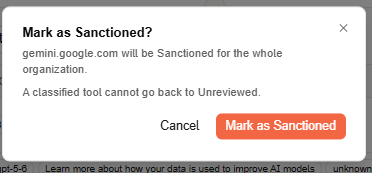
Selecting an icon opens a confirmation dialog naming the tool and the organization-wide effect of the change, before applying it. A tool can't be sent back to Unreviewed once classified — from there it can still move between Sanctioned and Shadow, just not back to unclassified. The row updates immediately after confirming, with no need to reload the page.
A classification applies to the whole organization — it isn't scoped per profile or group.
Only the Admin role can classify a tool. The action isn't shown at all for other roles — it doesn't appear disabled.
Review mode
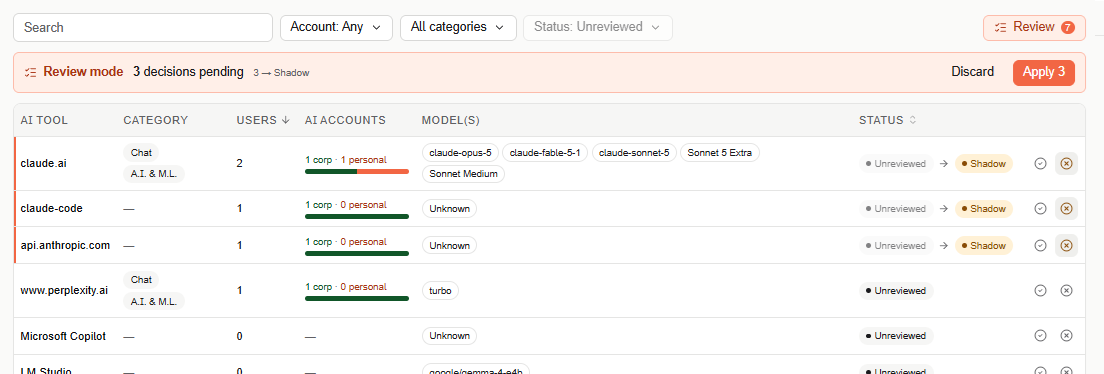
The Review button (top right, badged with the current count of Unreviewed tools) classifies several tools in one pass instead of one at a time. Selecting it enters Review mode: the table locks to Unreviewed tools and the Status filter disables, since that's the only thing there is to review.
From here, picking Sanctioned or Shadow on a row still opens the same confirmation dialog as normal — but confirming it only stages that decision rather than saving it. The row shows the pending change as Unreviewed → Shadow (or Sanctioned), and the banner's running count and breakdown (for example, "4 decisions pending — 4 → Shadow") updates as you go.
Nothing is classified until you select Apply N, which opens one last confirmation summarizing every staged decision before committing them all together.
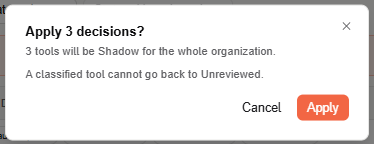
Select Discard at any point instead to drop every staged decision and leave all those tools Unreviewed.