Unblock Requests
Unblock Requests lists end-users requesting access to a page the extension blocked. Approve or deny each request inline, directly from the table.
Find this section at Watch > Activity > Unblock Requests.
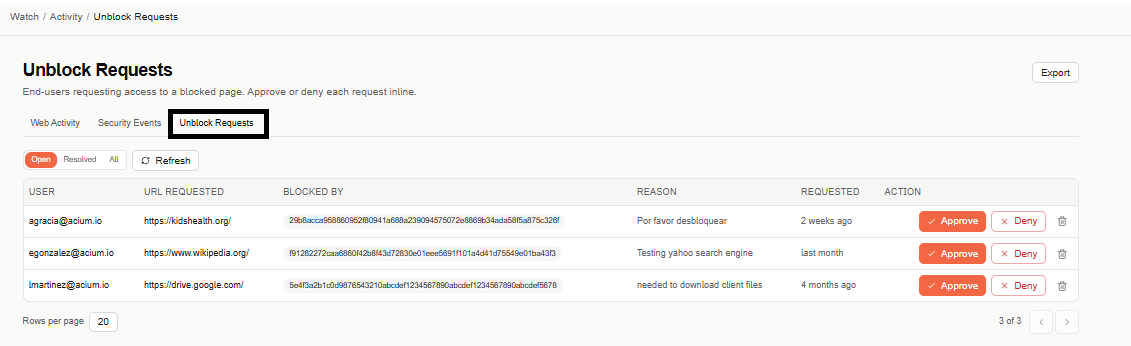
Unblock Requests shares its header with Web Activity and Security Events — use the tabs above the table to switch between the three Activity views.
Access
Only the Admin role can approve, deny, or delete a request. Editor and Viewer can see the queue and each request's details, but can't act on them.
Status filter
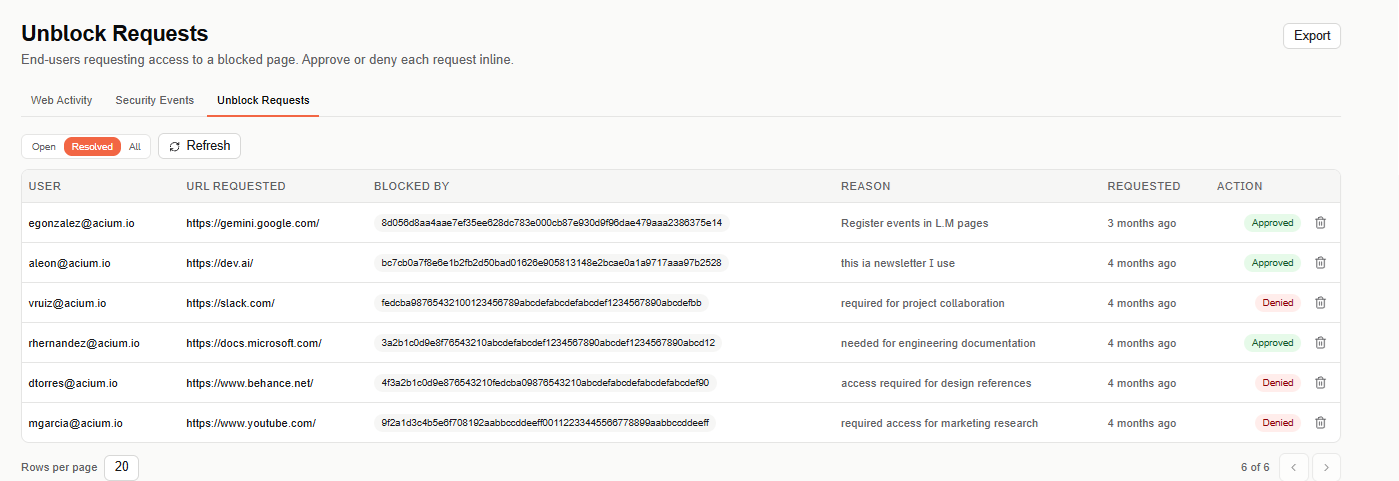
Use the Open, Resolved, and All toggle above the table to switch between pending requests, requests that have already been approved or denied, and the full list. Select Refresh to reload.
The date range selector (top right) defaults to Last 7 days, and can be widened to Last 30 days or Last 90 days.
Requests table
The table is paginated (20 rows per page by default):
- User — who requested access.
- URL requested — the page the user tried to reach.
- Blocked by — the ID of the rule or policy that blocked the page.
- Reason — the optional explanation the user submitted with the request.
- Requested — how long ago the request was submitted.
- Action — for an open request, Approve or Deny buttons; for a resolved one, its outcome badge (Approved or Denied). A trash icon deletes the request from the queue.
Approving a request creates an exception so the requesting user can access that URL going forward. Denying closes the request without granting access.
Delete request
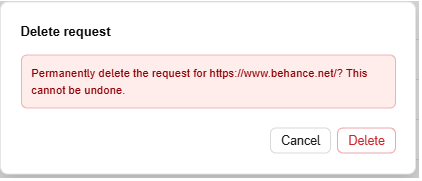
Selecting the trash icon opens a confirmation dialog before deleting — this permanently removes the request and can't be undone.
Export
Select Export (top right) to download the currently filtered requests as a CSV file.